LearnOpen Feedlio
Esc
↑↓ to move↵ to openSearches every guide and step
Home›Feedlio Brand›Knowledge & channels
Guide 18 · Feedlio Brand

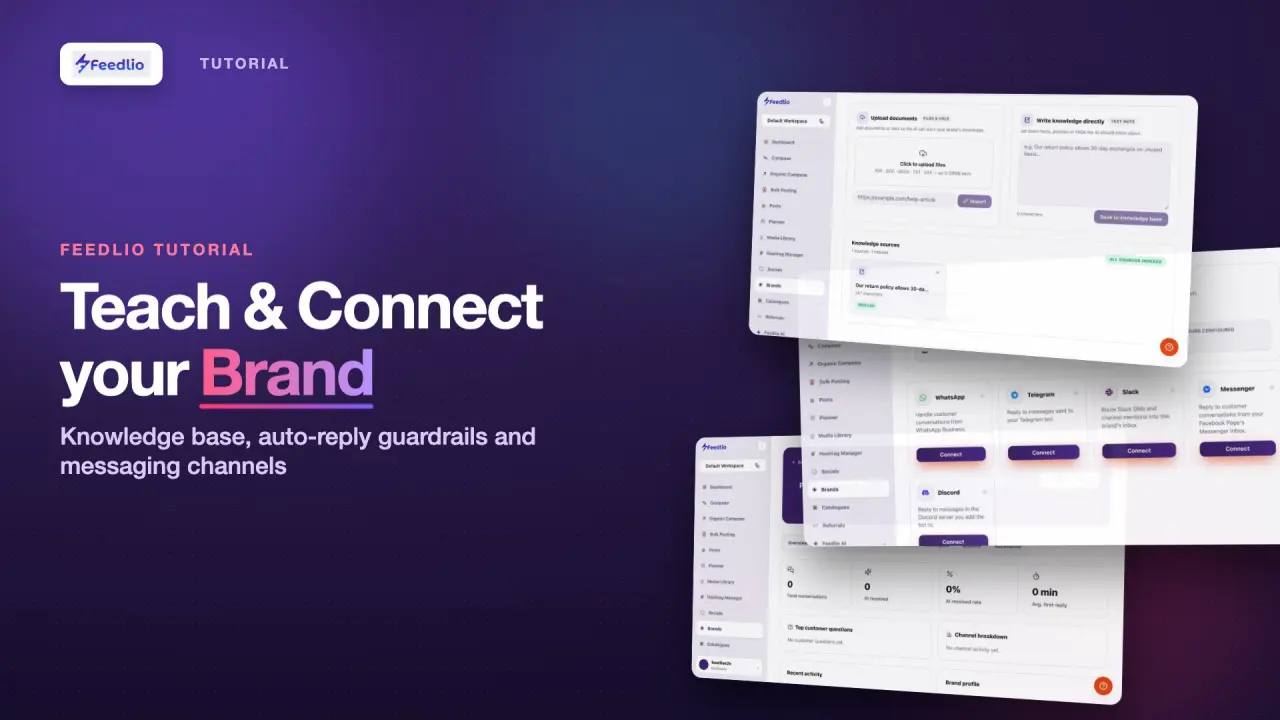
Teach & Connect your Brand

Teach your brand assistant what it needs to know and connect it to your customers. Add documents, links and notes to its knowledge base, review its auto-reply rules, and connect messaging channels like WhatsApp and Slack.

1:45 video3 min read7 stepsAll plans
Teach & Connect your Brand tutorial videoVideo coming soon

What you'll learn

  • Read a brand's Overview stats
  • Add documents, links and notes to the knowledge base
  • Check when each source is indexed
  • Review auto-reply rules and connect messaging channels

Step by step

Follow along in the app. Tick each step off as you go.

STEP 1 of 7

Brand overview

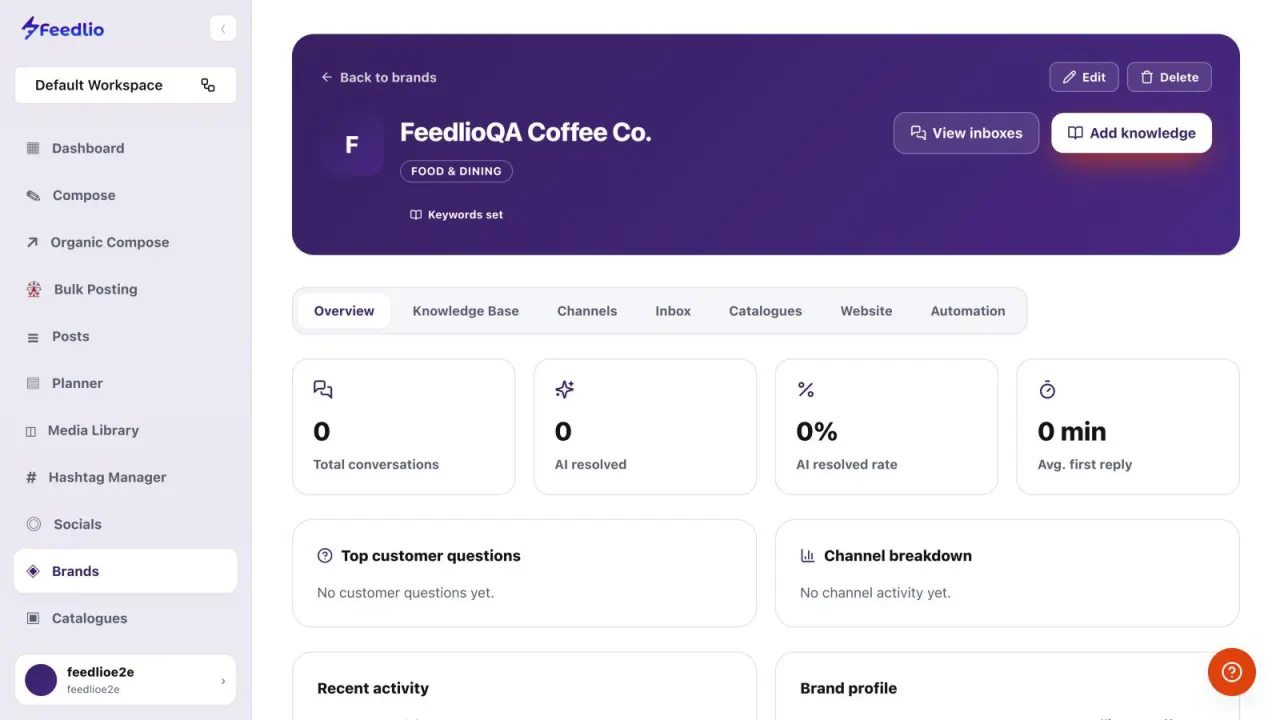
Open a brand from Brands to land on its Overview tab. It shows Total conversations, AI resolved, the AI resolved rate and Avg. first reply. Top customer questions and Channel breakdown appear below.

feedlio.io/brandsClick to zoom
Screenshot: Brand overview
feedlio.io/brandsClick to close
Screenshot: Brand overview
Step 1: Brand overviewEsc to close
STEP 2 of 7

Every brand tool

The tabs hold every brand tool, from Knowledge Base and Channels to Inbox, Catalogues, Website and Automation. At the top, click Edit or Delete to manage the brand, View inboxes to see conversations, or Add knowledge to teach it.

feedlio.io/brandsClick to zoom
Screenshot: Every brand tool12
feedlio.io/brandsClick to close
Screenshot: Every brand tool12
Step 2: Every brand toolEsc to close
STEP 3 of 7

Upload documents

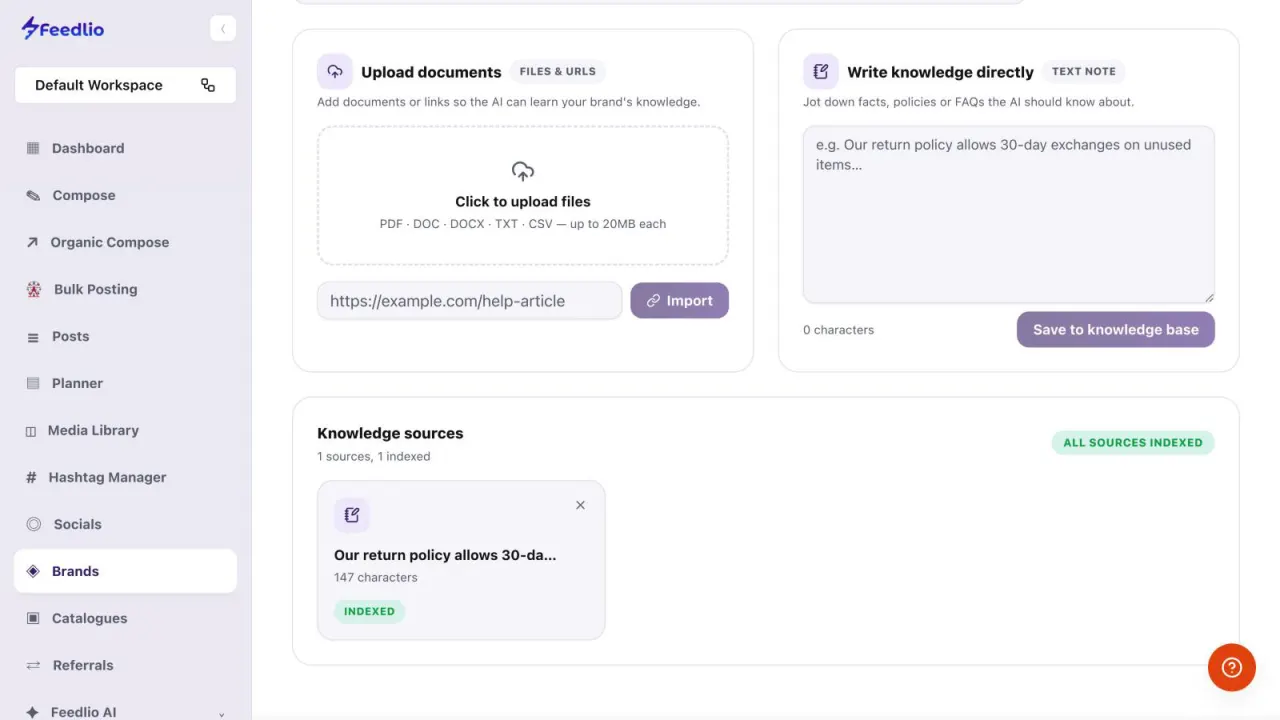
In the Knowledge Base tab, click Click to upload files to add PDF, DOC, DOCX, TXT or CSV files up to 20MB each. To add a web page, paste its link and click Import.

feedlio.io/brandsClick to zoom
Screenshot: Upload documents
feedlio.io/brandsClick to close
Screenshot: Upload documents
Step 3: Upload documentsEsc to close
STEP 4 of 7

Write notes

Under Write knowledge directly, type facts the AI should know, like your return policy or opening hours. Click Save to knowledge base.

feedlio.io/brandsClick to zoom
Screenshot: Write notes
feedlio.io/brandsClick to close
Screenshot: Write notes
Step 4: Write notesEsc to close
STEP 5 of 7

Watch it index

Every source appears under Knowledge sources. It's marked Indexed once the AI can answer from it.

feedlio.io/brandsClick to zoom
Screenshot: Watch it index
feedlio.io/brandsClick to close
Screenshot: Watch it index
Step 5: Watch it indexEsc to close
STEP 6 of 7

Auto-reply guardrails

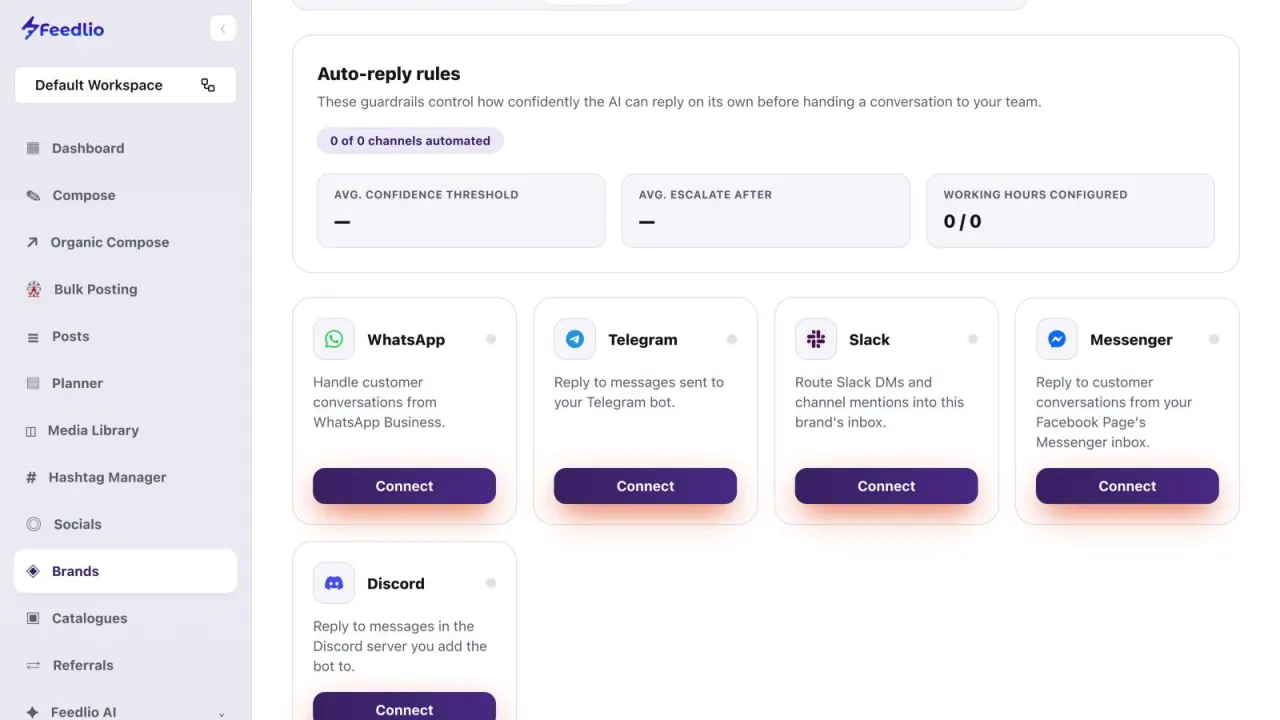
In the Channels tab, Auto-reply rules are the guardrails for replies. They set how confident the AI must be to reply on its own, when to escalate a conversation to your team, and your working hours.

feedlio.io/brandsClick to zoom
Screenshot: Auto-reply guardrails
feedlio.io/brandsClick to close
Screenshot: Auto-reply guardrails
Step 6: Auto-reply guardrailsEsc to close
STEP 7 of 7

Connect channels

Click Connect on each channel your customers use: WhatsApp, Telegram, Slack, Messenger or Discord. Conversations land in the brand's Inbox tab, where you can review and reply.

Teach before you connect.

The AI answers from indexed sources, so add your key knowledge before customers start writing in.

feedlio.io/brandsClick to zoom
Screenshot: Connect channels
feedlio.io/brandsClick to close
Screenshot: Connect channels
Step 7: Connect channelsEsc to close
Recap

Brand trained

Check performance on Overview, add files, links or notes to the knowledge base, set auto-reply guardrails, and connect WhatsApp, Telegram, Slack, Messenger or Discord.

Next: Brand website

Questions people ask

Which file types can I upload?

PDF, DOC, DOCX, TXT and CSV files, up to 20MB each. You can also import a web page by pasting its link.

How do I know the AI can use a source?

Each source in Knowledge sources shows an Indexed badge once it's ready. The AI answers from indexed sources.

Which messaging channels can I connect?

WhatsApp Business, Telegram, Slack, Facebook Messenger and Discord.

Where do customer conversations show up?

In the brand's Inbox tab, where you can review them and reply. Use View inboxes at the top of the brand page to get there.

Does the AI always reply on its own?

No. Auto-reply rules set how confident the AI must be to reply alone, when to escalate to your team, and your working hours.

Video transcript

Read the full narration

0:00A brand assistant is only as good as what it knows. In this video, you'll teach your brand with documents and notes, set auto-reply guardrails, and connect messaging channels like WhatsApp and Slack.

0:12Open a brand to see its overview: total conversations, how many the AI resolved, the resolution rate, and the average first reply time. Top questions and channel activity appear below.

0:26Tabs give you every brand tool. At the top, edit or delete the brand, view its inboxes, or jump straight to adding knowledge.

0:34In the Knowledge Base tab, upload documents like PDFs, Word files or CSVs up to twenty megabytes, or paste a link to a help article and click Import.

0:45Or write knowledge directly, such as your return policy or opening hours, and save it to the knowledge base.

0:52Each source appears in the list, and is marked indexed once the AI can answer from it.

0:58In Channels, auto-reply rules control how confident the AI must be to reply on its own, when to escalate a conversation to your team, and during which working hours.

1:09Then connect the messaging channels your customers use: WhatsApp Business, Telegram, Slack, Facebook Messenger, or Discord. Conversations land in the brand's inbox, where you can review and reply.

1:23Recap: check performance on Overview, upload files, links or notes to the knowledge base, set auto-reply guardrails, and connect WhatsApp, Telegram, Slack, Messenger or Discord.

1:37Your brand assistant is trained and ready to answer. Next, let's explore its AI website builder, catalogues and automation.

Related guides