STEP 1 of 5
Open Settings
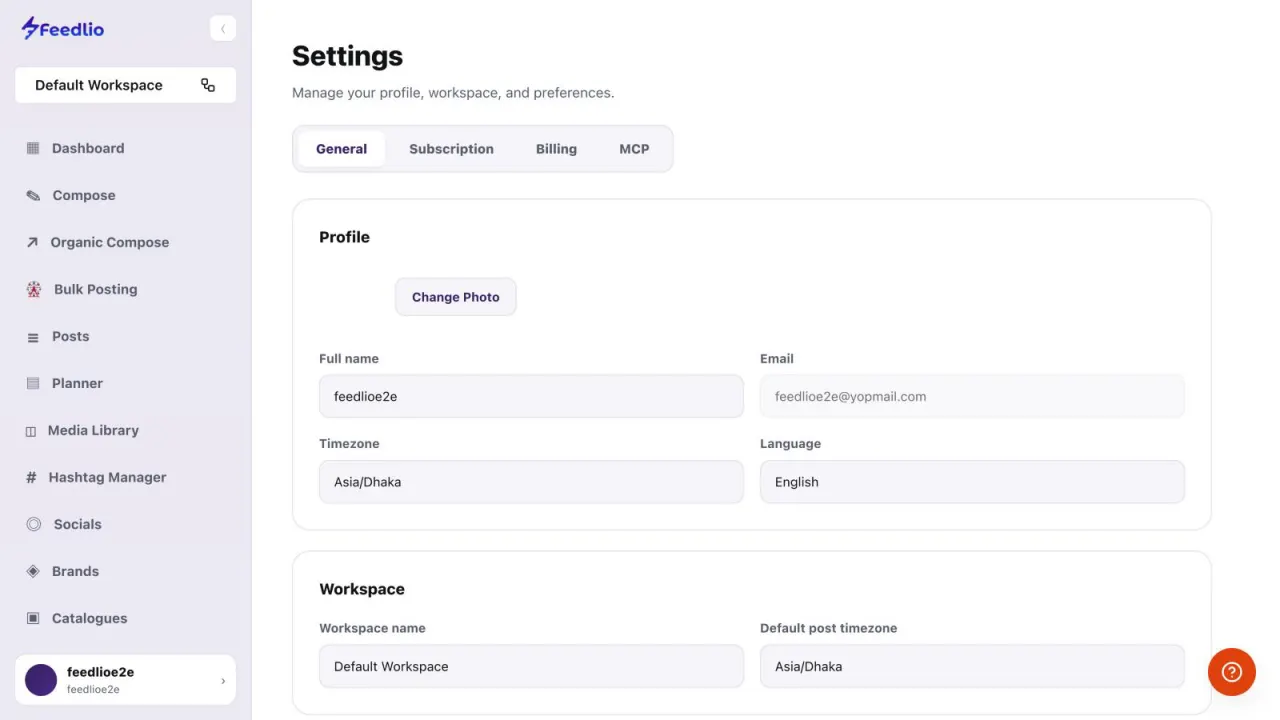
Click Settings in the left sidebar. The tabs at the top take you to General, Subscription, Billing and MCP. This guide covers General.
- General
- Subscription & Billing
- MCP
feedlio.io/settings/generalClick to zoom
Find your profile and workspace details, choose which notifications you get, switch on dark mode, and know what the danger zone does before you touch it.
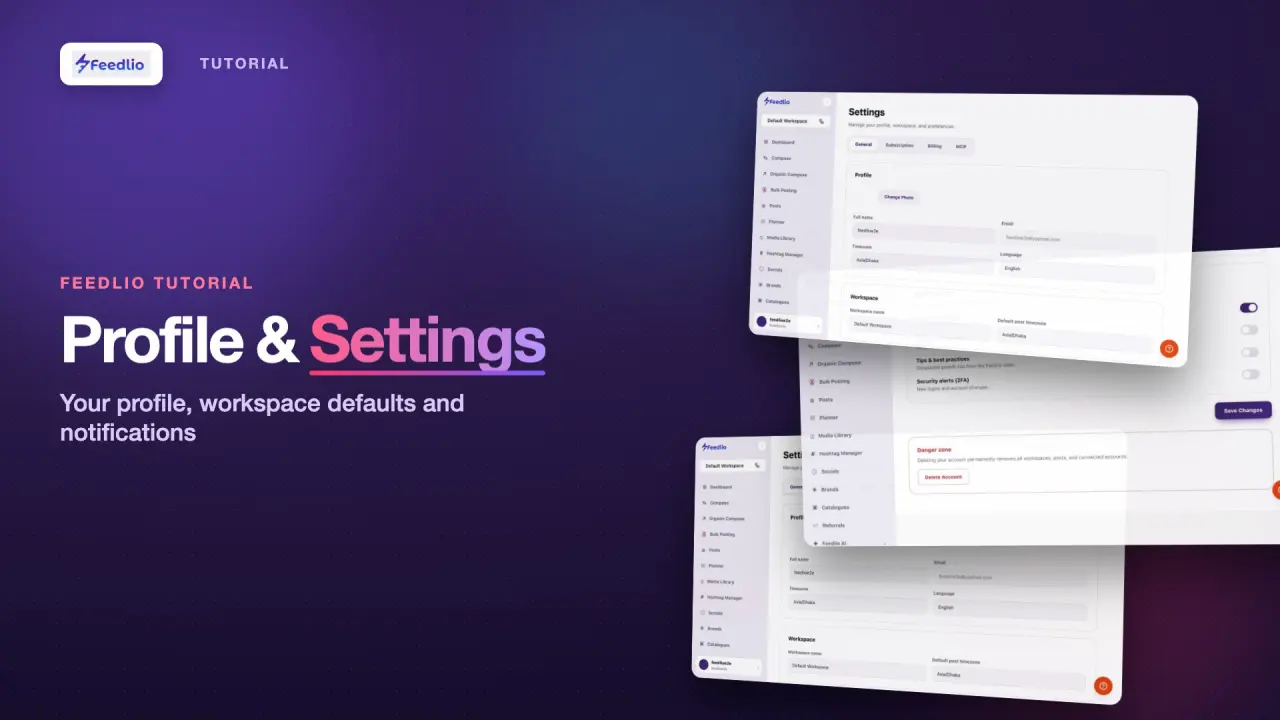 Video coming soon
Nothing to set up first. You can follow this guide straight away.
Follow along in the app. Tick each step off as you go.
Click Settings in the left sidebar. The tabs at the top take you to General, Subscription, Billing and MCP. This guide covers General.
The Profile section shows your photo, Full name, Email, Timezone and Language. Click Change Photo to pick a new picture. Your email is shown for reference only.
The Workspace section shows the current Workspace name and its Default post timezone. Every scheduled post in this workspace uses that time zone.
These fields belong to the workspace selected at the top of the sidebar. Switch workspaces to see another one.
Under Notifications, use the toggles to pick what you hear about. Email notifications covers published, scheduled and failed posts. You can also turn on Display dark mode, Tips & best practices and Security alerts (2FA).
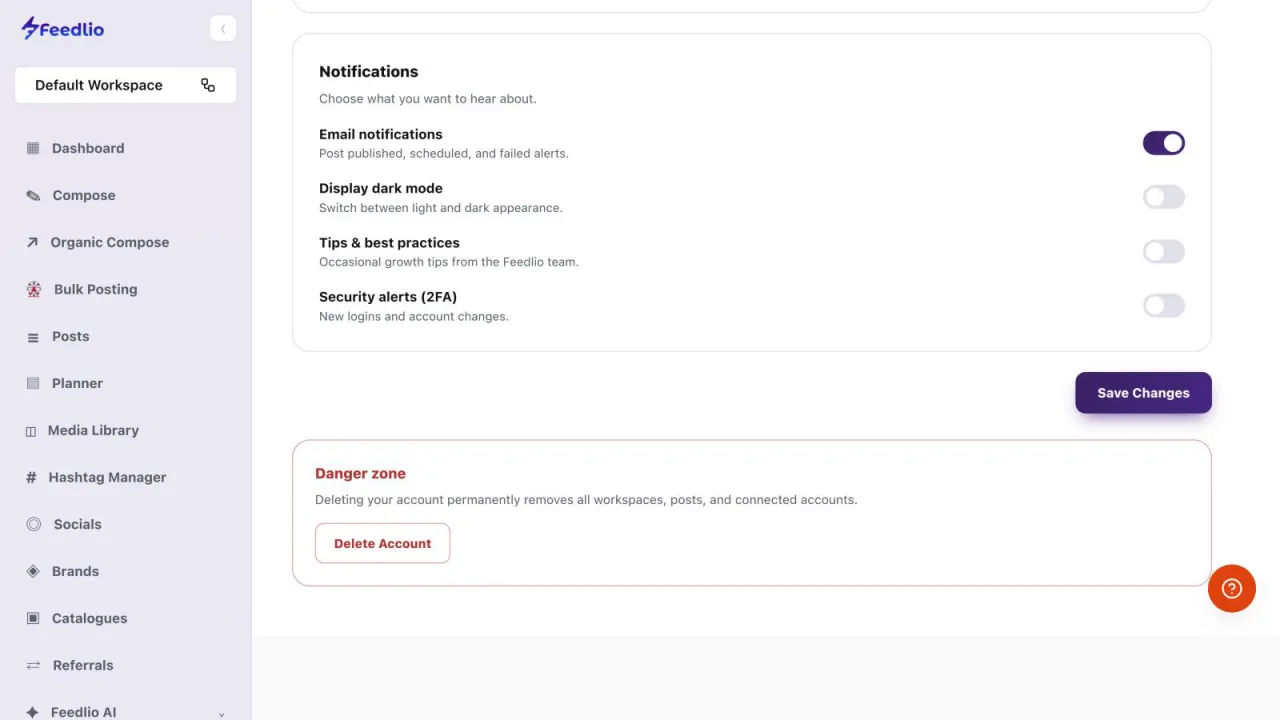
Click Save Changes when you're done.
Delete Account in the Danger zone permanently removes all your workspaces, posts and connected accounts. Only use it if you're absolutely sure.
Nothing is recoverable after you delete your account.
Check your profile and workspace details, see the default post time zone, choose your notifications, and save your changes.
No. The Email field is shown for reference only and can't be edited on this page.
It sets the time zone for every scheduled post in the current workspace. Compose, Planner and the other scheduling screens all use it.
When it's on, Feedlio alerts you about new logins and account changes.
No. Deleting your account permanently removes all your workspaces, posts and connected accounts.
Use the Subscription and Billing tabs at the top of Settings. The Plans and AI credits guide walks through both.
0:00Settings is where you personalise Feedlio: your profile, language and time zone, your workspace defaults, and the notifications you receive.
0:10Open Settings from the sidebar. Tabs at the top take you to General, Subscription, Billing and MCP.
0:17In your profile, change your photo, update your name, and set your personal time zone and language. Your email is shown for reference.
0:27Below, rename the current workspace and set its default post time zone, which every scheduled post in this workspace uses.
0:35Under Notifications, choose what you want to hear about: email alerts for published, scheduled and failed posts, dark mode, growth tips, and security alerts for new logins.
0:48Click Save Changes to apply everything.
0:51Pro tip: the danger zone lets you delete your account, which permanently removes all workspaces, posts and connected accounts. Only use it if you're absolutely sure.
1:02Recap: update your photo, name, time zone and language, set the workspace name and default post time zone, choose notifications, and save your changes.
1:14Feedlio is now set up just the way you like it. Next, let's look at plans, usage and AI credits.