STEP 1 of 7
Three simple steps
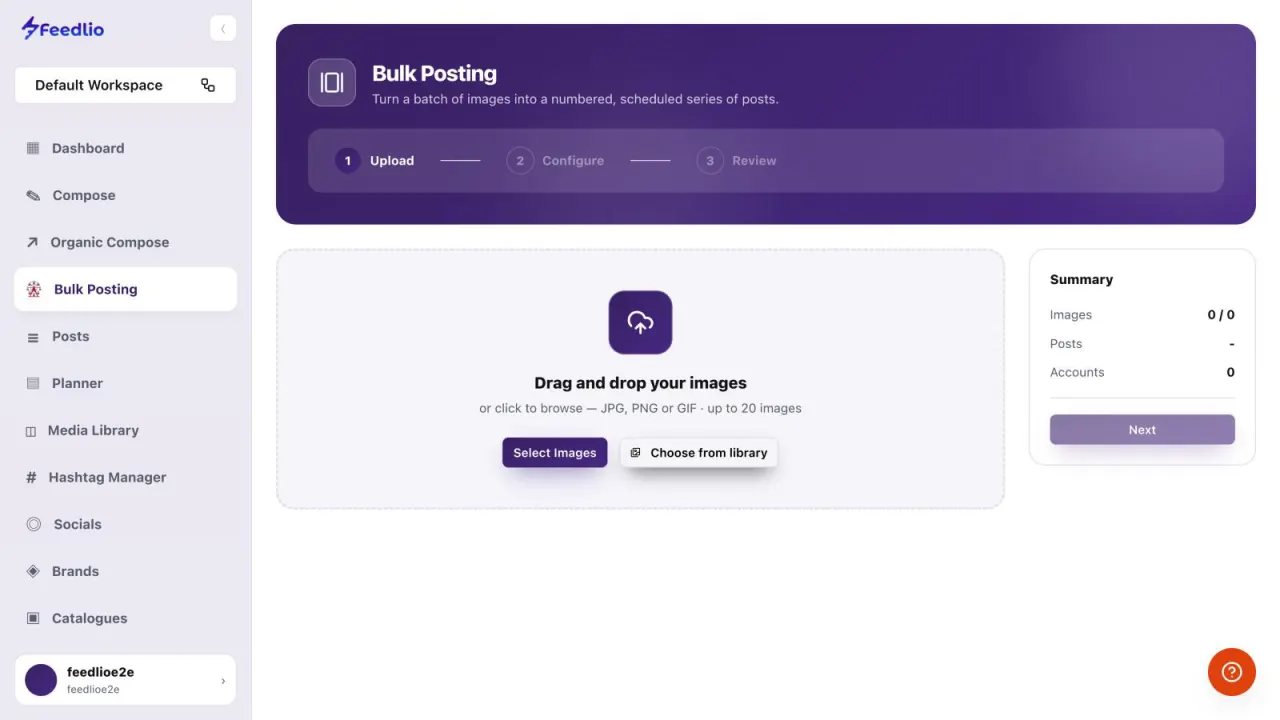
Click Bulk Posting in the left sidebar. The page walks you through three steps: Upload, Configure and Review.
feedlio.io/bulk-postingClick to zoom
Turn a batch of images into a numbered series of posts. Write one caption, pick your accounts, set a start time and interval, and Feedlio schedules every post for you.
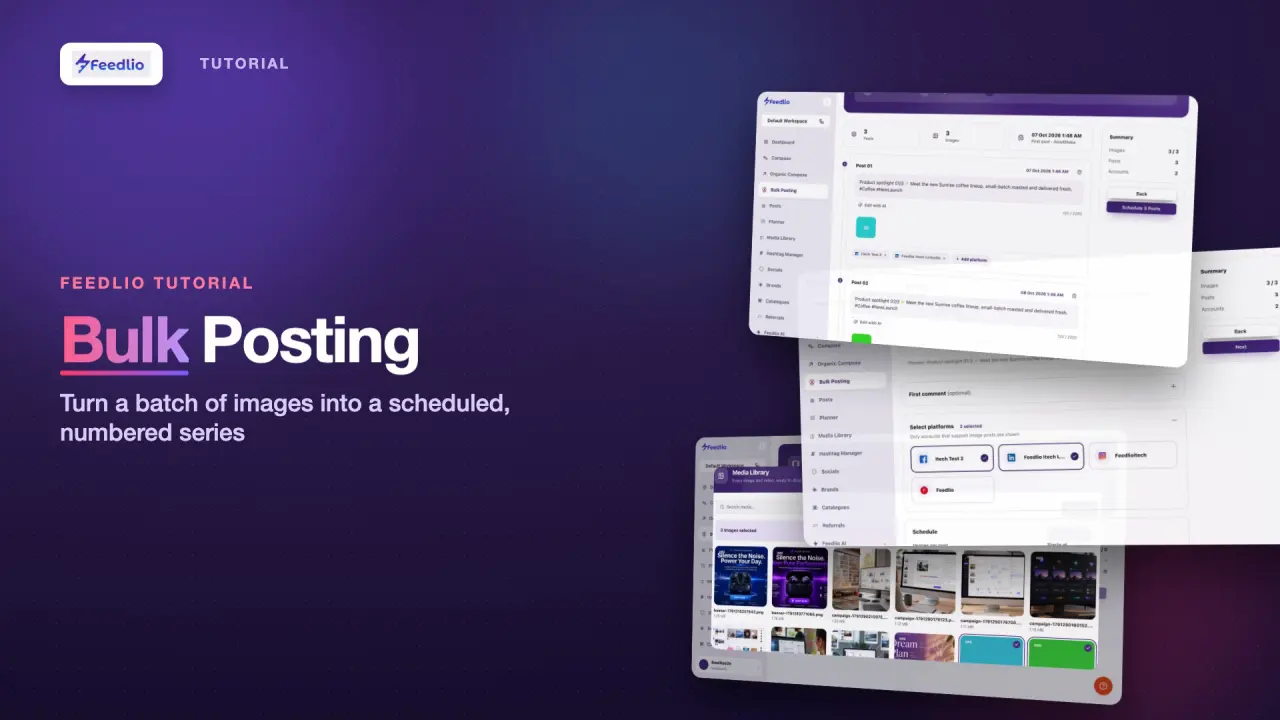 Video coming soon
Follow along in the app. Tick each step off as you go.
Click Bulk Posting in the left sidebar. The page walks you through three steps: Upload, Configure and Review.
Drag and drop your images onto the upload area, or click Select Images to browse your computer. To reuse files you already have, click Choose from library. The Summary on the right keeps count as you add them.
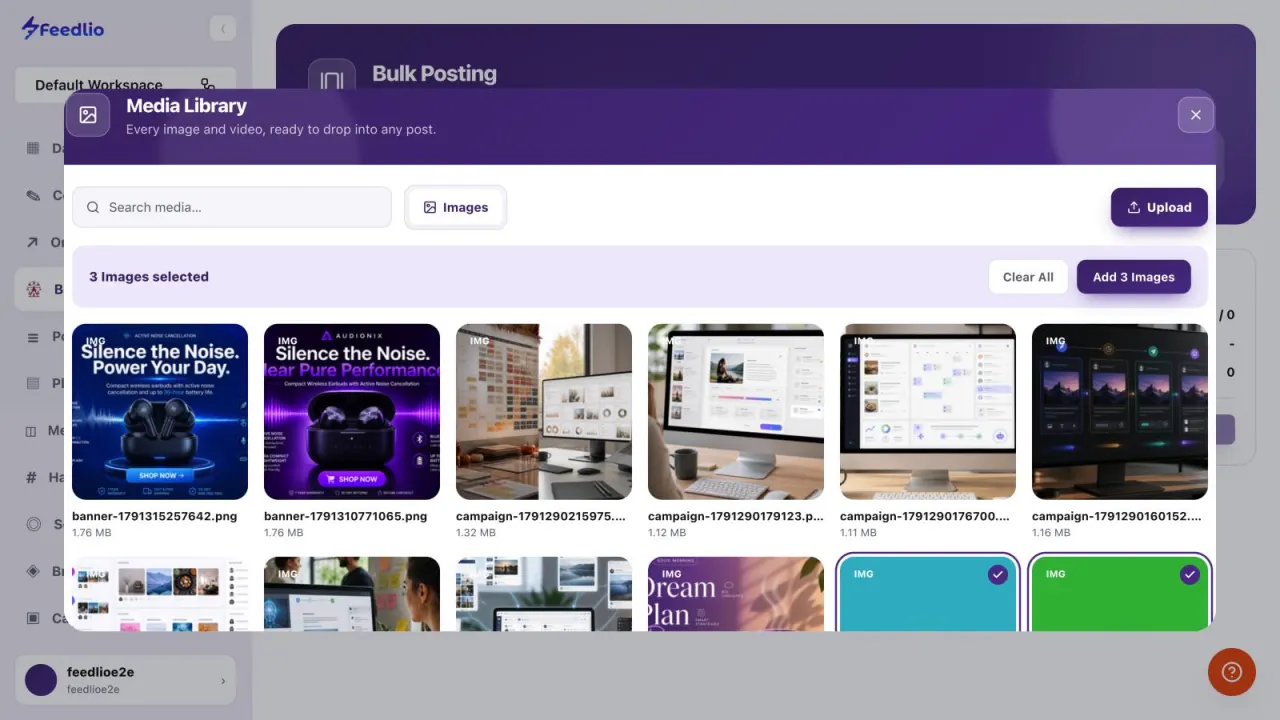
12Click each image you want to include. A check mark shows it's selected. The button at the top counts your picks, like Add 3 Images. Click it, then click Next.
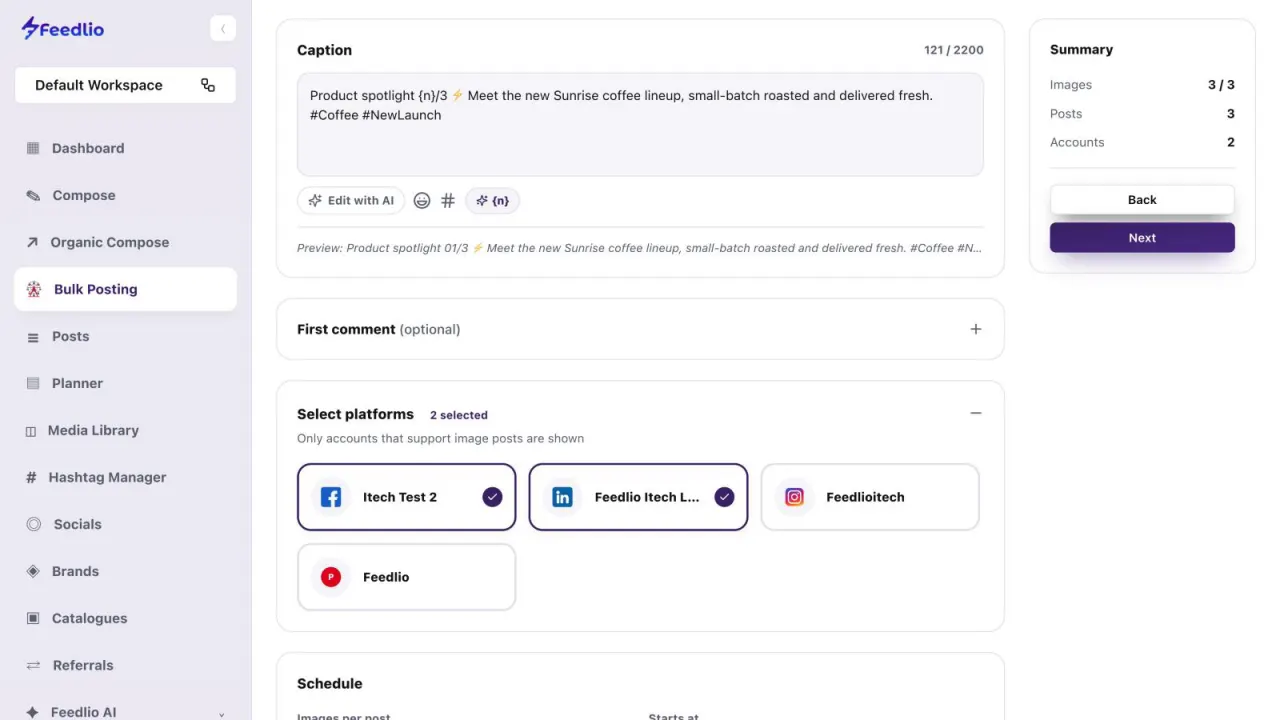
Write one Caption for the whole series. Click the {n} button to add a number placeholder, and each post gets its own number: 01, 02, 03. The Preview line shows the result, and Edit with AI helps you polish the text.
Open First comment (optional) to add a comment that goes out with every post in the series.
Under Select platforms, click each account the series should go to. Only accounts that support image posts are shown.
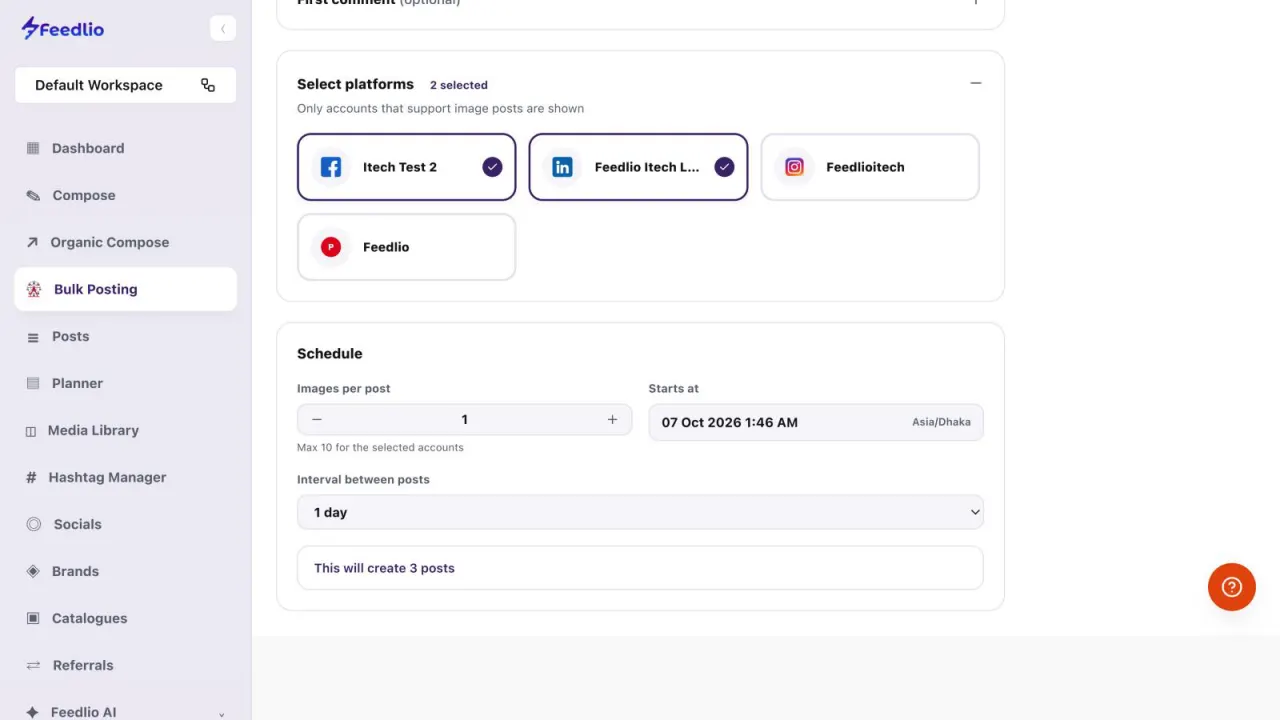
Set Images per post, pick when the first post goes out in Starts at, and choose the Interval between posts, from 1 hour to 1 week or a custom gap. The line below tells you how many posts Feedlio will create. Click Next when you're ready.
 12
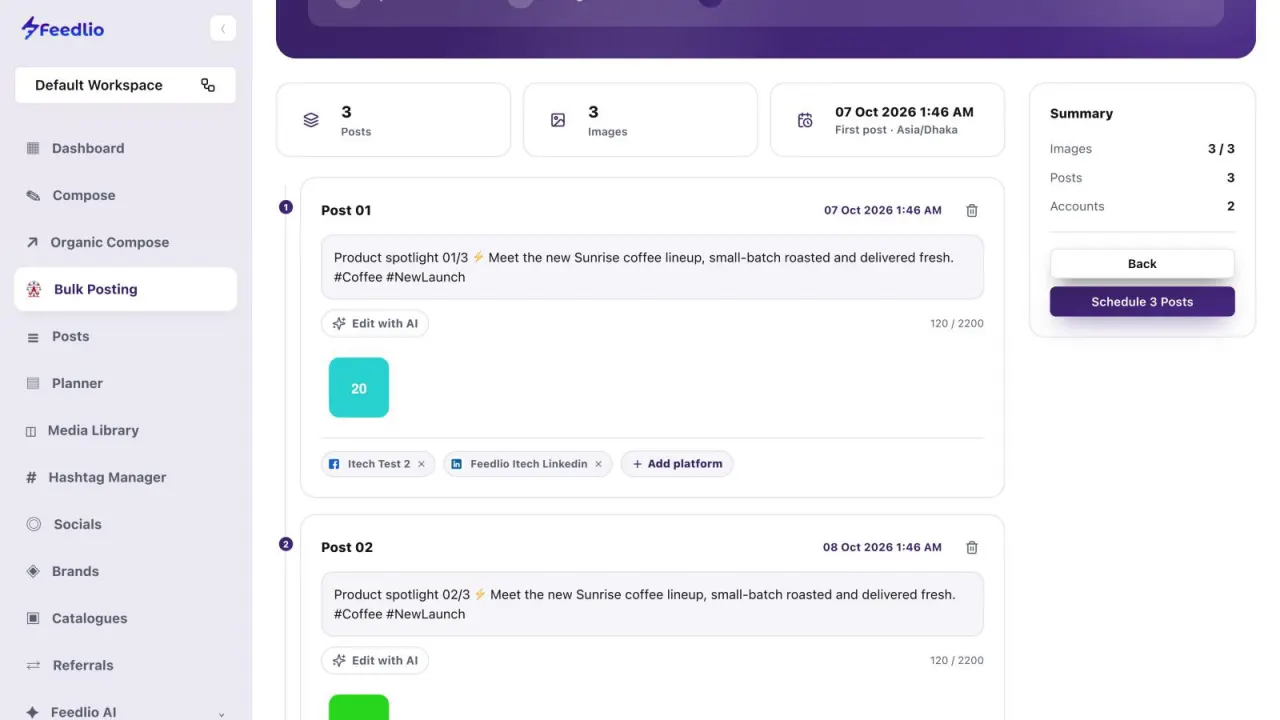
12The Review step lists every post with its date, caption, images and accounts. Edit any caption, use Add platform or the × on an account to change where a post goes, then click Schedule 3 Posts. The number matches the size of your series.
If a post has more images than one of its accounts allows, Feedlio tells you and disables the Schedule button until you fix it.
 12
12Upload or pick your images, write one numbered caption, choose your accounts, set the start time and interval, then review and schedule.
Up to 20 images per batch, in JPG, PNG or GIF format. Each post can hold up to 10 images, depending on the accounts you select.
Click the n in curly braces button under the caption to add the placeholder. Feedlio replaces it with each post's number, like 01, 02 and 03. The Preview line under the caption shows how the first post will read.
Bulk Posting only lists accounts that support image posts. If a connected account doesn't appear, it can't publish image posts.
The Schedule section shows a line such as This will create 3 posts, and the Summary on the right counts your images, posts and accounts as you go.
0:00Got a batch of images to share? Bulk Posting turns them into a numbered series of posts, scheduled automatically at the interval you choose. Let's set one up.
0:11Open Bulk Posting from the sidebar. There are just three steps: Upload, Configure, and Review.
0:18Drag and drop up to twenty images, click Select Images to browse your computer, or choose from your media library. The summary on the right keeps count.
0:28In the library, click each image you want, then click Add Images.
0:33Write one caption for the whole series. Add the n placeholder, and Feedlio numbers each post for you, like zero one, zero two, zero three. The preview shows the result, and Edit with AI can polish the text.
0:48Select the accounts to post to. Only accounts that support image posts are listed.
0:54Choose how many images go in each post, when the first post starts, and the interval between posts, from one hour to one week, or a custom gap. Feedlio tells you exactly how many posts it will create.
1:08On the review screen, every post is listed with its date, caption, image and platforms. Edit any post, add or remove a platform, then click Schedule Posts.
1:19Recap: upload or pick images, write one caption with the n placeholder, choose platforms, set the start time and interval, then review and schedule.
1:30A whole series, scheduled in one go. Next, let's manage all your posts in one place.