STEP 1 of 7
Open the Studio
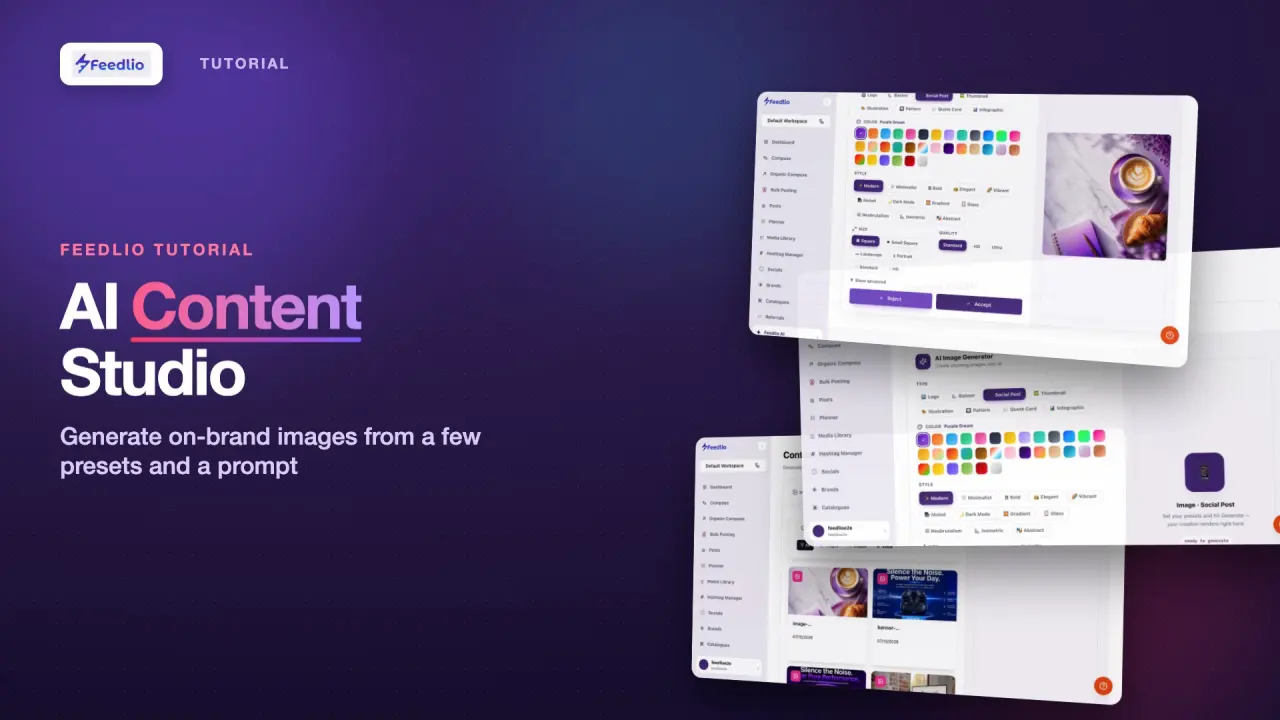
In the left sidebar, open Feedlio AI → Content Studio. The Image tab is where you create visuals. Audio, Video and Music are coming soon.
feedlio.io/content-studioClick to zoom
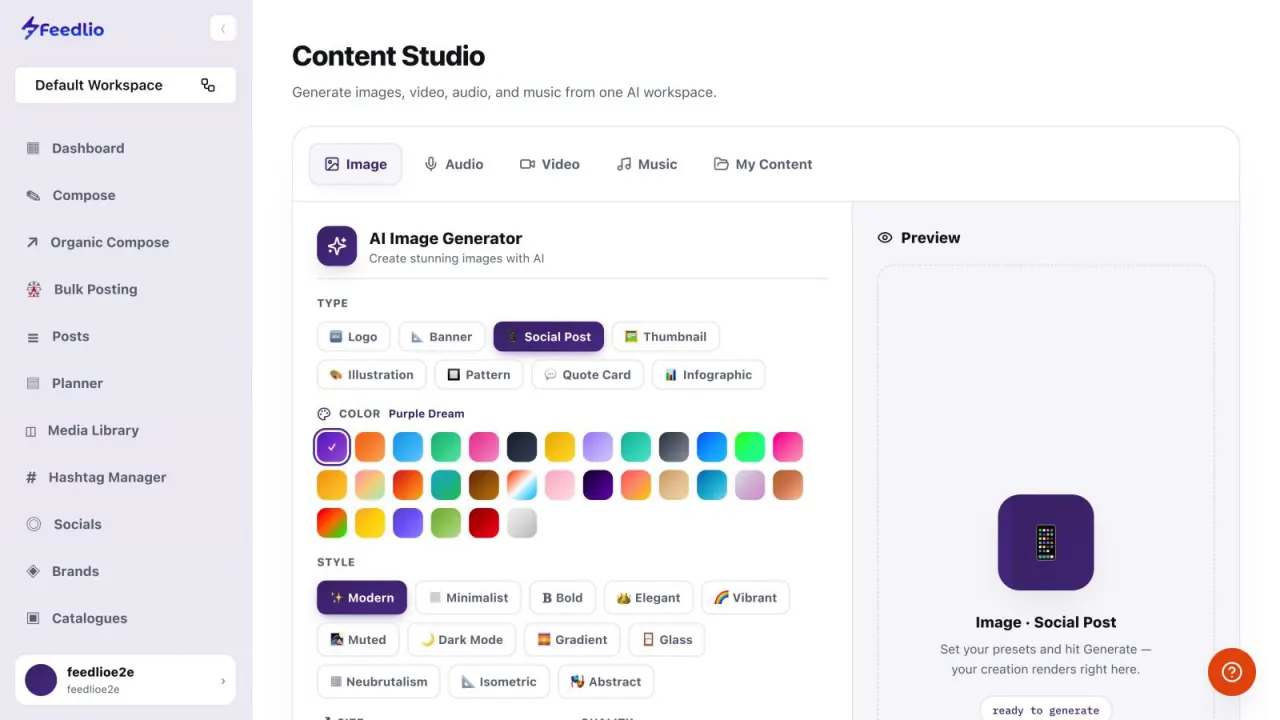
Create a ready-to-post image with Feedlio AI. Pick a type, colour, style and size, describe what you want, and save the result straight to your library.
 Video coming soon
Nothing to set up first. You can follow this guide straight away.
Follow along in the app. Tick each step off as you go.
In the left sidebar, open Feedlio AI → Content Studio. The Image tab is where you create visuals. Audio, Video and Music are coming soon.
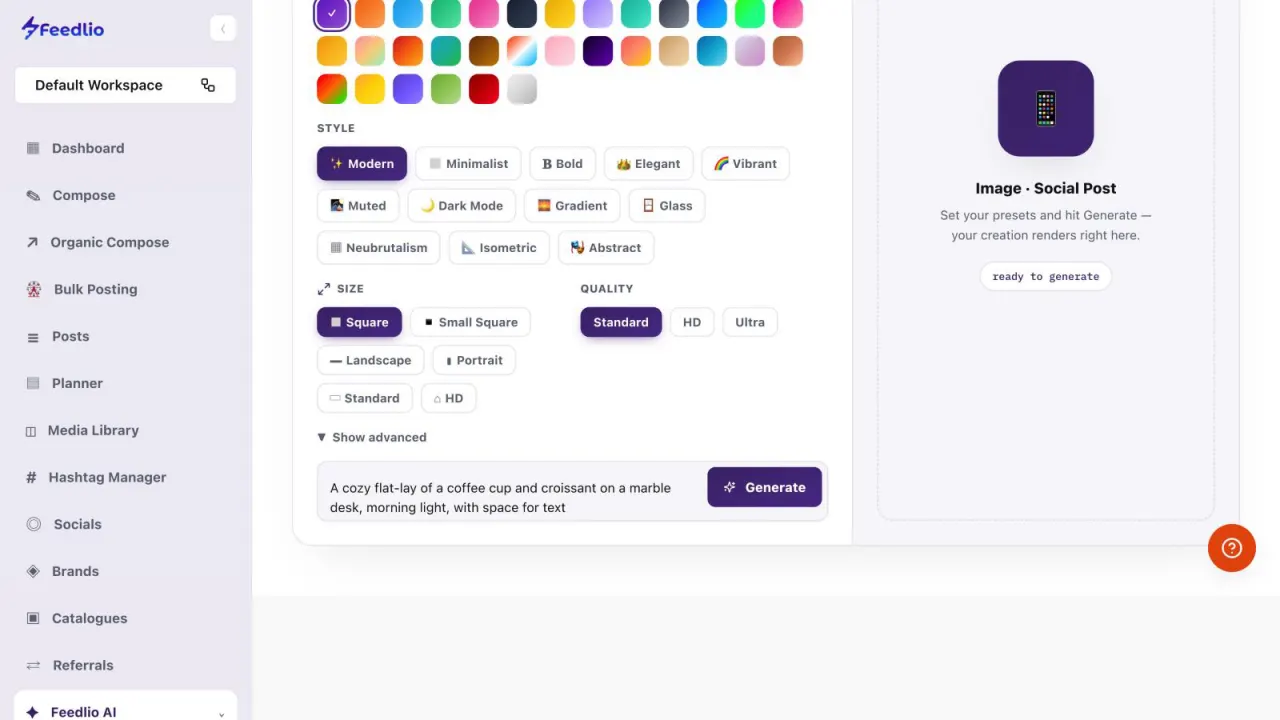
Under Type, choose what you're making: Logo, Banner, Social Post, Thumbnail, Illustration, Pattern, Quote Card or Infographic.
Click a swatch under Color to pick a palette. Its name appears next to the label. Then choose a Style, from Modern and Minimalist to Neubrutalism, Isometric and Glass.
12Under Size, pick a shape such as Square for feeds or Portrait for stories. Under Quality, choose Standard, HD or Ultra.
Click Show advanced to set a mood, turn on background removal, or add a reference image.
 12
12Describe the image you want in plain words, then click Generate.
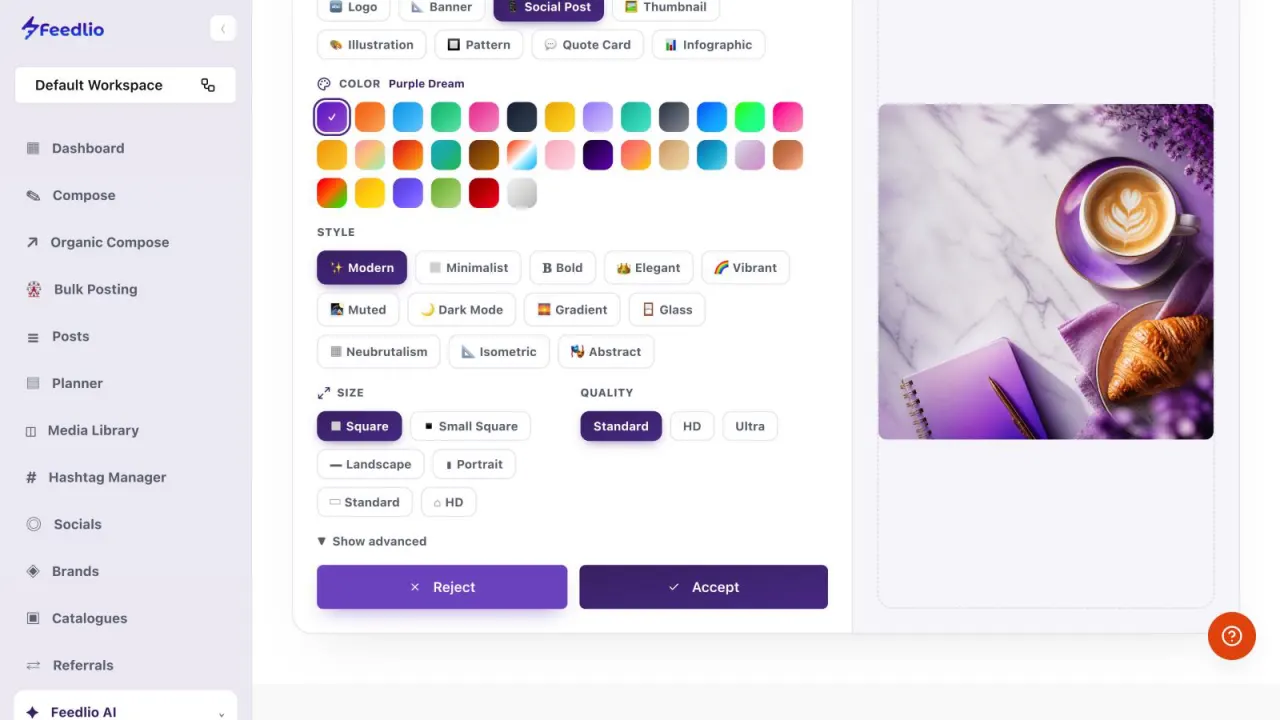
Your image appears in the preview. Click Accept to save it, or Reject to discard it and generate a new version.
 12
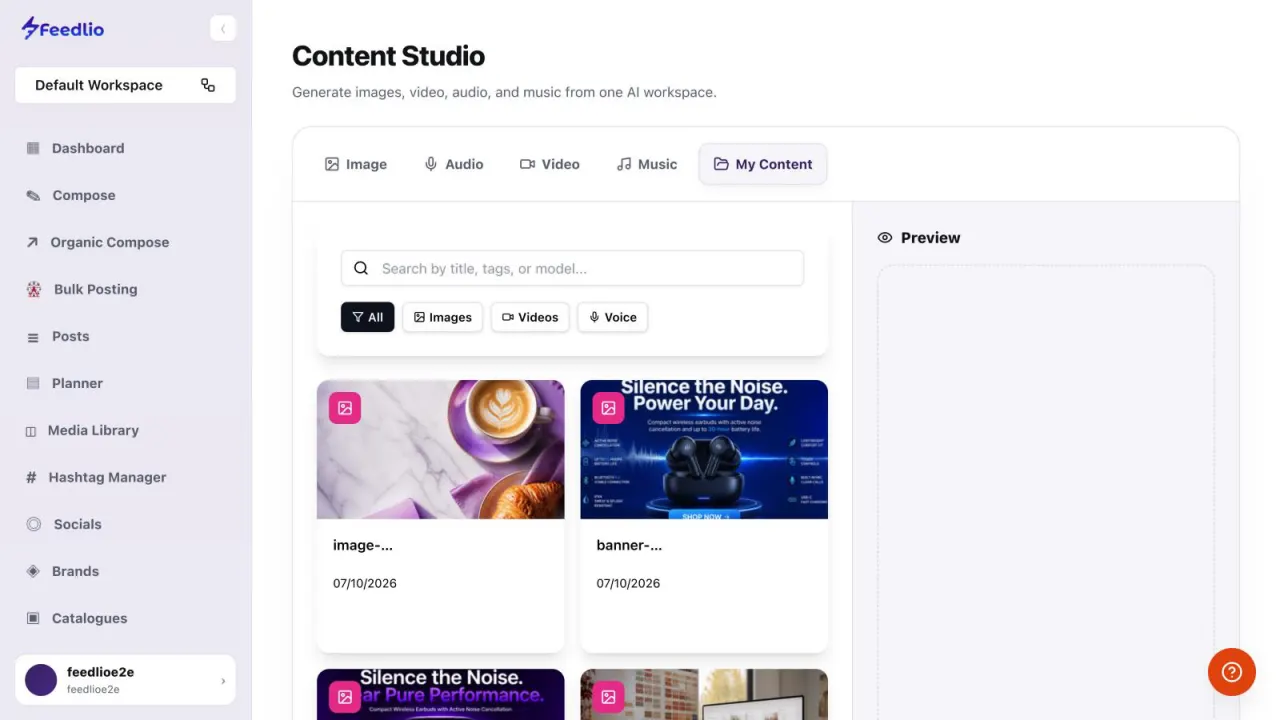
12Open the My Content tab to see everything you've created. Search, filter by Images, Videos or Voice, and preview or download any file. Each image is also added to your Media Library, ready for any post.
 12
12Choose a type, colour and style, set size and quality, describe your idea and generate. Accept the result, then find it in My Content and your Media Library.
Not yet. The Audio, Video and Music tabs are marked Coming Soon. Image is the studio you can use today.
Every image you accept is saved under My Content in Content Studio and added to your Media Library, ready to use in any post.
Click Reject, adjust your presets or description, and click Generate again.
Square, Small Square, Landscape, Portrait, Standard and HD. Quality can be Standard, HD or Ultra.
0:00Content Studio is Feedlio's AI creative workspace. Pick a few presets, describe what you want, and get a ready-to-post image in seconds.
0:10Open Feedlio AI, then Content Studio. The Image tab is where you create visuals. Audio, Video and Music studios are coming soon.
0:20First, pick what you're making: a logo, banner, social post, thumbnail, illustration, pattern, quote card or infographic.
0:30Choose a colour palette, then a visual style, from modern and minimalist to neubrutalism, isometric and glass.
0:38Set the size, like square for feeds or portrait for stories, and pick standard, HD, or ultra quality. Show advanced adds moods, background removal, a reference image and model choice.
0:51Describe the image you want in plain words, then click Generate.
0:56Your image appears in the preview. Accept it to save it, or reject it and generate a new version.
1:02Every creation is saved in My Content, where you can search, filter, preview and download it. It's also added to your Media Library, ready for any post.
1:13Recap: choose a type, colour and style, set size and quality, describe your idea, generate, then accept and find it in My Content and your Media Library.
1:24You just created an image from a single sentence. Next, let's plan an entire campaign with the AI Campaign Builder.