STEP 1 of 9
Your totals
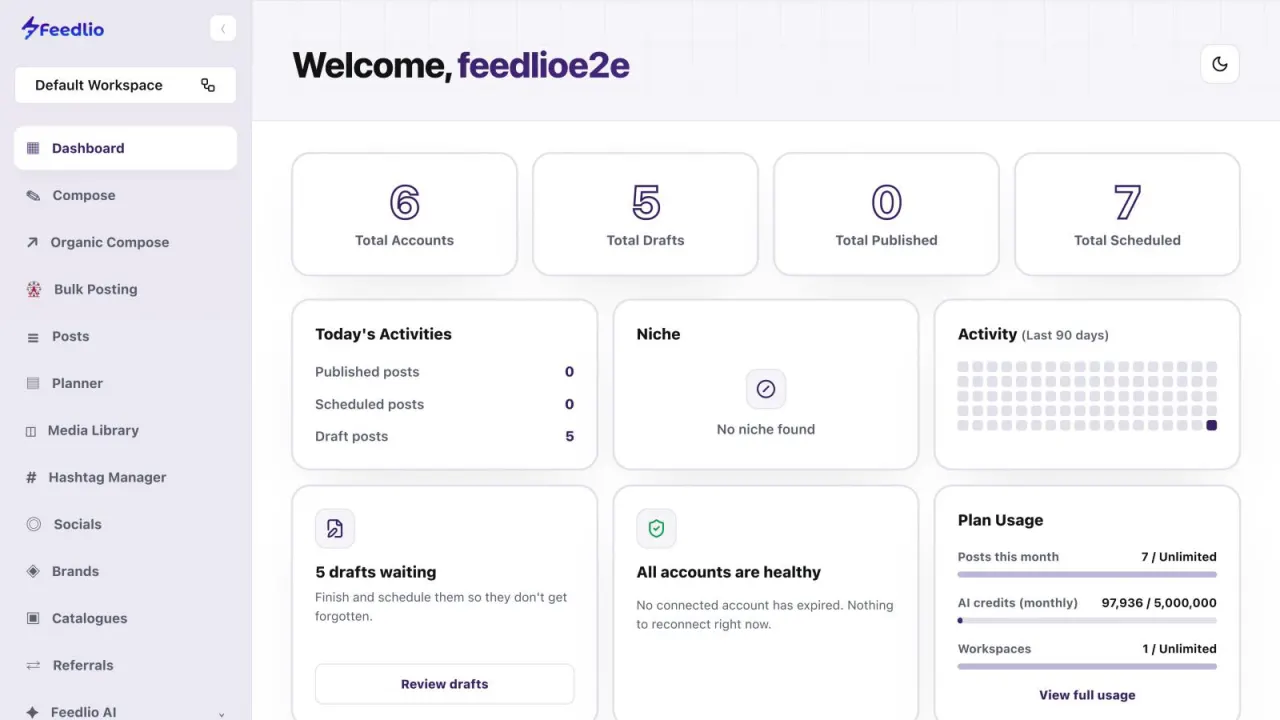
The four counters at the top show Total Accounts, Total Drafts, Total Published and Total Scheduled.
feedlio.io/dashboardClick to zoom
Read every card on your dashboard, so one quick check tells you what's scheduled, what needs attention and how much of your plan you've used.
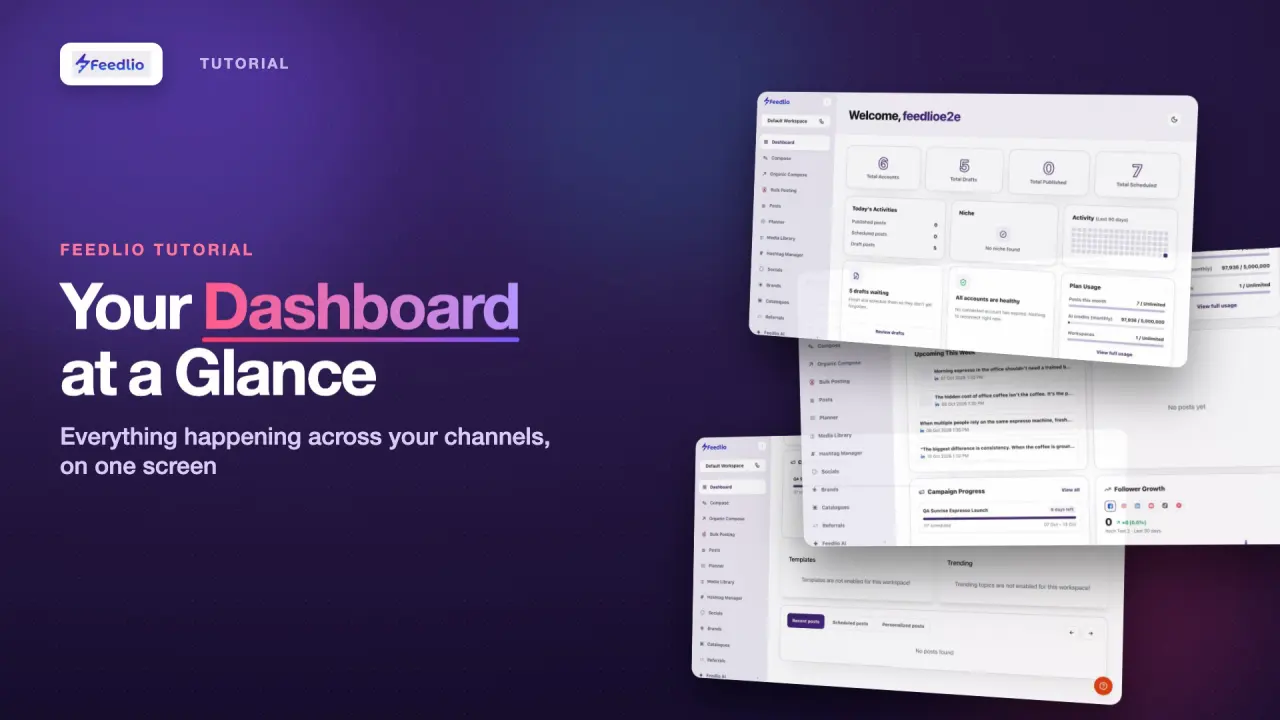 Video coming soon
Nothing to set up first. You can follow this guide straight away.
Follow along in the app. Tick each step off as you go.
The four counters at the top show Total Accounts, Total Drafts, Total Published and Total Scheduled.
Today's Activities counts today's published, scheduled and draft posts. Next to it are your Niche and the Activity (Last 90 days) heatmap.
When you have unfinished posts, the drafts waiting card tells you how many. Click Review drafts to open them under Posts → Drafts.
This card warns you when a connected social account has expired and needs reconnecting. When nothing needs fixing, it reads All accounts are healthy.
Open the expired account's ⋮ menu in Socials and choose Reauthenticate.
Plan Usage shows your posts this month, AI credits and workspaces against your plan's limits. Click View full usage for the details.
Scroll down to Upcoming This Week to see every post scheduled for the coming days, with its platform, date and time.
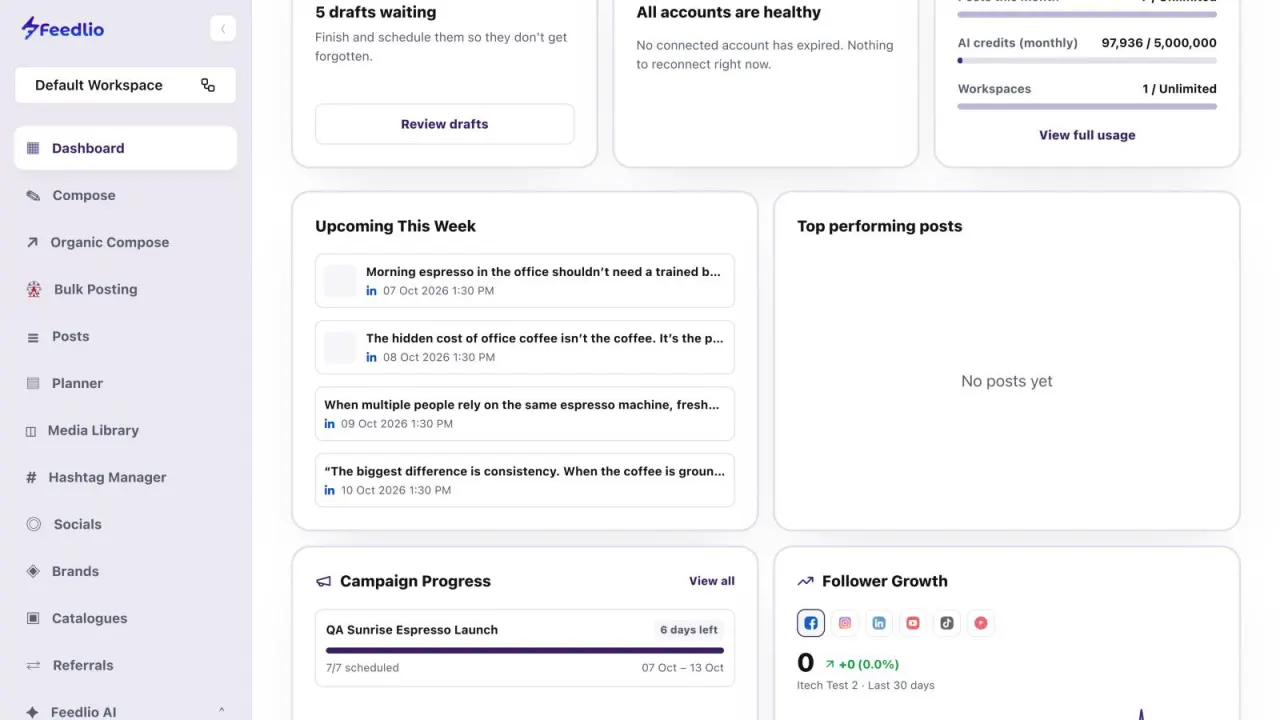
Top performing posts highlights your best content. It fills in once your published posts start collecting engagement.
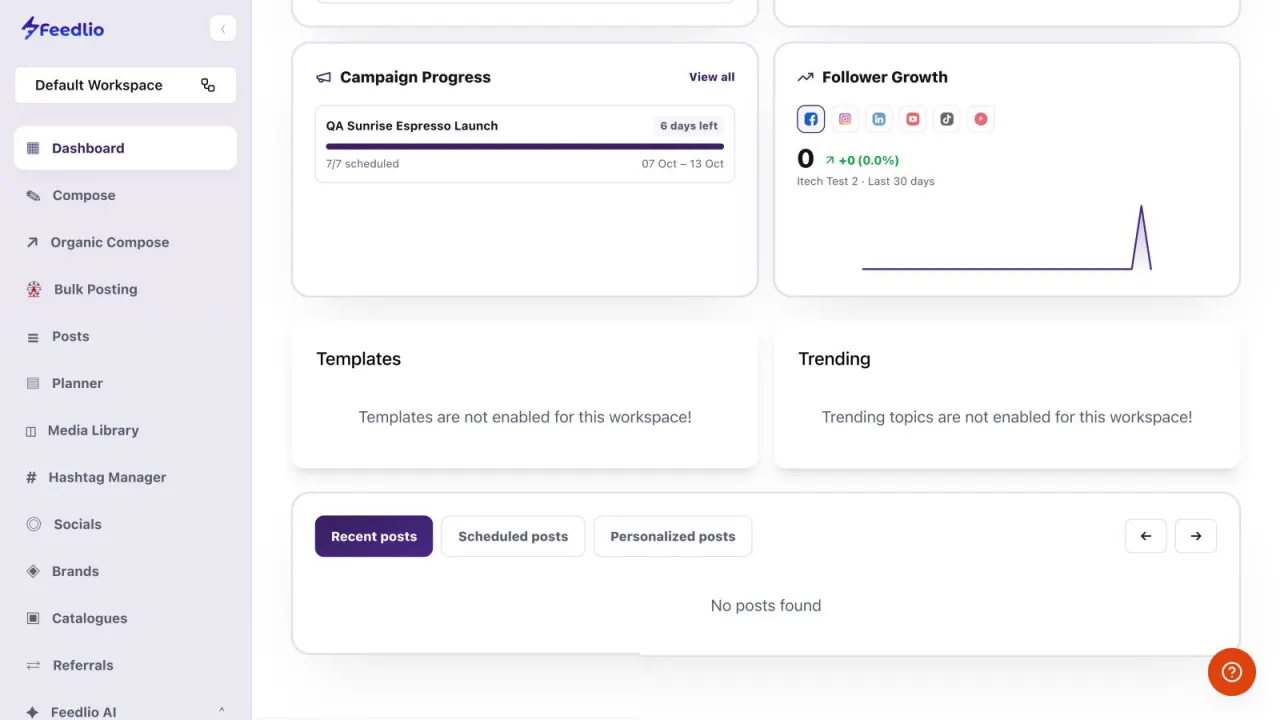
Campaign Progress tracks your AI campaigns, with how many posts are scheduled and the dates they run. Follower Growth charts your audience over the last 30 days; click a platform icon to see that account.
 12
12At the bottom, switch between Recent posts, Scheduled posts and Personalized posts, and use the arrows to browse them. The Templates and Trending cards sit just above.
Make the dashboard your daily starting point. A 30-second check keeps every channel on track.
Check your totals and today's activity, clear waiting drafts, keep accounts healthy, watch your plan usage, and follow upcoming posts and growth.
To Posts → Drafts, where you can finish your unfinished posts and schedule them.
One of your connected accounts has expired. Open Socials, click the ⋮ menu on that account's card and choose Reauthenticate.
Click View full usage on the Plan Usage card. It opens the Usage page in Settings.
It fills in once your published posts start collecting engagement.
0:00Your dashboard is the first thing you see after logging in. Let's walk through each card, so you always know what's scheduled, what needs attention, and how your channels are growing.
0:11At the top, four counters show your connected accounts, drafts, published posts and scheduled posts.
0:18Below, see today's published, scheduled and draft posts, your niche, and a heatmap of your activity over the last ninety days.
0:27If you have unfinished drafts, this card reminds you. Click Review drafts to finish and schedule them.
0:34Account health tells you if any connected social account has expired and needs to be reconnected.
0:41Plan Usage shows how many posts, AI credits and workspaces you've used. Click View full usage for the details.
0:49Scroll down to see every post scheduled for this week, with its platform and time.
0:55Next to it, Top performing posts highlights your best content once your posts start collecting engagement.
1:02Campaign Progress tracks your AI campaigns, and Follower Growth charts your audience for each platform over the last thirty days.
1:11At the bottom, flip between recent, scheduled and personalised posts. Templates and trending topics appear here too, when they're enabled on your plan.
1:22Pro tip: make the dashboard your daily starting point. A thirty second check keeps every channel on track.
1:29Recap: check your totals and today's activity, clear waiting drafts, keep accounts healthy, watch your plan usage, and follow upcoming posts and growth.
1:39Now you can read your dashboard like a pro. Next, let's connect your social accounts.