STEP 1 of 6
Your catalogues
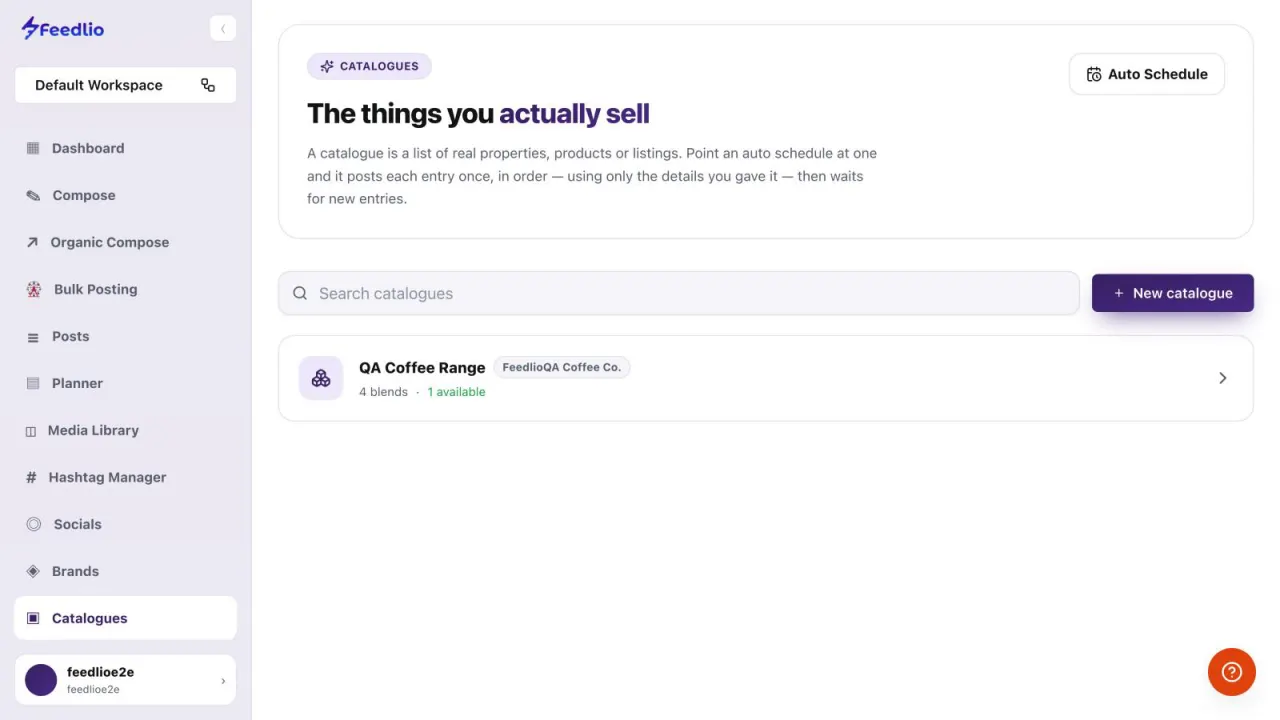
Click Catalogues in the left sidebar. Each catalogue shows the brand it belongs to, how many entries it holds, and how many are still available to post.
feedlio.io/cataloguesClick to zoom
Build a catalogue of the real things you sell, like products, properties or vehicles. Point an Auto Schedule or a campaign at it, and Feedlio posts each available item once, in order, using only the details you gave it.
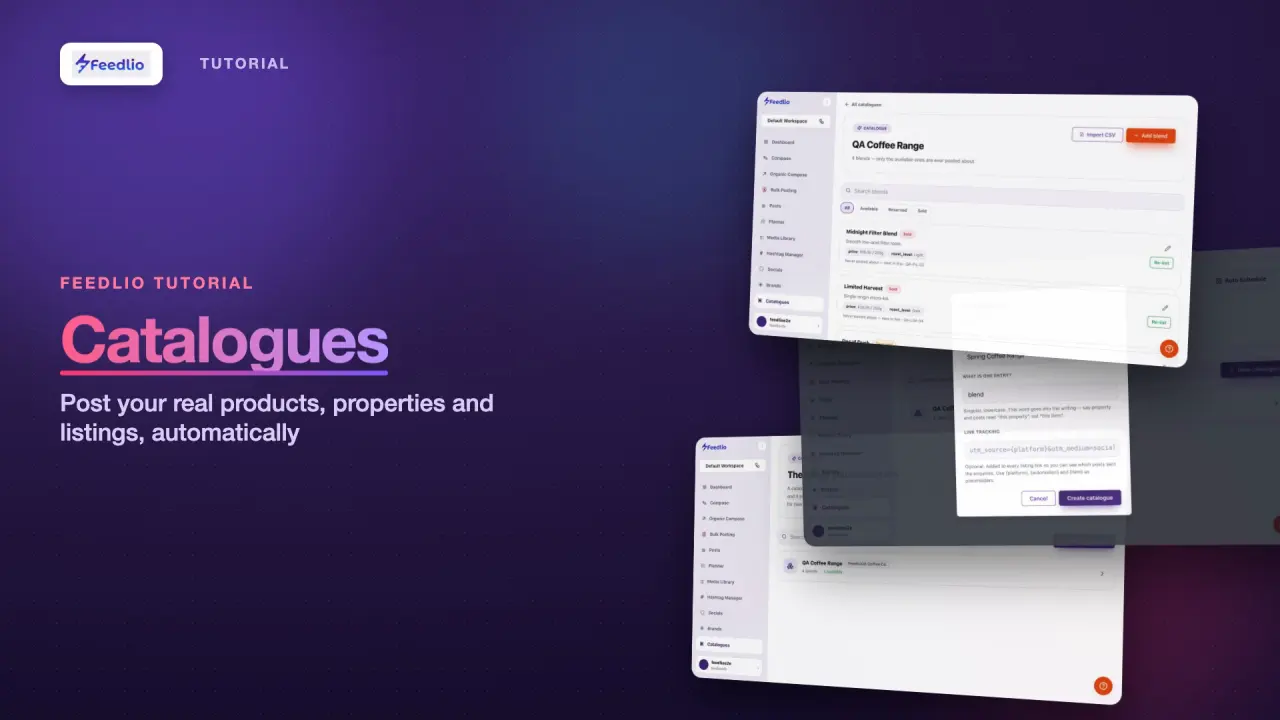 Video coming soon
Nothing to set up first. You can follow this guide straight away.
Follow along in the app. Tick each step off as you go.
Click Catalogues in the left sidebar. Each catalogue shows the brand it belongs to, how many entries it holds, and how many are still available to post.
Click New catalogue to create one. The Auto Schedule button takes you to the automations that post from your catalogues.
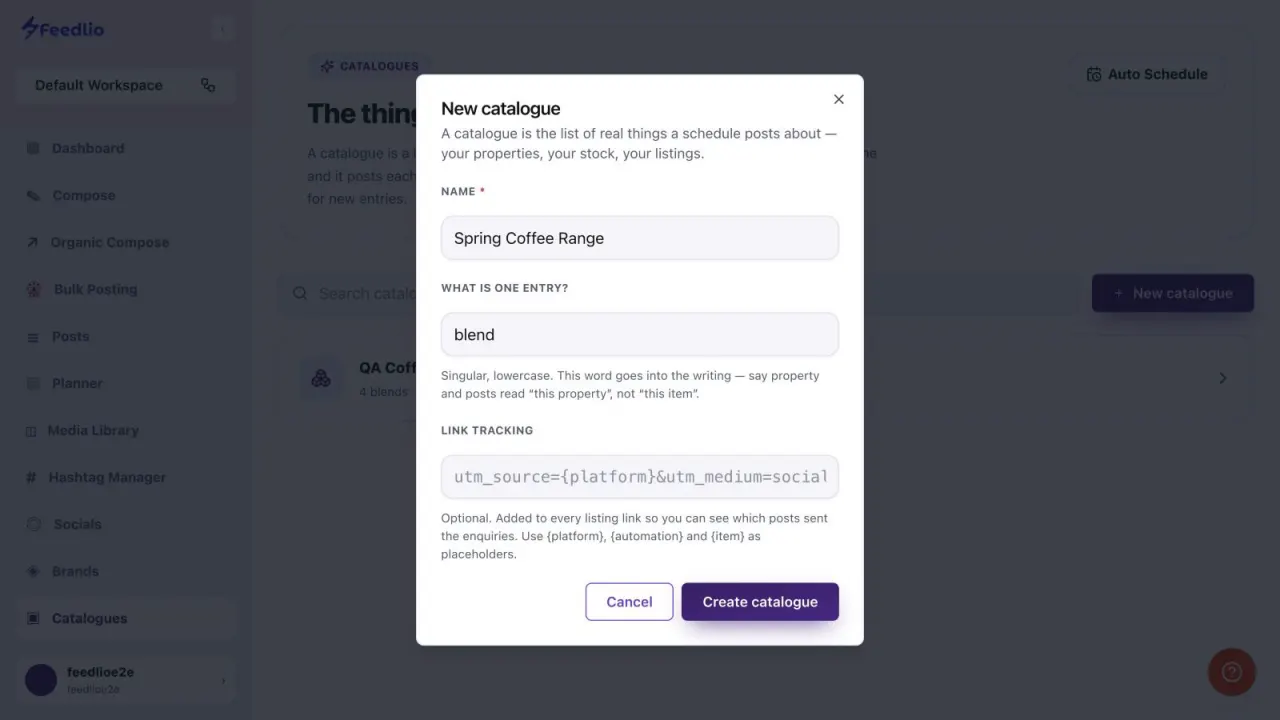
12Enter a Name, then fill in What is one entry? with a singular, lowercase word like property, product, vehicle or blend. This word goes into the writing, so posts say this blend instead of this item.
Buttons, search and counts follow it, such as Add blend and Search blends.
 12
12Optionally fill in Link tracking. It's added to every listing link, and the platform, automation and item placeholders show which posts sent you enquiries. Click Create catalogue when you're done.
12Open a catalogue to fill it. Click the add button, such as Add blend, to add items one at a time, or click Import CSV to add them all at once.
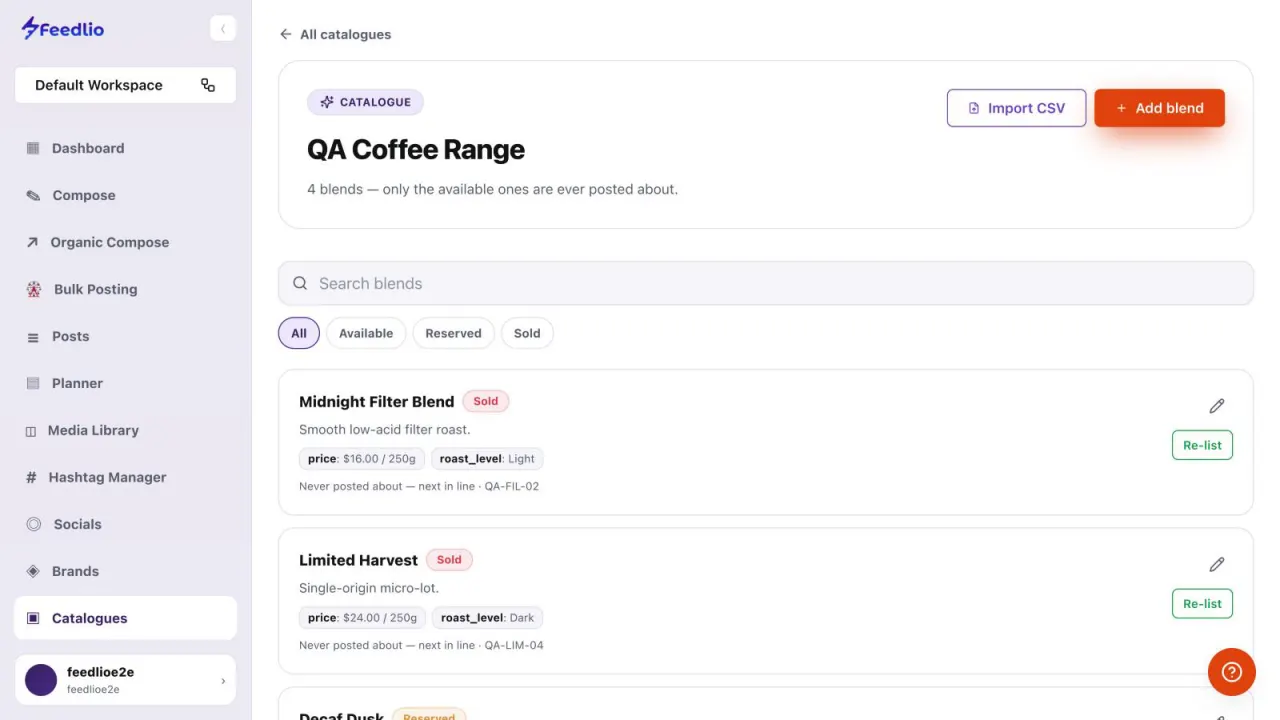
Each item shows its description, details like price, its status and where it is in the posting order. Filter by Available, Reserved or Sold. Only available items are ever posted, so click Mark sold or Re-list as your stock changes.
Point an Auto Schedule at this catalogue. It posts each available entry once, in order, then waits for new ones.
12Create a catalogue, name what one entry is, add tracking, add items manually or by CSV, keep statuses up to date, and connect it to an Auto Schedule.
No. Posts use only the details you gave each entry, and each available entry is posted once, in order.
No. Only available items are posted. Use Mark sold when something sells, and Re-list to make it available again.
The schedule waits for new entries. Add more items or re-list existing ones to keep posting.
No. Items are matched by their reference, so re-importing updates existing items instead of adding copies.
Create an Auto Schedule and choose Your own catalogues as the subject, or use the Catalogue showcase template in Campaign Builder.
0:00A catalogue is a list of the real things you sell, like products, properties or vehicles. Point an Auto Schedule or a campaign at it, and Feedlio posts each available item once, in order, using only the details you provided.
0:14Open Catalogues from the sidebar. Each catalogue shows its brand, how many items it contains, and how many are still available to post.
0:24Click New catalogue to create one. The Auto Schedule button takes you straight to automations that post from your catalogues.
0:32Give the catalogue a name, then say what one entry is, in singular lowercase, like property, product, vehicle, or blend. This word is used in the writing, so posts say this blend, not this item.
0:46Optionally add link tracking. Use the platform, automation and item placeholders to see which posts sent you enquiries. Then click Create catalogue.
0:56Inside a catalogue, add items one at a time, or import them all at once from a CSV file.
1:03Each item shows its description, details like price, and its status. Filter by available, reserved or sold. Only available items are ever posted, so mark items sold or re-list them as your stock changes.
1:17Recap: create a catalogue, name what one entry is, add tracking, add items manually or by CSV, keep statuses up to date, and connect it to an Auto Schedule.
1:29Your real stock, posted automatically. Next, let's create an AI brand assistant with Feedlio Brand.