STEP 1 of 5
Your AI website
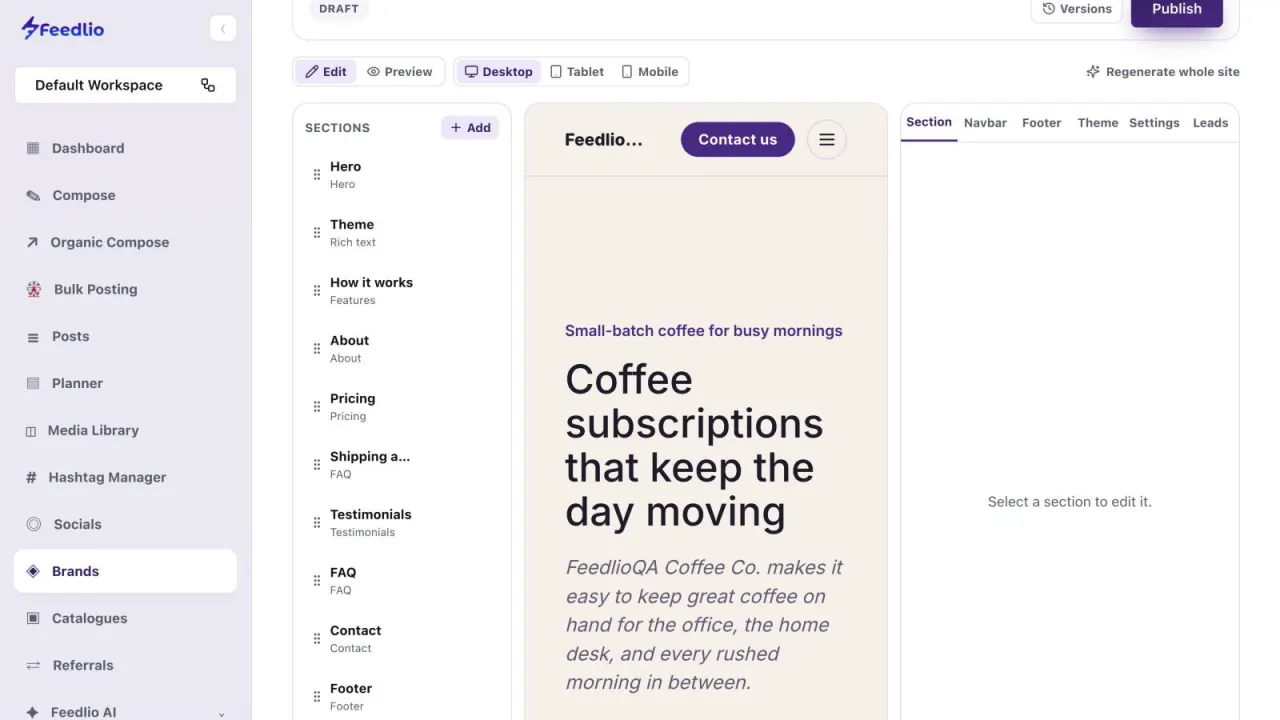
Open the brand's Website tab. Feedlio drafts a complete site from the brand's profile and knowledge, with sections such as a hero, features, pricing, testimonials, FAQ and contact.
feedlio.io/brandsClick to zoom
Edit and publish the AI-built website for your brand, link the catalogues it posts from, and set up Auto Schedules that write in the brand's own voice.
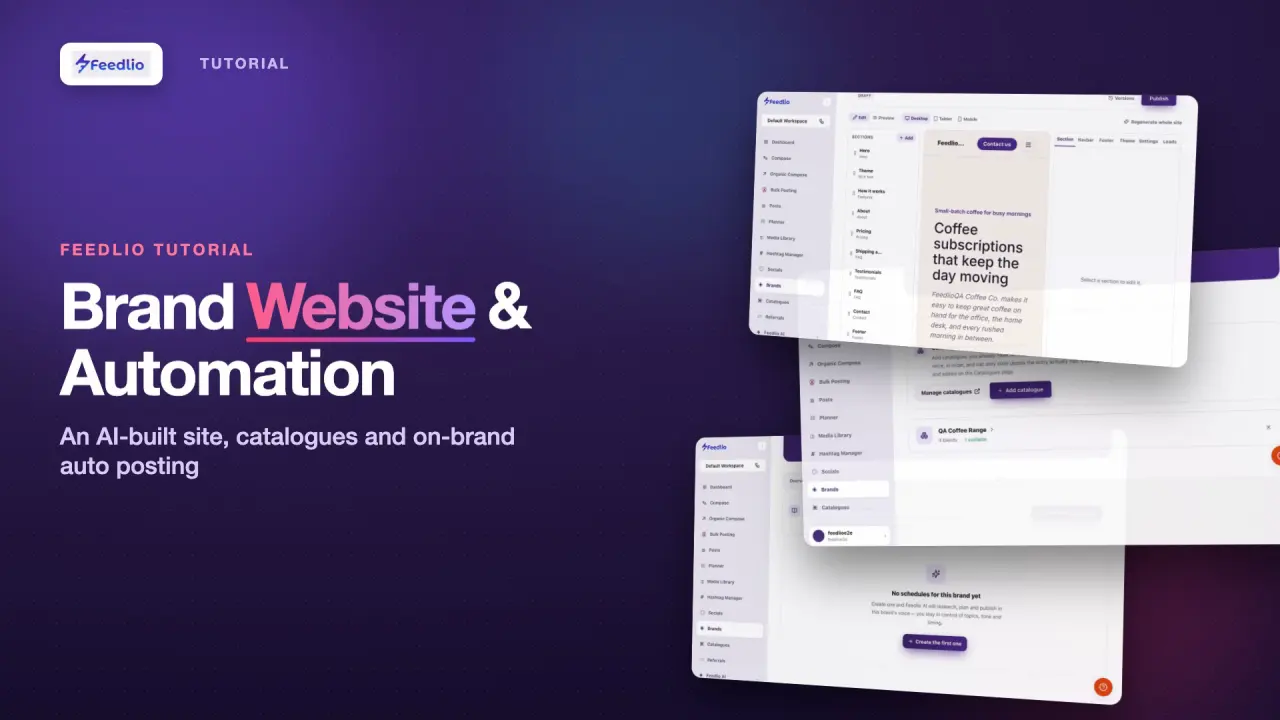 Video coming soon
Follow along in the app. Tick each step off as you go.
Open the brand's Website tab. Feedlio drafts a complete site from the brand's profile and knowledge, with sections such as a hero, features, pricing, testimonials, FAQ and contact.
In Sections on the left, drag a section to reorder it, or click + Add for a new one. Select a section to edit it in the panel on the right, which also has Navbar, Footer, Theme, Settings and Leads tabs.
12Switch between Edit and Preview, and check the site on Desktop, Tablet and Mobile. Use Versions to roll back, Regenerate whole site for a fresh draft, and Publish when you're happy.
Preview shows what visitors will see. Check every section before you click Publish.
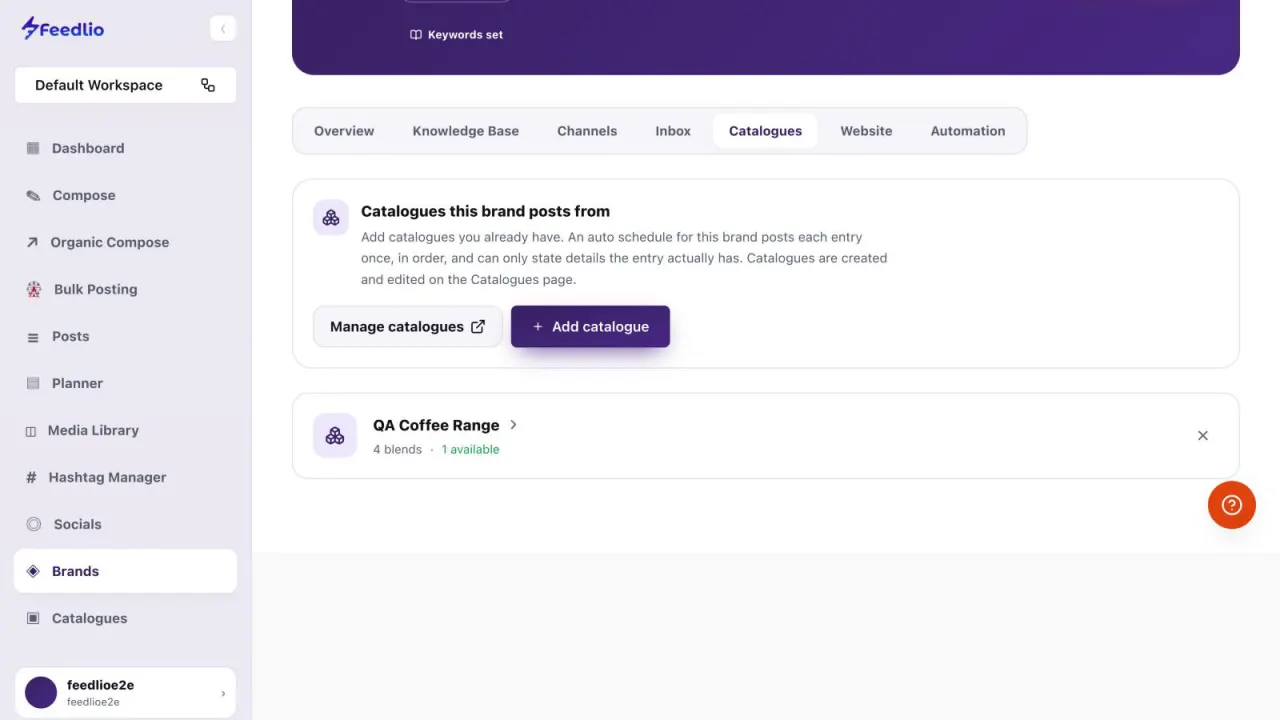
12In the Catalogues tab, click Add catalogue to choose the catalogues this brand posts from. Auto Schedules for this brand post each entry once, in order, using only the details each entry has.
Catalogues are created and edited on the Catalogues page. Click Manage catalogues, or see Catalogues.
 12
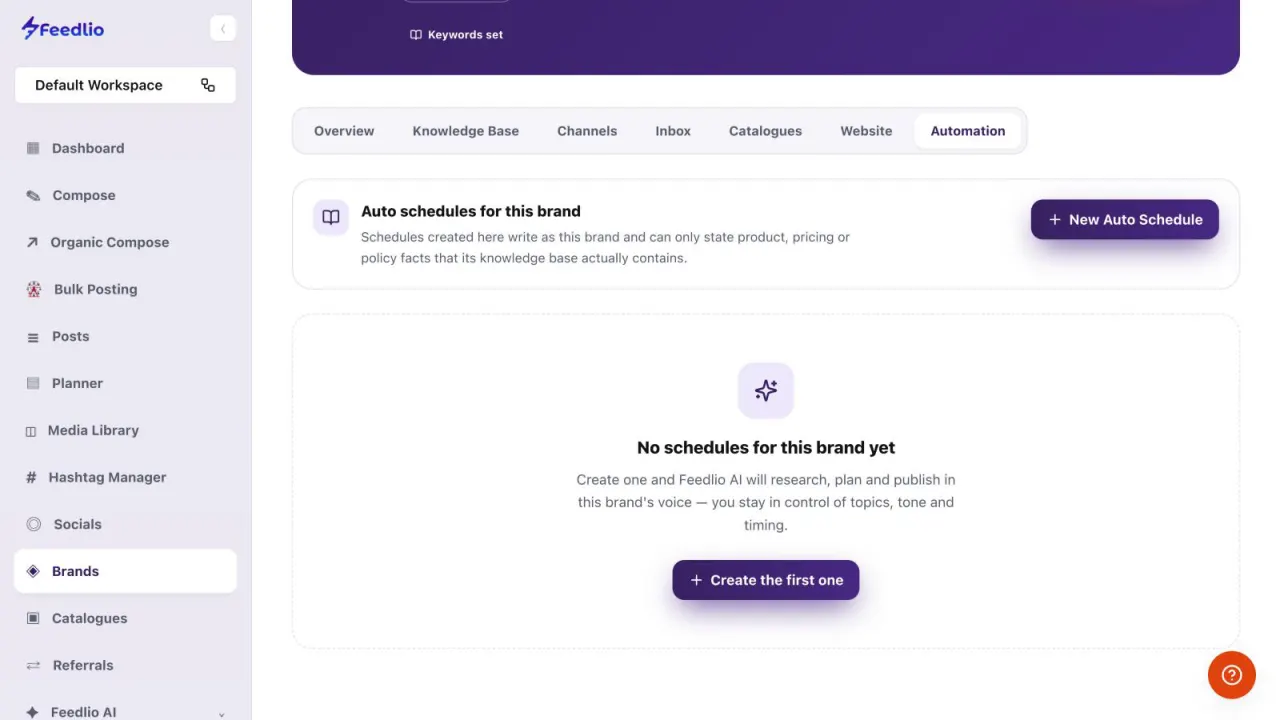
12The Automation tab holds the Auto Schedules bound to this brand. They write in the brand's voice and only state product, pricing or policy facts its knowledge base contains. Click New Auto Schedule to create one.
 12
12Edit and publish your AI website section by section, attach catalogues to the brand, and create brand-bound Auto Schedules that only state facts from its knowledge base.
Feedlio builds it from your brand's profile and knowledge. You can edit every section before you publish.
Yes. Click Versions to roll back to an earlier version.
On the Catalogues page. The brand's Catalogues tab only adds catalogues you already have. Click Manage catalogues to open the Catalogues page.
No. Schedules created in the Automation tab write as the brand and only state product, pricing or policy facts its knowledge base contains.
0:00Every Feedlio brand comes with more than an inbox. In this video, we'll explore its AI-generated website builder, link catalogues to the brand, and set up automations that post in the brand's own voice.
0:13Open the Website tab. Feedlio generates a complete website for your brand, built from its profile and knowledge, with a hero, features, pricing, testimonials, FAQ and contact sections.
0:27The sections list on the left lets you drag to reorder, or add new ones. Select a section to edit it in the panel on the right, along with the navbar, footer, theme, settings and leads.
0:38Switch between edit and preview, and check how it looks on desktop, tablet and mobile. Use Versions to roll back, Regenerate whole site for a fresh draft, and Publish when you're happy.
0:51In the Catalogues tab, add the catalogues this brand posts from. Automations for this brand post each available entry once, in order, using only the details each entry has.
1:02Finally, the Automation tab holds auto schedules bound to this brand. They write in the brand's voice and only state product, pricing or policy facts its knowledge base contains. Click New Auto Schedule to create one.
1:16Recap: edit and publish your AI website section by section, attach catalogues to the brand, and create brand-bound auto schedules that only state facts from its knowledge base.
1:28Your brand now lives everywhere, from its own website to automated posts. Next, let's see what's working in Analytics.