STEP 1 of 5
Upload files
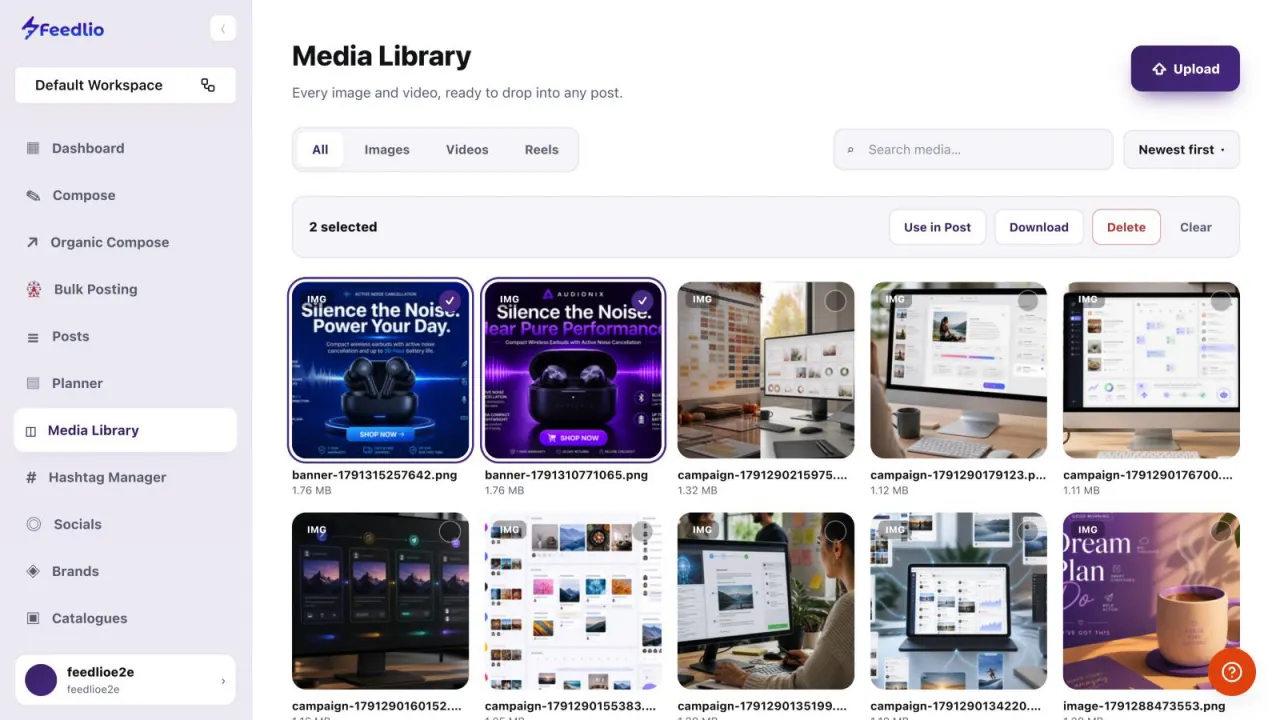
Click Media Library in the left sidebar. Click Upload to add images or videos, or drag files onto the page and drop them.
feedlio.io/mediaClick to zoom
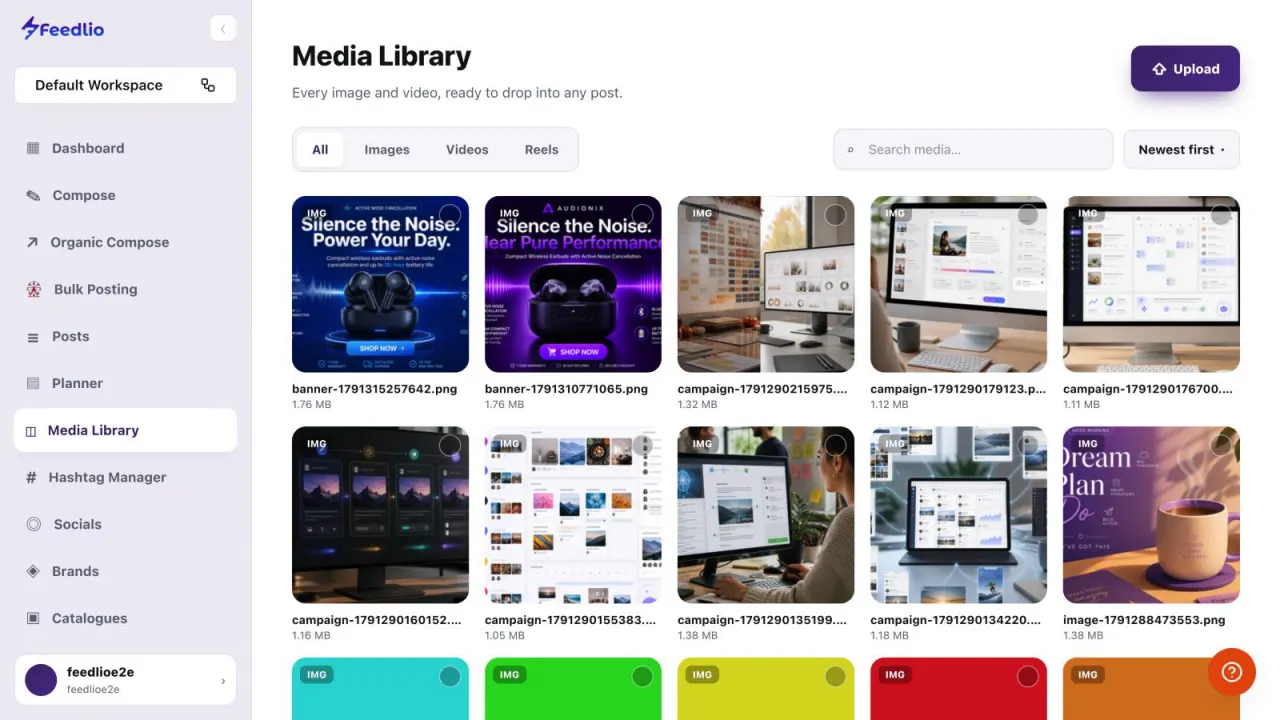
Keep every image and video you upload or create with Feedlio AI in one place. Upload files, find them fast, and send them straight into a new post.
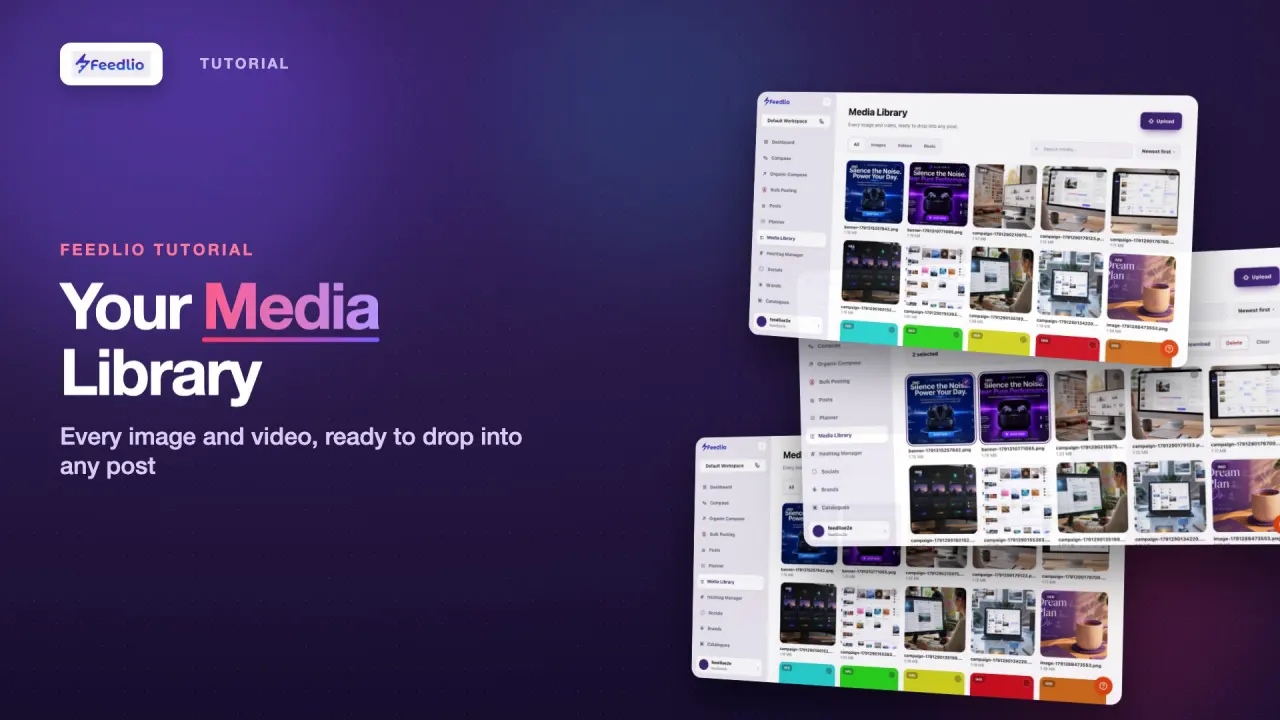 Video coming soon
Nothing to set up first. You can follow this guide straight away.
Follow along in the app. Tick each step off as you go.
Click Media Library in the left sidebar. Click Upload to add images or videos, or drag files onto the page and drop them.
Use the tabs to show All files, or only Images, Videos or Reels.
Type in Search media… to find a file by name. Click Newest first to switch the order to oldest first.
Each file shows a preview, its name and its size. Images you generate with Feedlio AI, like banners from Organic Compose, are saved here automatically.
Click the circle on a file to select it, and keep clicking to select more. The bar at the top lets you Use in Post, Download or Delete your selection. Clear deselects everything.
The same library opens inside Compose, Bulk Posting and Organic Compose, so anything you store here is always one click away.
Upload or drag in files, filter by type, search and sort, then select files to use in a post, download or delete.
Yes. Images you generate with Feedlio AI, such as banners from Organic Compose or images you accept in Content Studio, are added to your Media Library automatically.
Yes. The same library opens inside Compose, Bulk Posting and Organic Compose, so you can pick files while you write.
Click the circle on each file to select it, then click Use in Post.
Click the Videos tab at the top of the library. Reels have their own tab, and All shows everything again.
0:00The Media Library stores every image and video you upload or create with Feedlio AI, ready to reuse in any post. Here's how to upload, find and manage your files.
0:11Open Media Library from the sidebar. Click Upload to add images or videos, or simply drag files onto the page and drop them.
0:20Use the tabs to show everything, or just images, videos, or reels.
0:26Search by file name, and sort by newest or oldest first.
0:31Every file shows a preview, its name and size. Images you generate with Feedlio AI, like banners from Organic Compose, are saved here automatically.
0:41Click the circle on a file to select it. Select several, then use them in a new post, download them, or delete them. Clear removes the selection.
0:51Pro tip: this same library opens inside Compose, Bulk Posting and Organic Compose, so anything you store here is always one click away.
1:01Recap: upload or drag in files, filter by type, search and sort, then select items to use in a post, download, or delete.
1:11All your assets, right at your fingertips. Next, let's save time with the Hashtag Manager.