STEP 1 of 6
Your hashtag stats
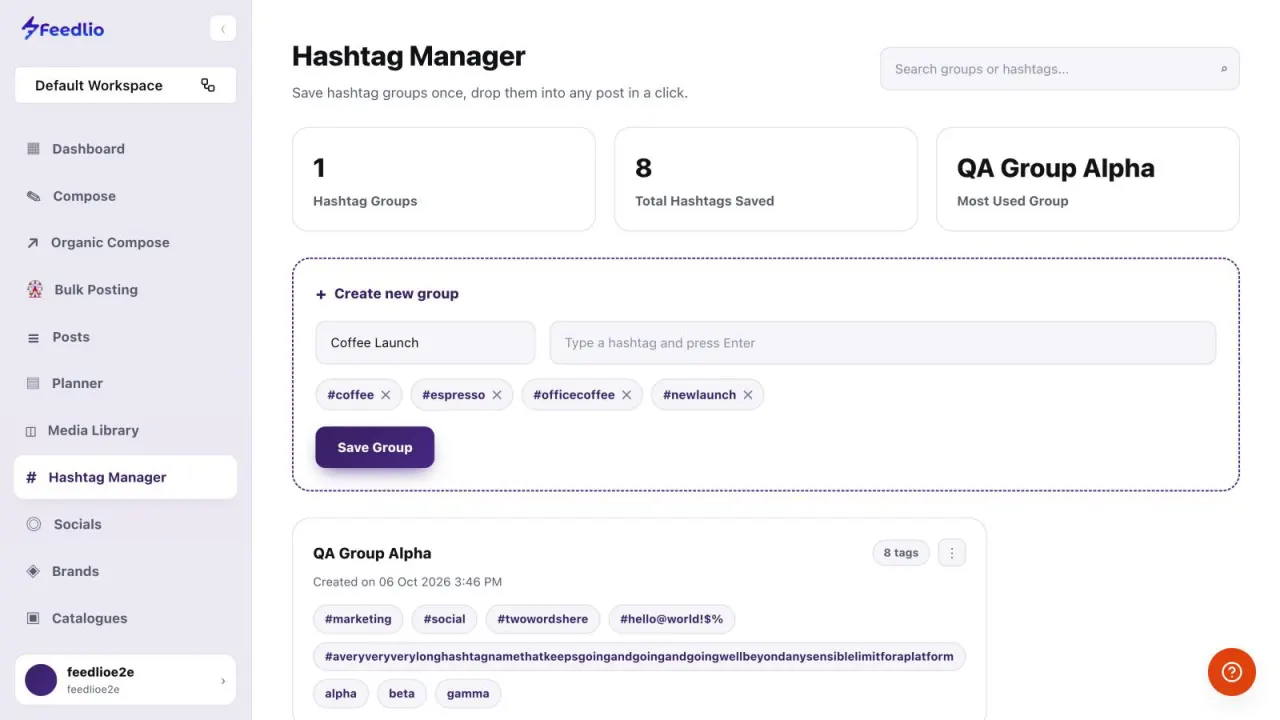
Click Hashtag Manager in the left sidebar. The cards at the top show how many Hashtag Groups and Total Hashtags Saved you have.
feedlio.io/hashtag-managerClick to zoom
Save the hashtags you use often as named groups. Insert a whole group into any post in Compose with one click instead of typing tags every time.
 Video coming soon
Nothing to set up first. You can follow this guide straight away.
Follow along in the app. Tick each step off as you go.
Click Hashtag Manager in the left sidebar. The cards at the top show how many Hashtag Groups and Total Hashtags Saved you have.
Under Create new group, type a name for the group. Type a hashtag in Type a hashtag and press Enter, press Enter, and repeat for each tag. Click the × on a tag to remove it.
Click Save Group. The group is ready to use across Feedlio.
Each saved group shows its tags, how many it holds and when it was created. Click the ⋮ menu on the card to edit or delete it. Use Search groups or hashtags… at the top to find a group fast.
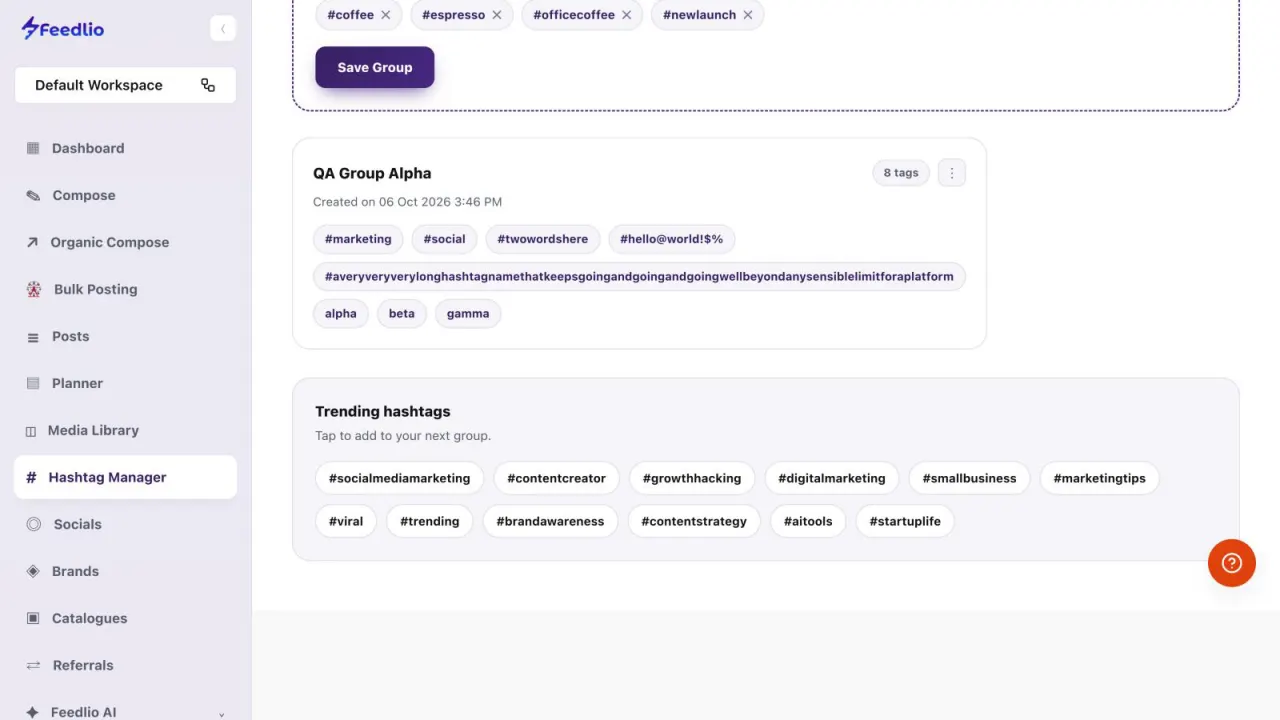
Need ideas? Tap any tag under Trending hashtags to add it to the group you're building.
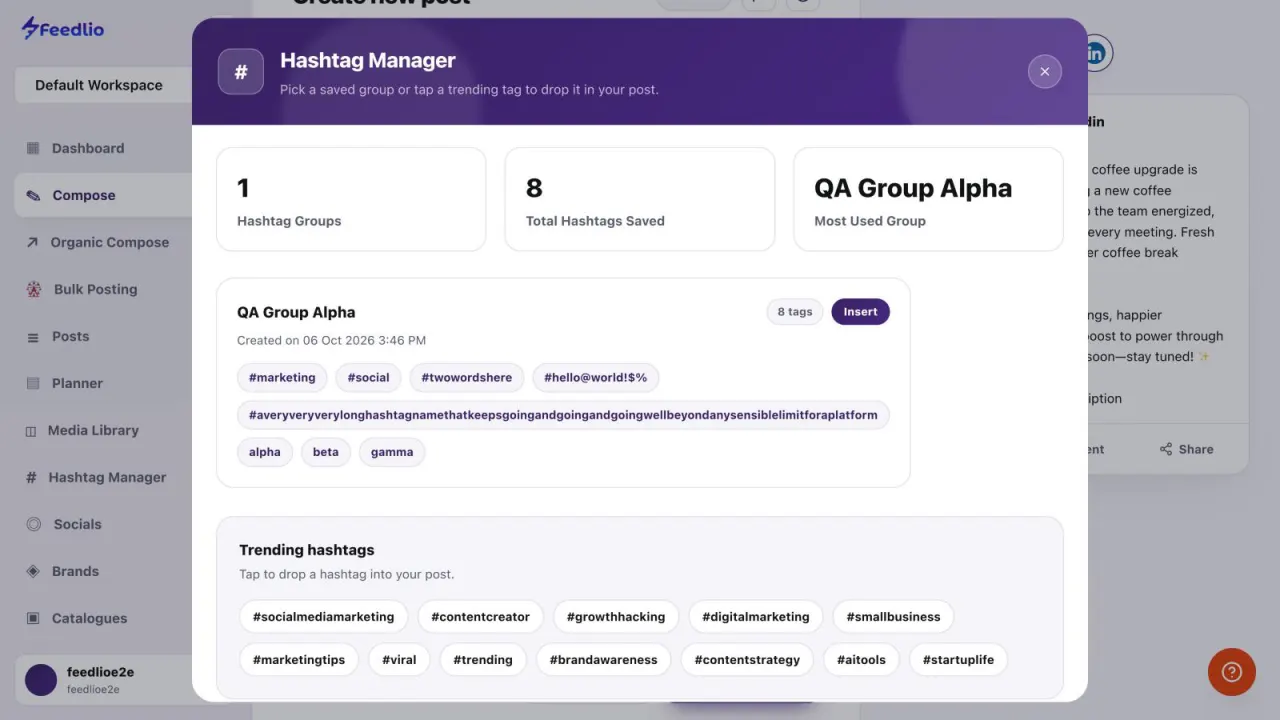
While writing a post in Compose, click the # icon to open the Hashtag Manager. Click Insert on a group to add all its tags to your post.
Make one group per topic or campaign, so you can insert just the tags that fit each post. See Compose for the rest of the toolbar.
 12
12Name a group, add tags with Enter, save it, manage it from its ⋮ menu, borrow trending tags, and insert groups in Compose with the # icon.
No. Type the word and press Enter. Feedlio adds the # for you.
In Compose, click the # icon in the toolbar under the editor. Find the group and click Insert.
Yes. Click the ⋮ menu on the group's card to edit or delete it.
Yes. When you open the hashtag panel from Compose, tap any trending hashtag to drop it into your post.
0:00Typing the same hashtags over and over? The Hashtag Manager lets you save them as groups and insert a whole set into any post with one click.
0:09Open Hashtag Manager from the sidebar. At the top, see how many groups and hashtags you've saved, and which group you use most.
0:18To create a group, give it a name, then type a hashtag and press Enter. Repeat for each tag. Click the x on any tag to remove it.
0:27Click Save Group, and it's ready to use across Feedlio.
0:32Each saved group shows its tags, how many it contains, and when it was created. Use the menu on the card to edit or delete it. You can also search groups and hashtags at the top.
0:43Need inspiration? Tap any trending hashtag to add it to the group you're building.
0:49When writing a post in Compose, click the hashtag icon and insert any saved group with a single click.
0:56Recap: name a group, add tags with Enter, save it, manage it from its menu, borrow trending tags, and insert groups from Compose with the hash icon.
1:07Now tagging takes seconds. Next, let's create images with the AI Content Studio.