LearnOpen Feedlio
Esc
↑↓ to move↵ to openSearches every guide and step
Home›Getting Started›Connect social accounts
Guide 04 · Getting Started

Connect Your Social Accounts

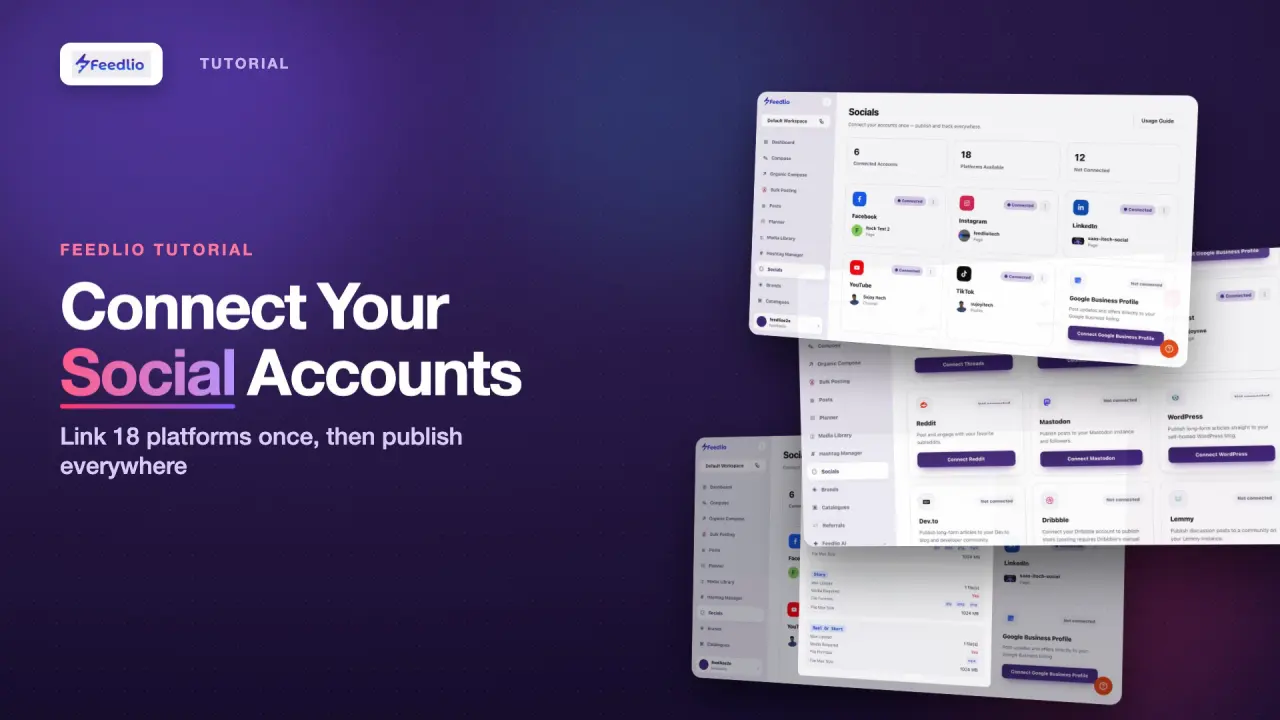
Connect your social accounts so Feedlio can publish to them, check each platform's posting rules, and keep every connection healthy.

1:37 video3 min read6 stepsAll plans
Connect Your Social Accounts tutorial videoVideo coming soon

What you'll learn

  • Connect a platform and approve access
  • See which accounts are connected
  • Check each platform's text and upload limits
  • Refresh, reauthenticate or disconnect an account

Step by step

Follow along in the app. Tick each step off as you go.

STEP 1 of 6

Open Socials

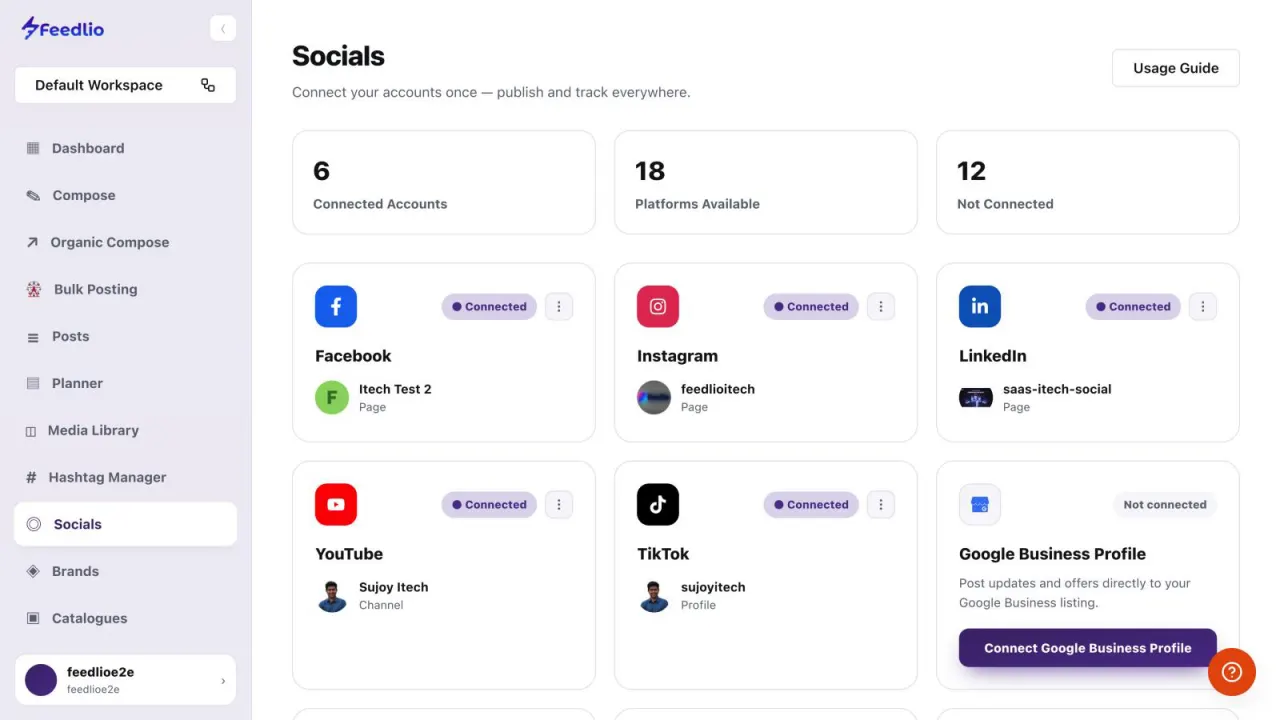
Click Socials in the sidebar. The counters at the top show your Connected Accounts, the Platforms Available, and how many are Not Connected.

  • Connected accounts
  • 18 platforms available
  • Not yet connected
feedlio.io/socialsClick to zoom
Screenshot: Open Socials
feedlio.io/socialsClick to close
Screenshot: Open Socials
Step 1: Open SocialsEsc to close
STEP 2 of 6

Connected accounts

Connected platforms show a Connected badge with the account name and type, such as a Facebook Page, a YouTube Channel or a TikTok Profile.

feedlio.io/socialsClick to zoom
Screenshot: Connected accounts
feedlio.io/socialsClick to close
Screenshot: Connected accounts
Step 2: Connected accountsEsc to close
STEP 3 of 6

Click Connect

To add a platform, click its connect button, such as Connect Threads. Sign in on that platform and approve access, and you're brought straight back to Feedlio.

Some platforms connect inside Feedlio.

Bluesky, for example, opens a dialog in Feedlio where you enter your account details instead of sending you to a sign-in page.

feedlio.io/socialsClick to zoom
Screenshot: Click Connect
feedlio.io/socialsClick to close
Screenshot: Click Connect
Step 3: Click ConnectEsc to close
STEP 4 of 6

18 platforms

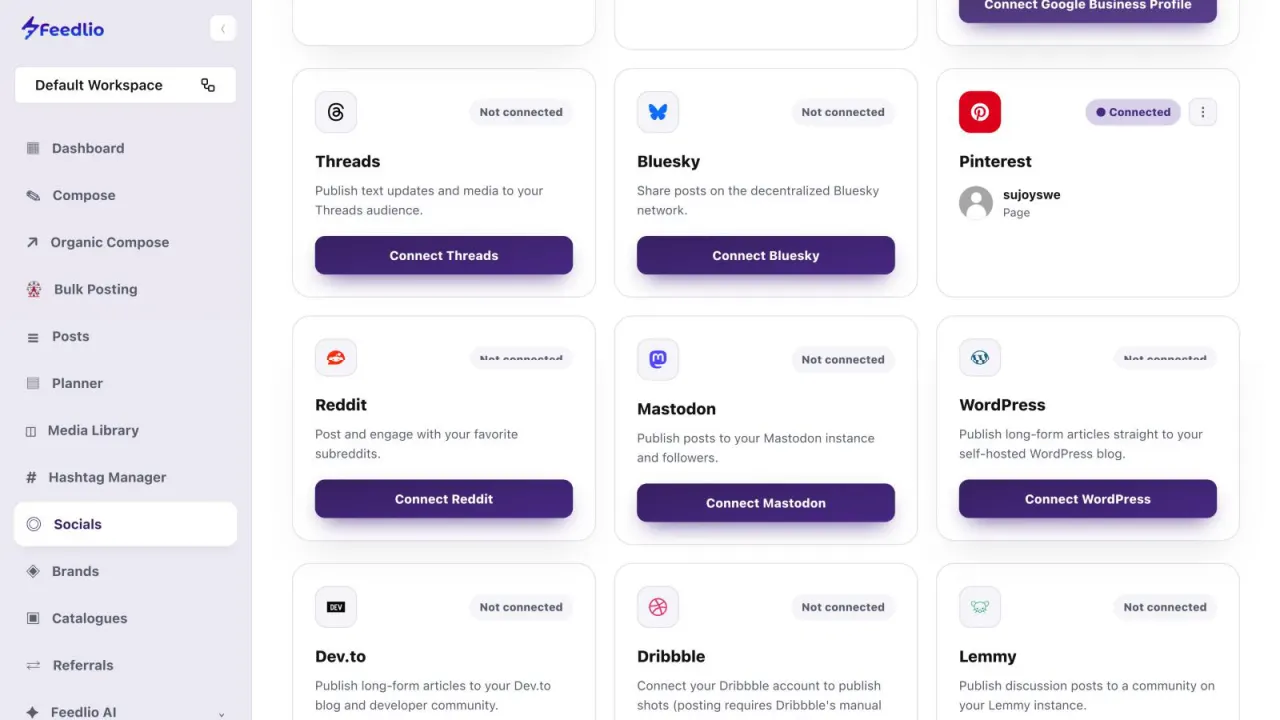
Feedlio supports 18 platforms. Alongside the big networks, you can connect Google Business Profile, Threads, Bluesky, Reddit, Mastodon, WordPress, Dev.to, Dribbble, Lemmy, Warpcast, Nostr and Hashnode.

  • Facebook, Instagram, LinkedIn, YouTube, TikTok
  • Pinterest, Threads, Bluesky, Reddit
  • WordPress, Dev.to, Mastodon & more
feedlio.io/socialsClick to zoom
Screenshot: 18 platforms
feedlio.io/socialsClick to close
Screenshot: 18 platforms
Step 4: 18 platformsEsc to close
STEP 5 of 6

Manage a connection

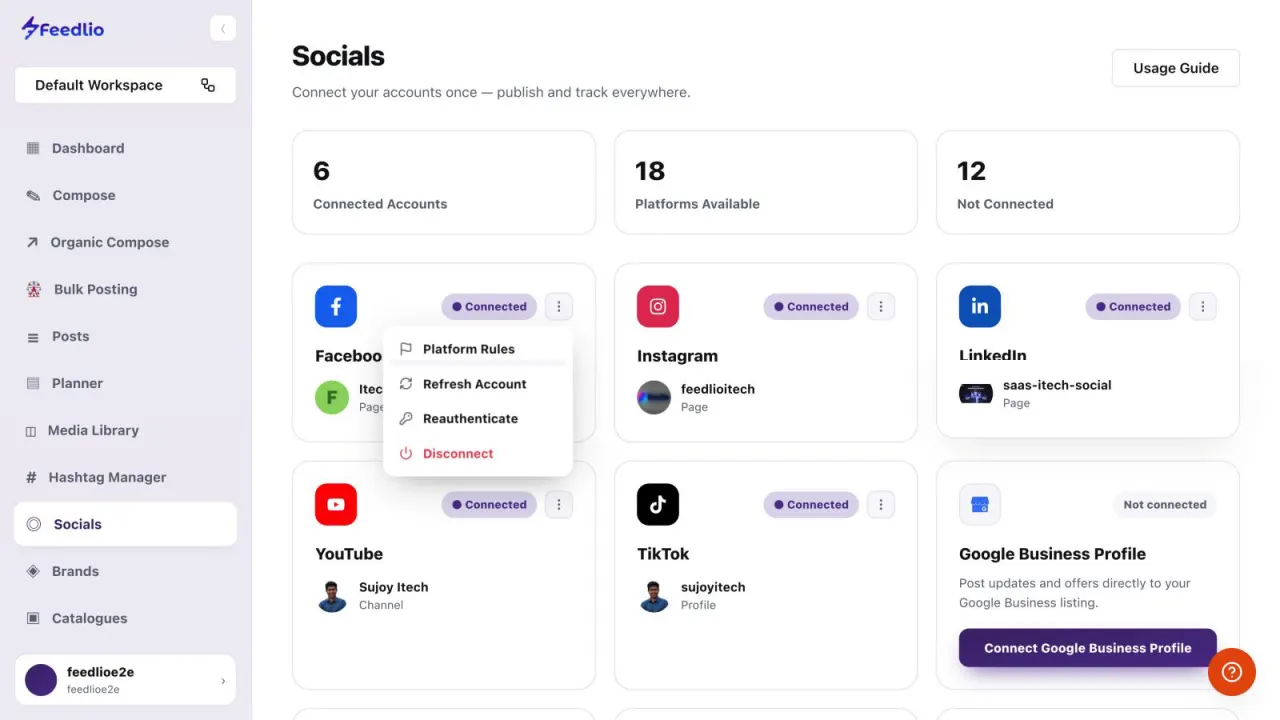
Click the ⋮ menu on a connected account to open Platform Rules, Refresh Account, Reauthenticate or Disconnect. Use Reauthenticate when an account's access has expired.

  • Platform Rules
  • Refresh Account
  • Reauthenticate or Disconnect
feedlio.io/socialsClick to zoom
Screenshot: Manage a connection
feedlio.io/socialsClick to close
Screenshot: Manage a connection
Step 5: Manage a connectionEsc to close
STEP 6 of 6

Know the rules

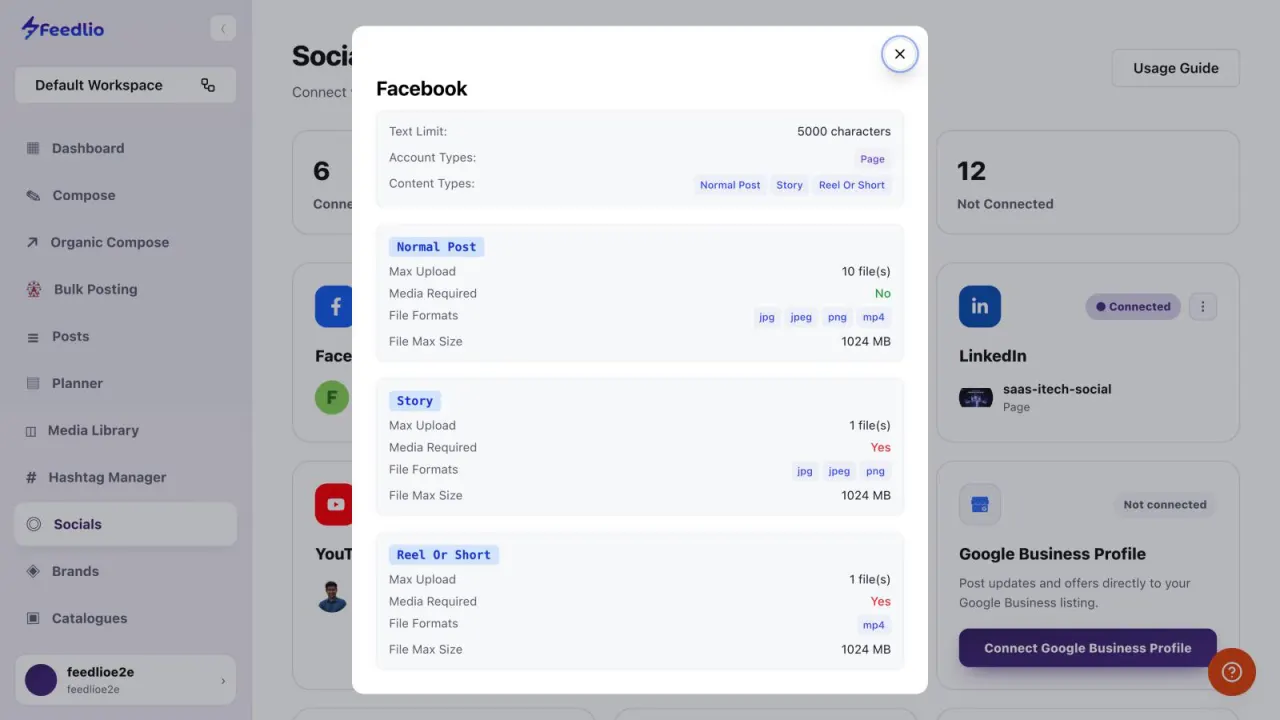
Platform Rules lists the text limit, supported account types and content types. For Normal Post, Story and Reel Or Short, it shows the max upload, whether media is required, the file formats and the max file size.

Check before you post a Story or Reel.

On Facebook, for example, Stories and Reels need media and take one file each, while a normal post takes up to 10.

feedlio.io/socialsClick to zoom
Screenshot: Know the rules
feedlio.io/socialsClick to close
Screenshot: Know the rules
Step 6: Know the rulesEsc to close
PRO TIP

Use the Usage Guide

The Usage Guide button at the top right of Socials opens a guided walkthrough of the page.

feedlio.io/socialsClick to zoom
Screenshot: Use the Usage Guide
feedlio.io/socialsClick to close
Screenshot: Use the Usage Guide
Pro tip: Use the Usage GuideEsc to close
Recap

All connected!

Open Socials, click Connect on any platform and approve access, check Platform Rules, and use Refresh or Reauthenticate to keep accounts healthy.

Next: Compose a post

Questions people ask

Which platforms can I connect?

Facebook, Instagram, LinkedIn, YouTube, TikTok, Pinterest, Google Business Profile, Threads, Bluesky, Reddit, Mastodon, WordPress, Dev.to, Dribbble, Lemmy, Warpcast, Nostr and Hashnode.

Does every platform send me to a sign-in page?

Most do. A few, like Bluesky, open a dialog inside Feedlio where you enter your account details instead.

What do I do when an account's access expires?

Open the account's ⋮ menu and choose Reauthenticate to approve access again. The Account health card on your dashboard tells you when this is needed.

Where can I see a platform's character and media limits?

Open the ⋮ menu on a connected account and choose Platform Rules. It lists the text limit, account types and upload limits for each content type.

Why doesn't an account show up in Compose?

Compose only lists connected accounts. Check that the platform's card on Socials shows Connected.

Video transcript

Read the full narration

0:00Before you can publish, Feedlio needs access to your social accounts. In this video, you'll connect platforms, check each one's posting rules, and keep connections healthy.

0:11Click Socials in the sidebar. The counters show how many accounts you've connected, how many platforms are available, and how many are still waiting.

0:20Connected platforms show a Connected badge, along with the account name and type, such as a Facebook Page, a YouTube channel, or a TikTok profile.

0:31To add a platform, click its Connect button. You'll be taken to that platform to sign in and approve access, then brought straight back to Feedlio.

0:40Feedlio supports eighteen platforms, including Threads, Bluesky, Pinterest, Reddit, Mastodon, WordPress, Dev dot to, Hashnode, Nostr, and more.

0:51Open the three-dot menu on a connected account to view platform rules, refresh the account, reauthenticate if access expired, or disconnect it.

1:01Platform Rules shows the text limit, supported account types, and the upload limits for posts, stories and reels, so your content is always accepted.

1:11Pro tip: click Usage Guide at the top right for a guided walkthrough of connecting accounts, whenever you need it.

1:19Recap: open Socials, click Connect on any platform and approve access, check Platform Rules, and use Refresh or Reauthenticate to keep accounts healthy.

1:30Your accounts are connected and ready. Next, let's create and publish your first post with Compose.

Related guides