STEP 1 of 10
Open Compose
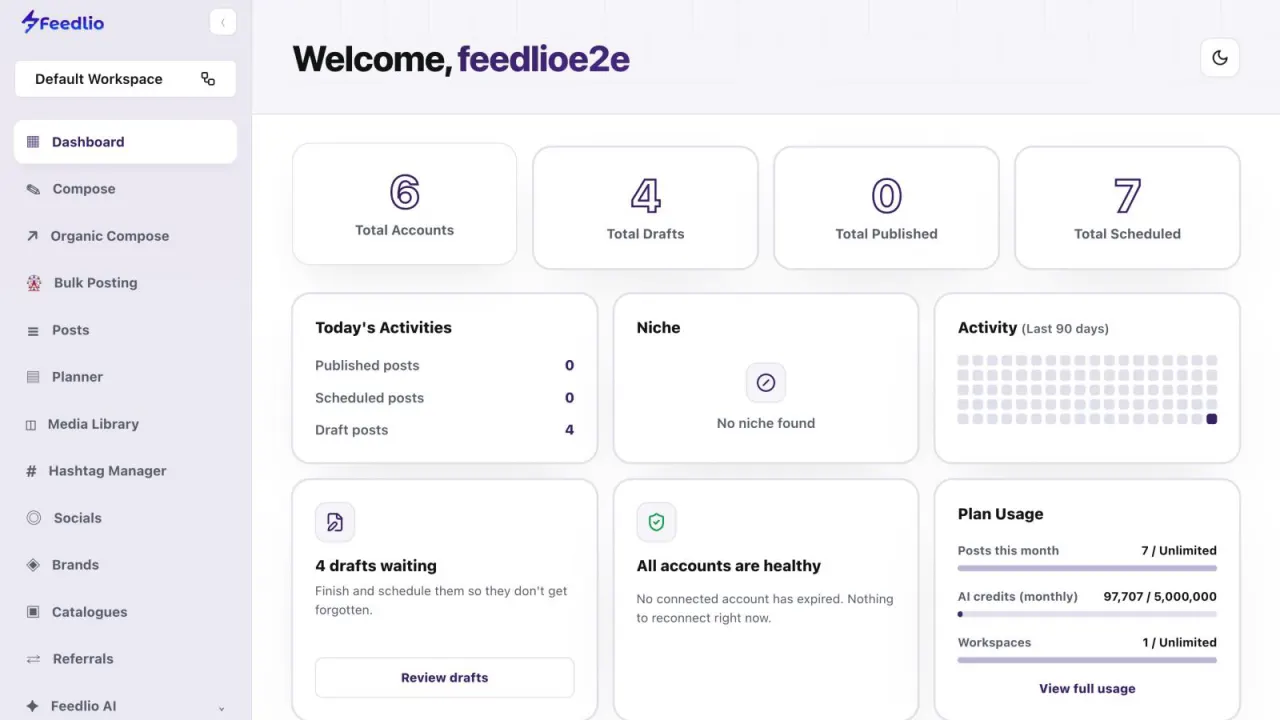
From your dashboard, click Compose in the left sidebar. It sits right under Dashboard.
feedlio.io/composeClick to zoom
Write once and publish everywhere. Pick your channels, preview the post on each network, polish it with Feedlio AI, then schedule it or post right away.
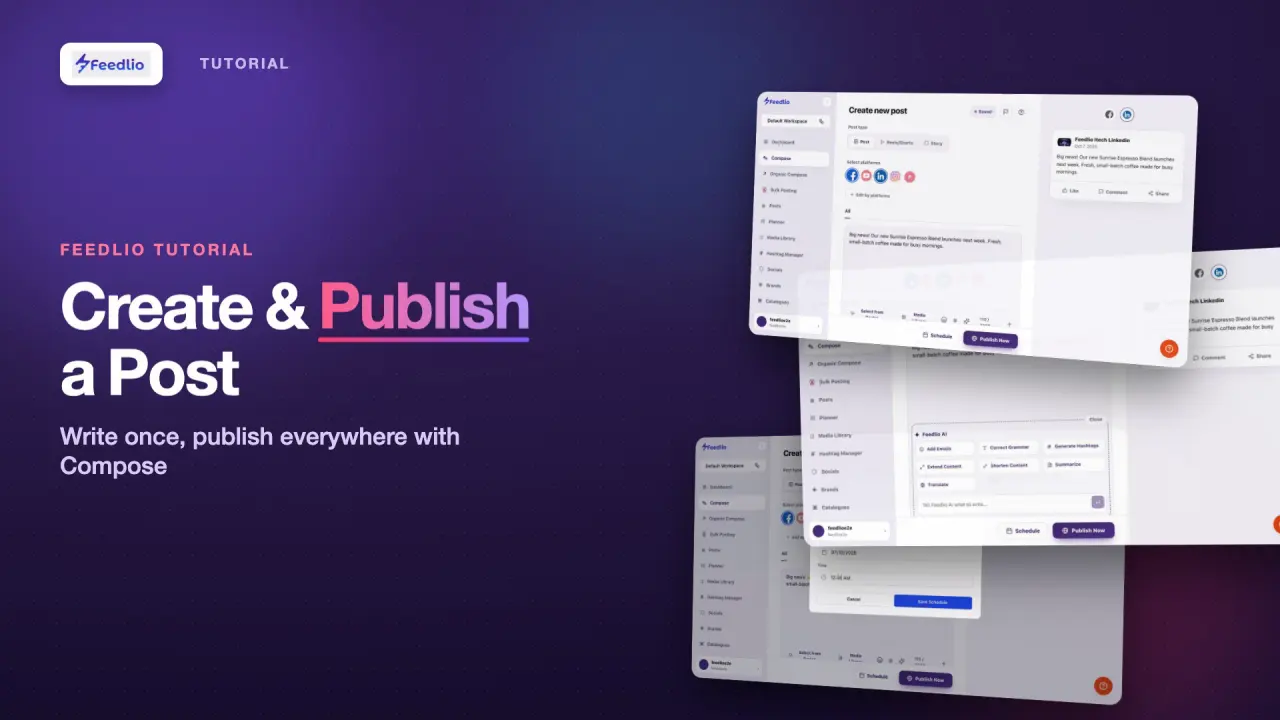 Video coming soon
Follow along in the app. Tick each step off as you go.
From your dashboard, click Compose in the left sidebar. It sits right under Dashboard.
Choose what you're making before anything else. The editor, the media rules and the preview all adapt to the post type you pick.
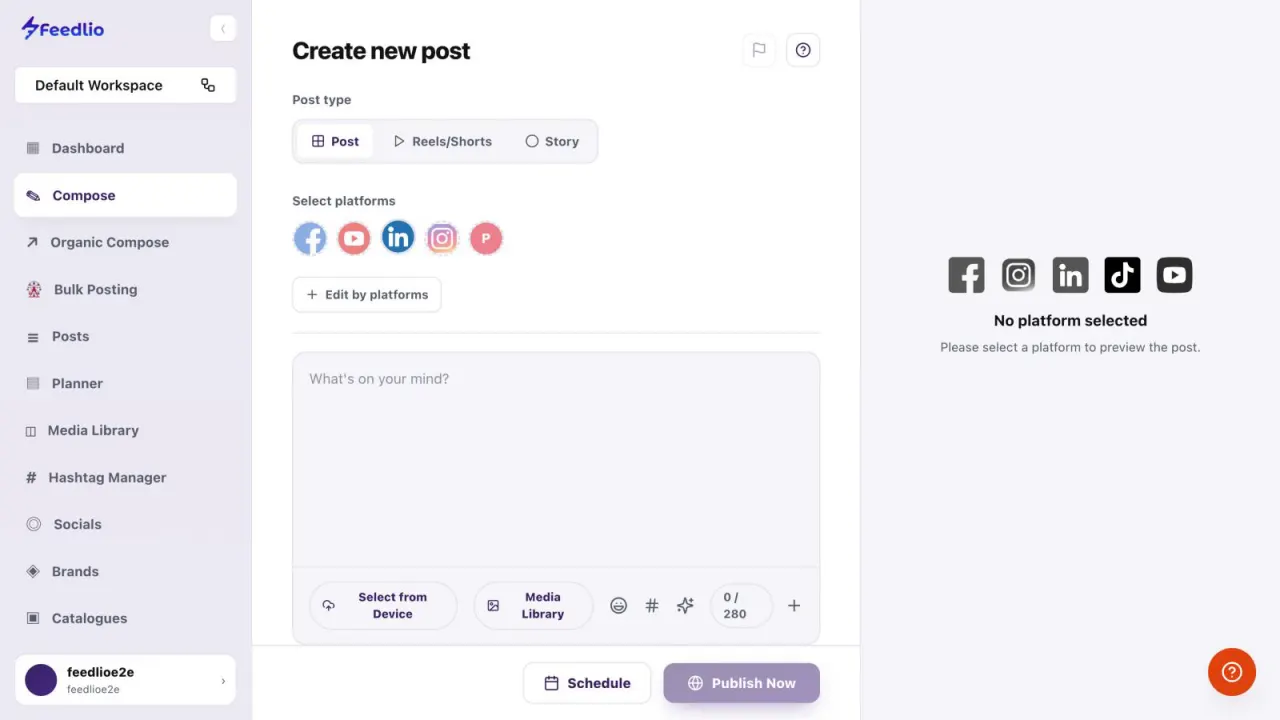
Under Select platforms, click every account this post should go to. Each avatar is one connected account; hover over it to see its name. Selected accounts get a ring.
Compose only lists connected accounts. Connect it in Socials first.
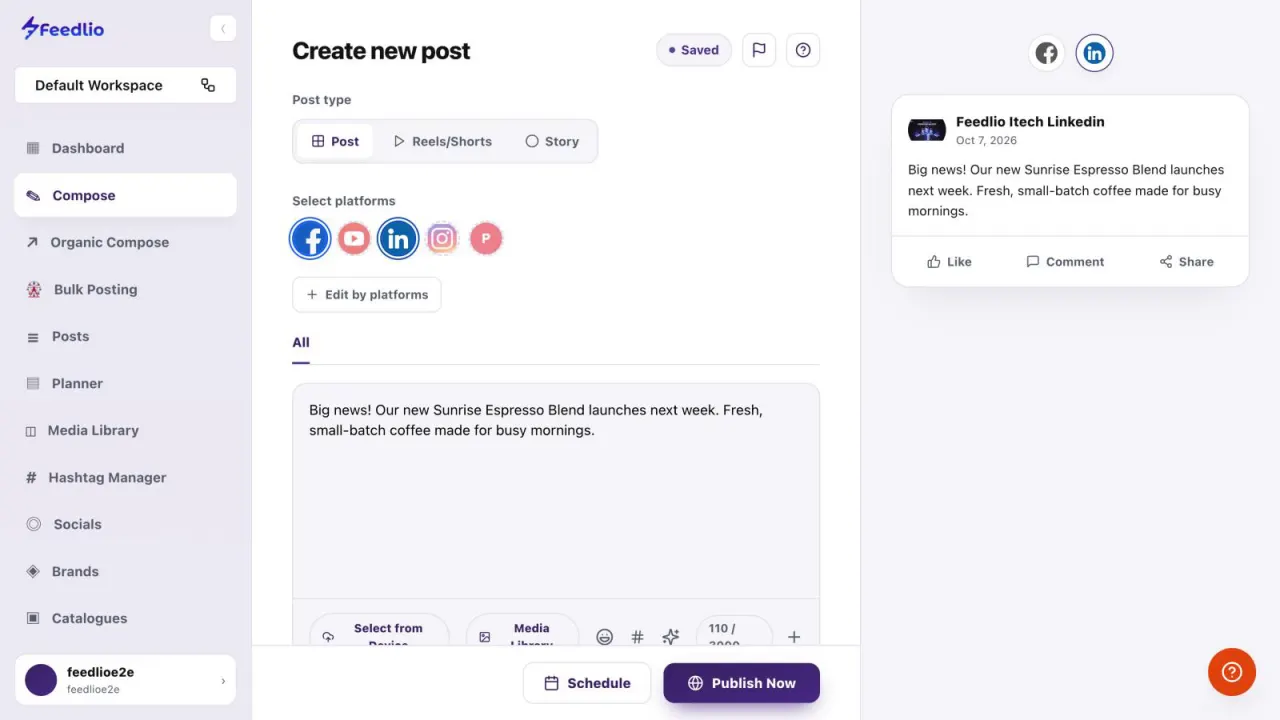
Type your post in the editor. The preview on the right shows exactly how it will look on each network, with likes, comments and shares. Click a network icon above the preview to switch between them.
The counter under the editor changes with the accounts you select, so you always know how much room you have.
 12
12Click the ✨ sparkle icon in the toolbar to open Feedlio AI. Use a one-click action, or type an instruction in Tell Feedlio AI what to write… and press Enter.
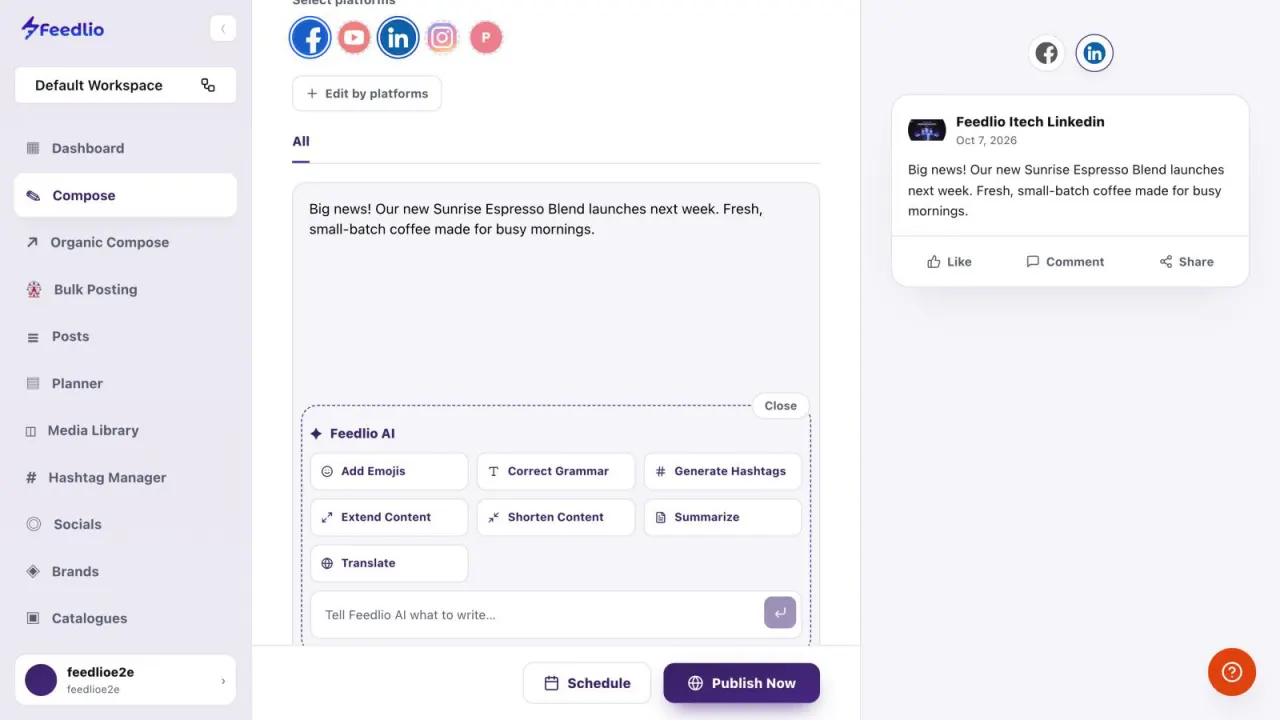
Feedlio AI always shows its suggestion first. Click Accept to use it, or Cancel to keep your original text. Nothing changes until you decide.
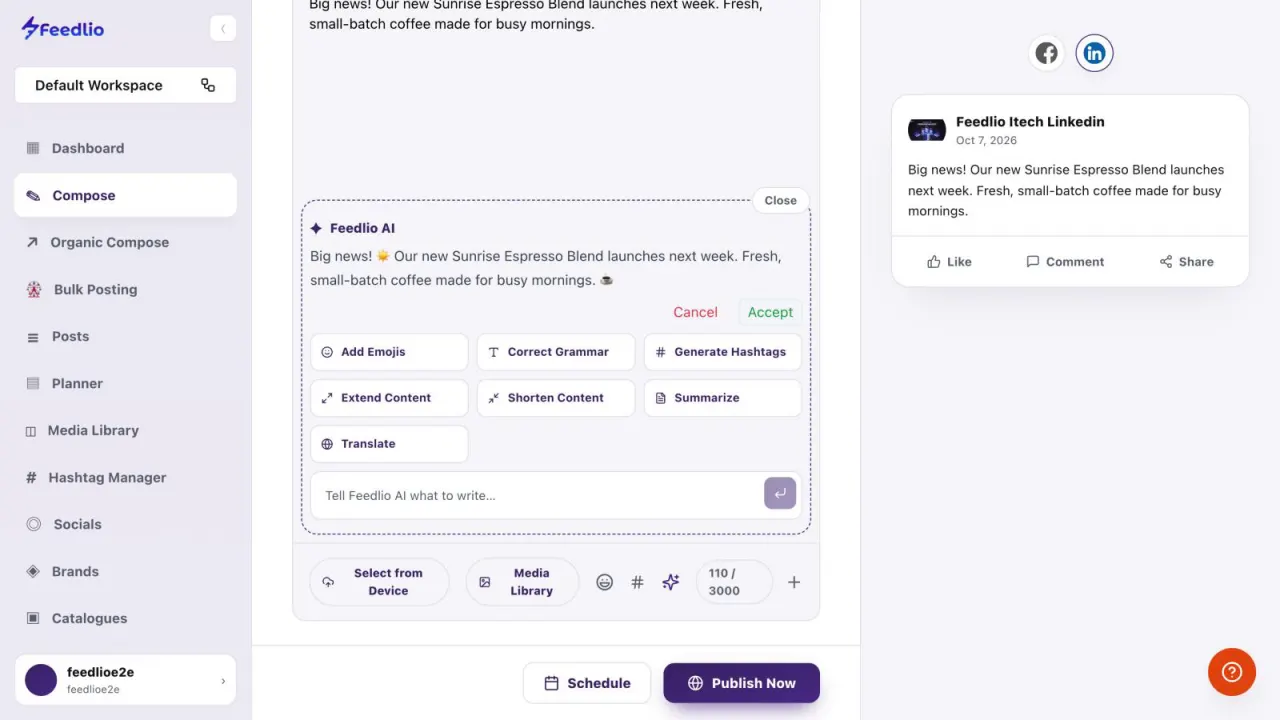
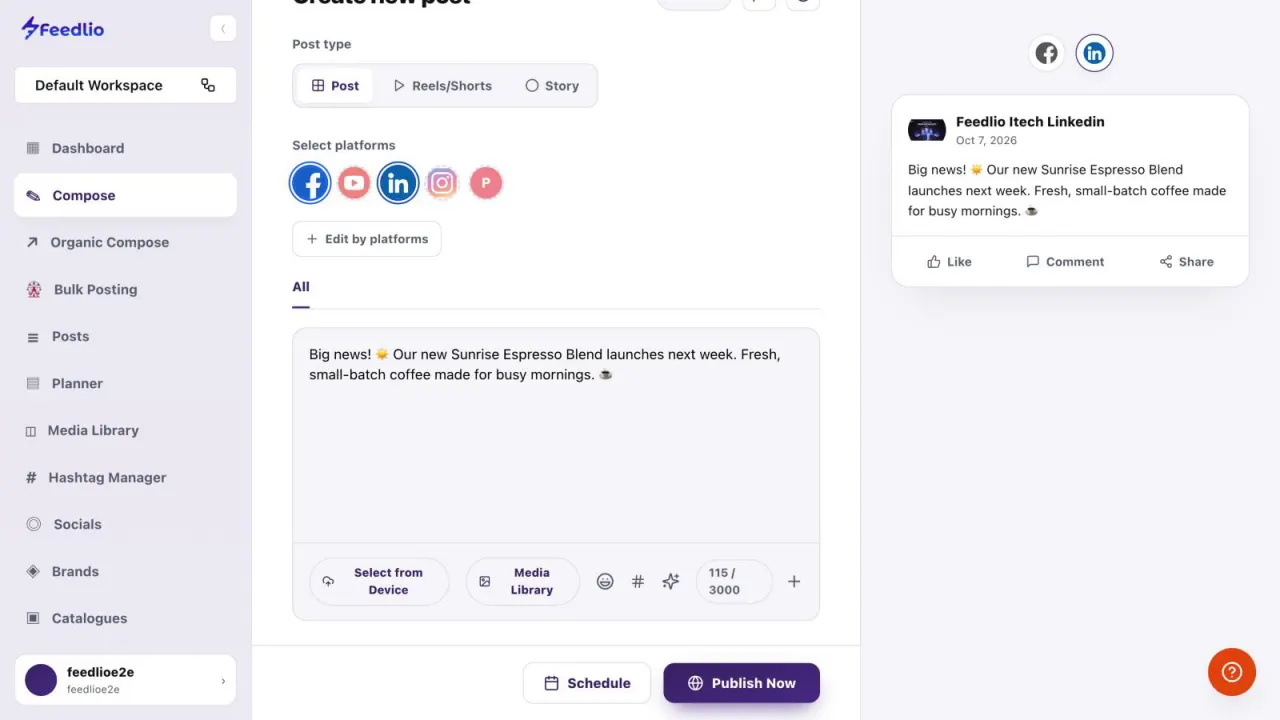
The toolbar under the editor has everything else a post needs: Select from Device and Media Library for images and videos, # for a saved hashtag group, and + for an automatic first comment.
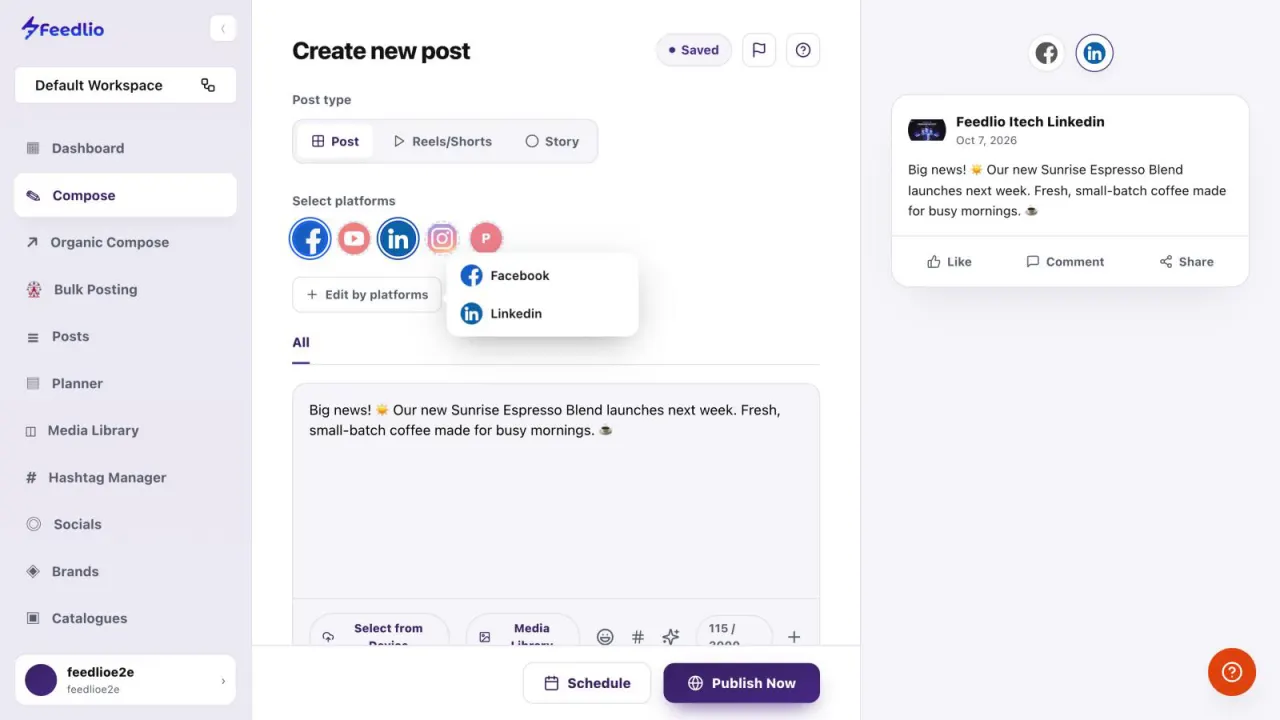
Need a different message for LinkedIn? Click Edit by platforms and pick an account. A new tab appears next to All, and the text you write there is used for that account only.
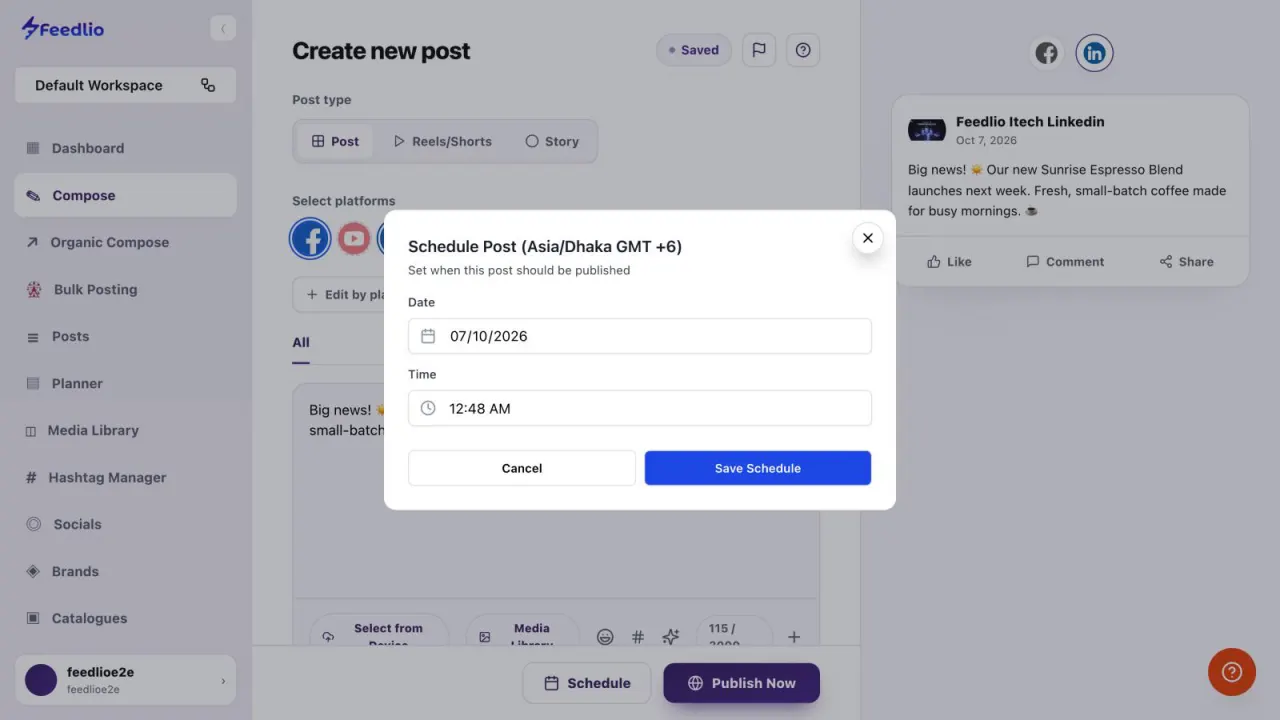
Click Schedule, choose the date and time, then click Save Schedule. Times are in your workspace time zone, which is shown in the window title.
To post right away, click Publish Now. The post goes live on every selected account at once.
Check the preview for each network first. To remove a post after it's live, delete it on the network itself.
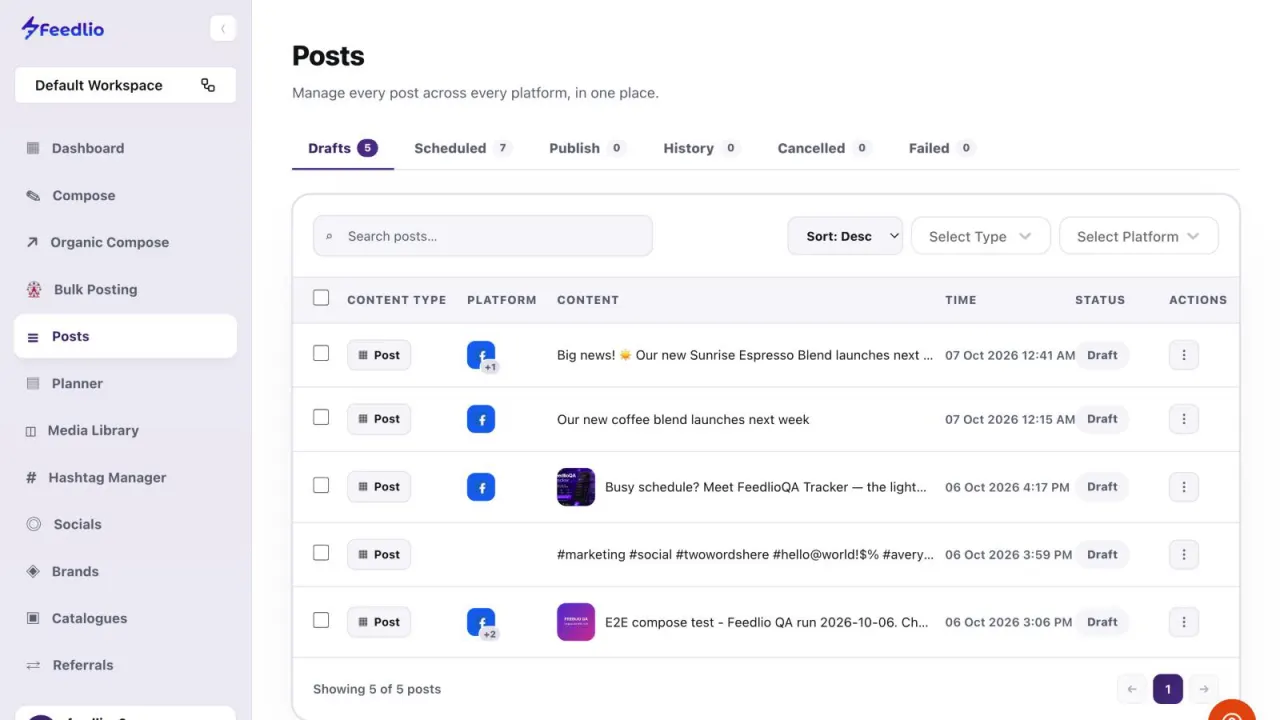
You don't need a Save button. The badge at the top changes to Saved as you type, and unfinished posts wait for you under Posts → Drafts.
 12
12Pick a post type, choose your channels, write with the live preview, improve it with AI, then schedule or publish. That's Compose.
Your workspace time zone. The Schedule window shows it in its title. To change it, edit the workspace in Workspace Management.
Yes. Click Edit by platforms, pick an account, and a new tab appears next to All. Whatever you write there is used for that account only.
Compose only lists connected accounts. Open Socials and check the account's card. If it needs attention, use Reauthenticate from its ⋮ menu.
Compose saves as you type. Look under Posts → Drafts, open the row's ⋮ menu, and choose Edit to continue.
No. Every AI action shows a suggestion first. Nothing changes until you click Accept.
0:00Welcome to Feedlio! In this tutorial, you'll learn how to create a post with Compose, polish it with Feedlio AI, and publish it to all your social channels at once.
0:12From your dashboard, click Compose in the left sidebar.
0:16First, choose the type of content you want to create: a regular post, a short video for Reels or Shorts, or a Story.
0:24Next, select every social account this post should go to. Each avatar is one of your connected accounts.
0:32Now write your post in the editor. The live preview on the right shows exactly how it will look on each platform.
0:39Want help writing? Open Feedlio AI. In one click you can add emojis, correct grammar, generate hashtags, extend, shorten, summarize, or translate your post.
0:51Feedlio AI always shows its suggestion first. Click Accept to use it, or Cancel to keep your original text.
1:00Use the toolbar to add images or videos from your device or media library, insert a saved hashtag group, or add an automatic first comment.
1:10Need a different message for LinkedIn? Click Edit by platforms and pick an account to write a custom version just for that network.
1:19When you're ready, click Schedule, choose the date and time in your workspace time zone, and click Save Schedule.
1:26Or, to post right away, click Publish Now.
1:30Pro tip: Compose saves your work automatically. Unfinished posts are kept under Posts, in the Drafts tab, ready to finish later.
1:39Let's recap. Pick a post type, choose your channels, write with the live preview, improve it with AI, then schedule or publish. That's Compose.
1:49You're all set! Try it yourself at feedlio dot io. In the next video, we'll build a complete post step by step with Organic Compose.