LearnOpen Feedlio
Esc
↑↓ to move↵ to openSearches every guide and step
Home›Create & Publish›Organic Compose
Guide 07 · Create & Publish

Organic Compose

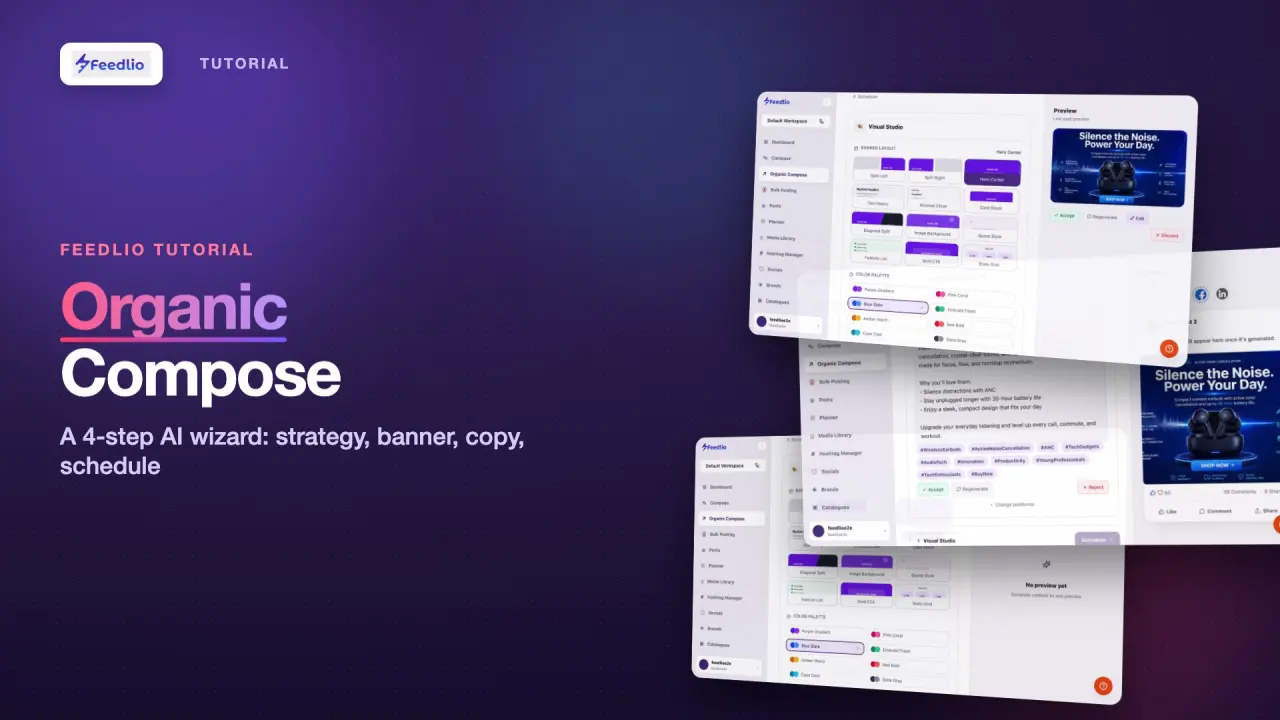
Build a complete post with Feedlio AI in four guided steps. Set your strategy, design a banner, generate the caption, then schedule or publish.

2:07 video4 min read9 stepsAll plans
Organic Compose tutorial videoVideo coming soon

What you'll learn

  • Set a category, goal, brand voice and audience
  • Give the AI details about what you're promoting
  • Generate a banner from a layout and colour palette
  • Get one caption for all platforms or one per platform
  • Schedule with AI-suggested times or your own

Step by step

Follow along in the app. Tick each step off as you go.

STEP 1 of 9

Four guided steps

Click Organic Compose in the sidebar. The progress bar walks you through four steps: Foundation, Visual Studio, Post Copy and Schedule. The Preview panel on the right fills in as you go.

feedlio.io/organic-composeClick to zoom
Screenshot: Four guided steps
feedlio.io/organic-composeClick to close
Screenshot: Four guided steps
Step 1: Four guided stepsEsc to close
STEP 2 of 9

Pick a category

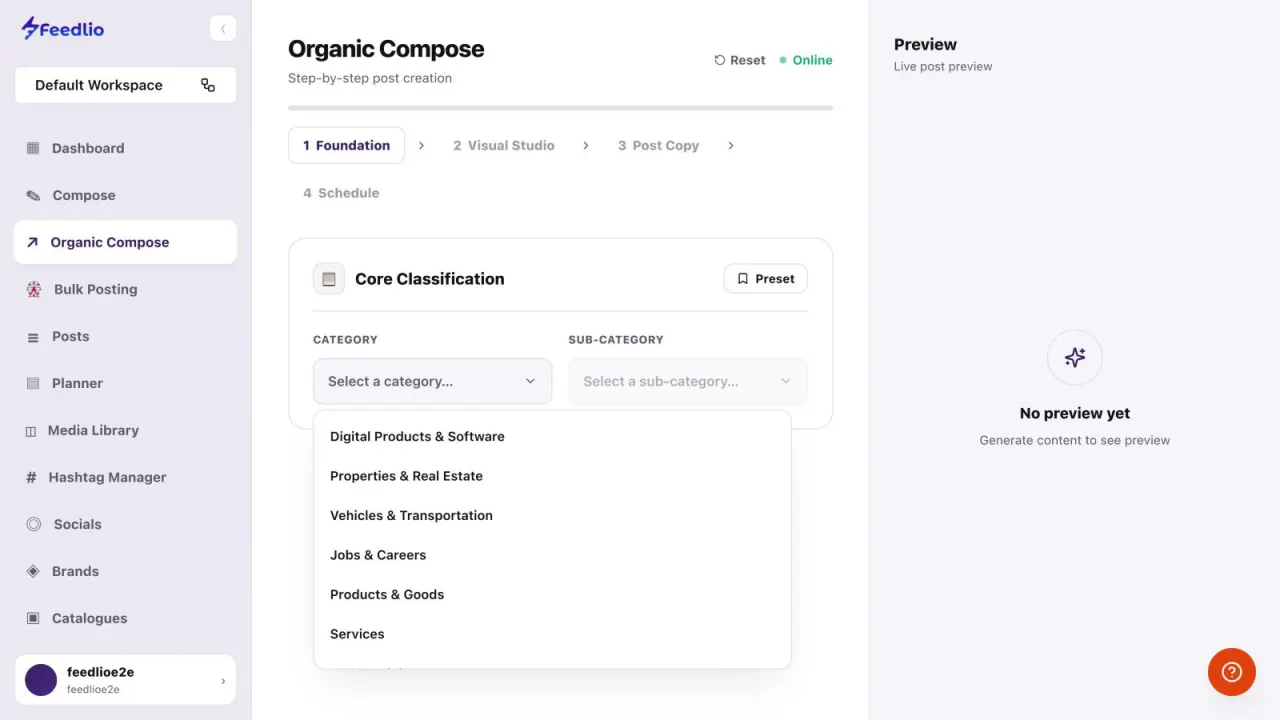
Under Core Classification, choose a Category, such as Products & Goods, then a Sub-category like Electronics. Click Preset to load a saved setup.

feedlio.io/organic-composeClick to zoom
Screenshot: Pick a category
feedlio.io/organic-composeClick to close
Screenshot: Pick a category
Step 2: Pick a categoryEsc to close
STEP 3 of 9

Set your strategy

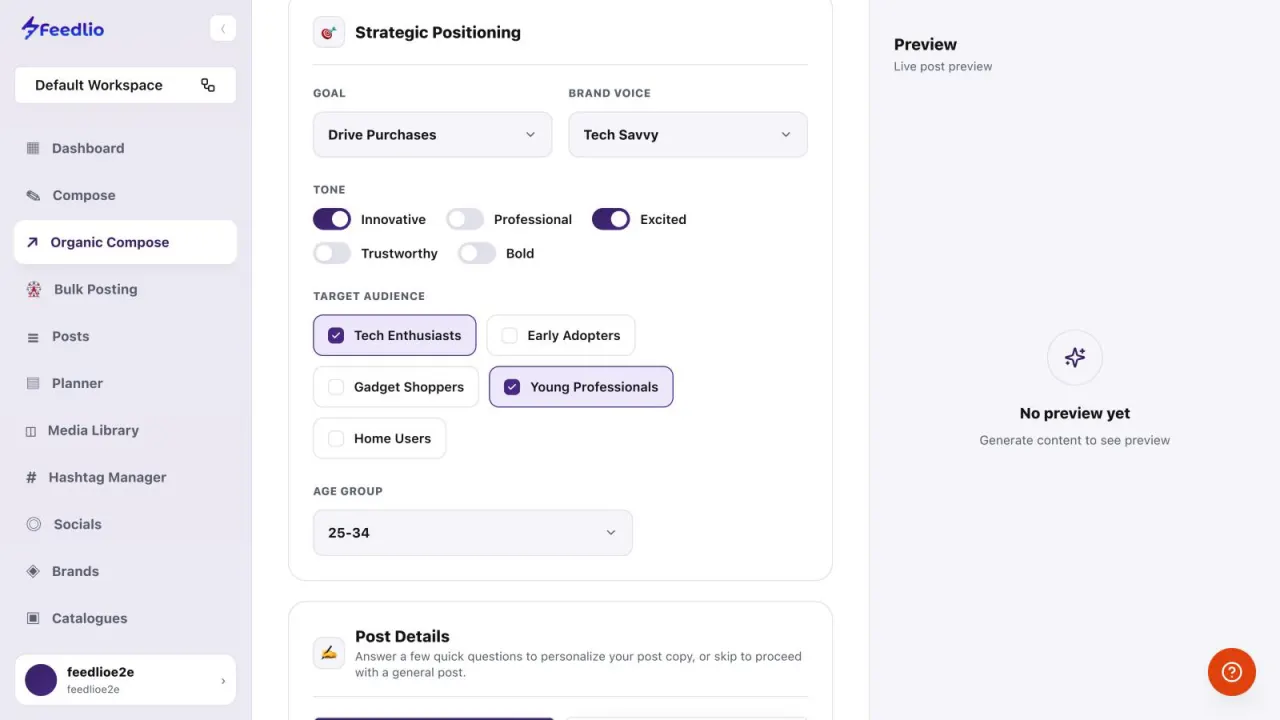
In Strategic Positioning, pick a Goal and a Brand Voice. Switch on the tones you want, tick your target audiences, and choose an Age Group.

  • Goal: e.g. Drive Purchases
  • Toggle one or more tones
  • Tick your target audiences
feedlio.io/organic-composeClick to zoom
Screenshot: Set your strategy12
feedlio.io/organic-composeClick to close
Screenshot: Set your strategy12
Step 3: Set your strategyEsc to close
STEP 4 of 9

Answer quick questions

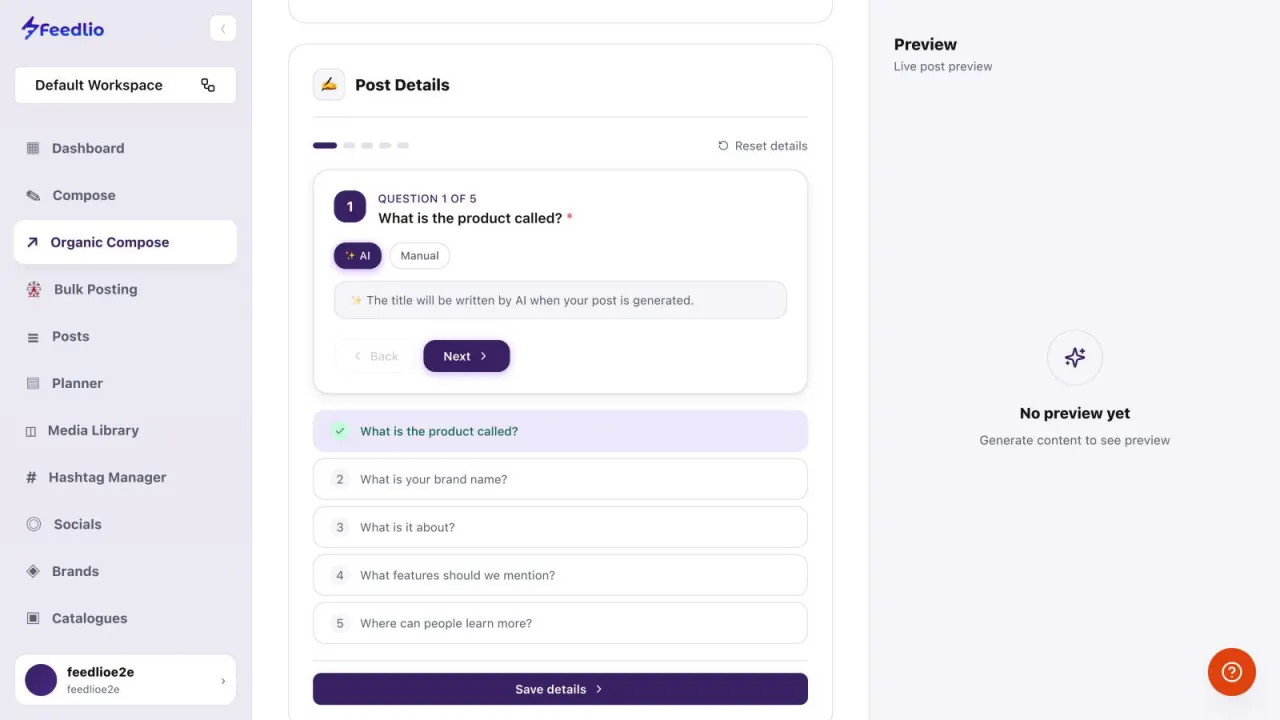
In Post Details, Feedlio AI asks five questions about your product. For each one, choose ✨ AI to let the AI write the answer, or Manual to type it yourself. Then click Save details.

In a hurry?

Click Skip in Post Details to carry on with a general post.

feedlio.io/organic-composeClick to zoom
Screenshot: Answer quick questions12
feedlio.io/organic-composeClick to close
Screenshot: Answer quick questions12
Step 4: Answer quick questionsEsc to close
STEP 5 of 9

Design a banner

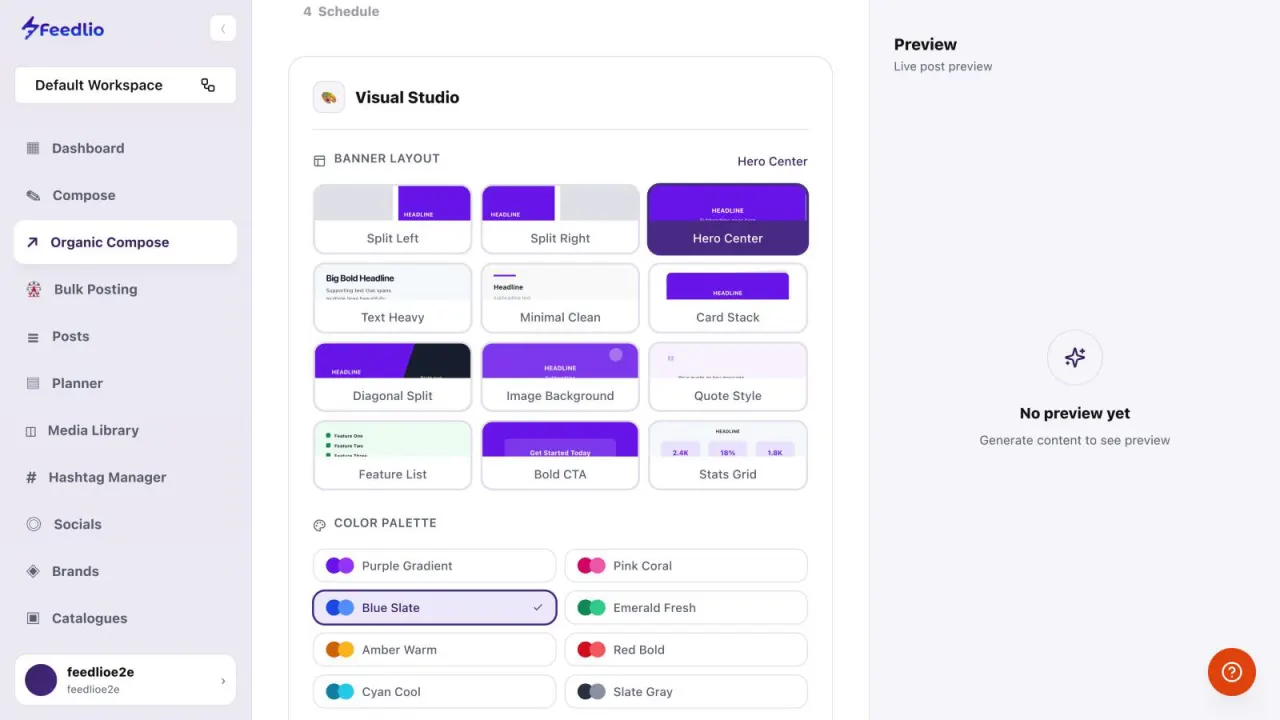
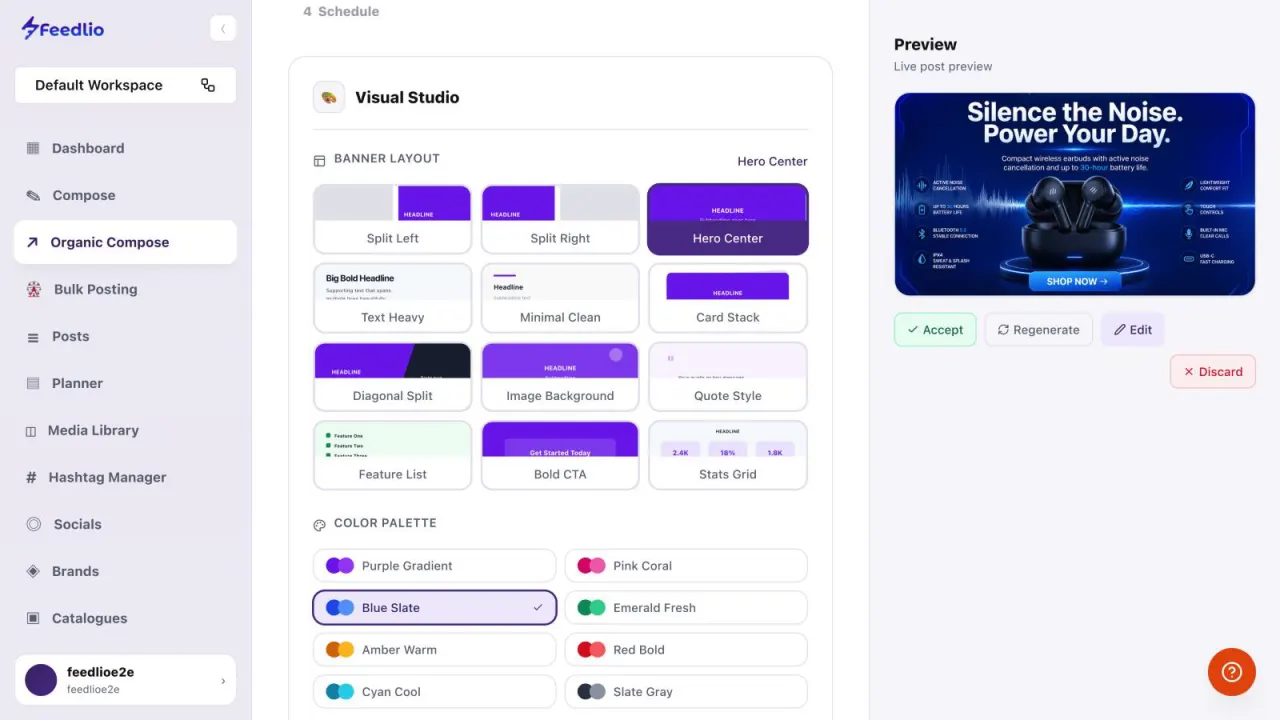
In Visual Studio, pick a Banner layout, such as Hero Center, and a Color palette. Add an optional prompt, or start from Edit an Existing Image or Select from Media Library instead.

Pick a layout first.

Generate Banner turns on once a banner layout is selected.

feedlio.io/organic-composeClick to zoom
Screenshot: Design a banner12
feedlio.io/organic-composeClick to close
Screenshot: Design a banner12
Step 5: Design a bannerEsc to close
STEP 6 of 9

Generate & accept

Click ✨ Generate Banner and the image appears in the preview. Click Accept to keep it, Regenerate for a new version, Edit to adjust it, or Discard to drop it.

feedlio.io/organic-composeClick to zoom
Screenshot: Generate & accept12
feedlio.io/organic-composeClick to close
Screenshot: Generate & accept12
Step 6: Generate & acceptEsc to close
STEP 7 of 9

Choose your copy style

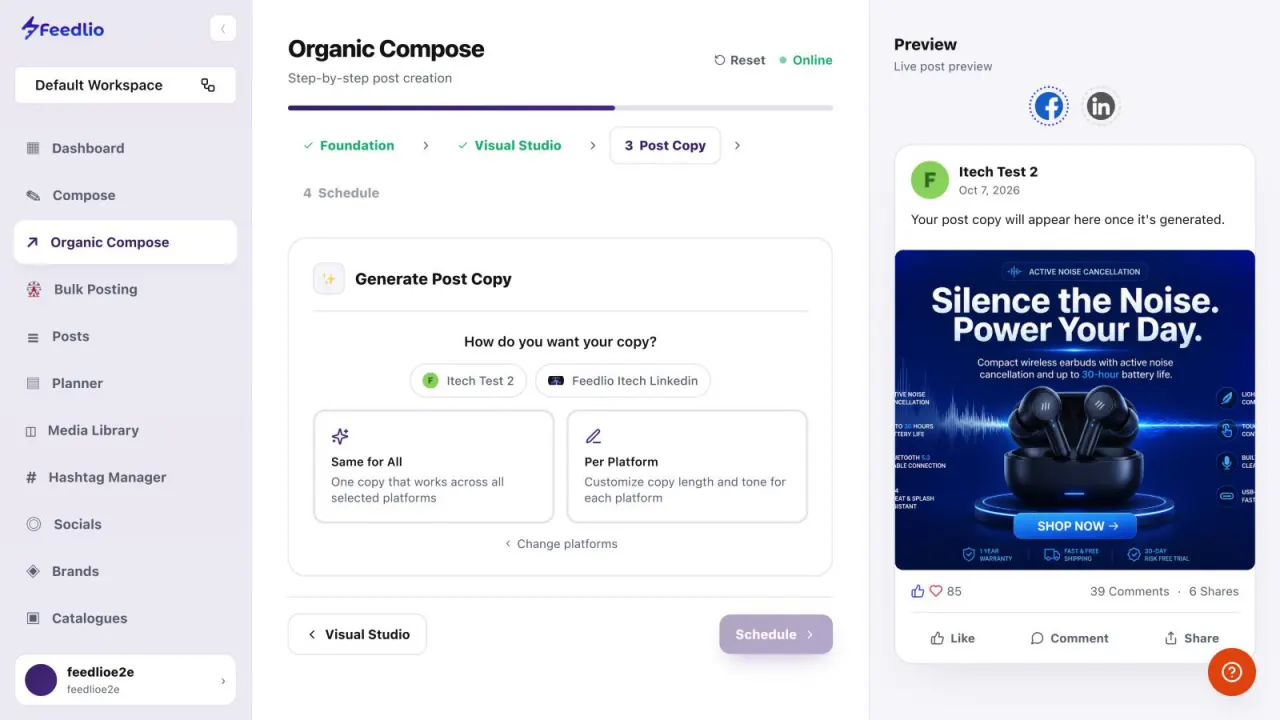
In Post Copy, select the accounts to post to. Then choose Same for All for one shared caption, or Per Platform to tailor the length and tone for each network.

feedlio.io/organic-composeClick to zoom
Screenshot: Choose your copy style
feedlio.io/organic-composeClick to close
Screenshot: Choose your copy style
Step 7: Choose your copy styleEsc to close
STEP 8 of 9

AI writes the caption

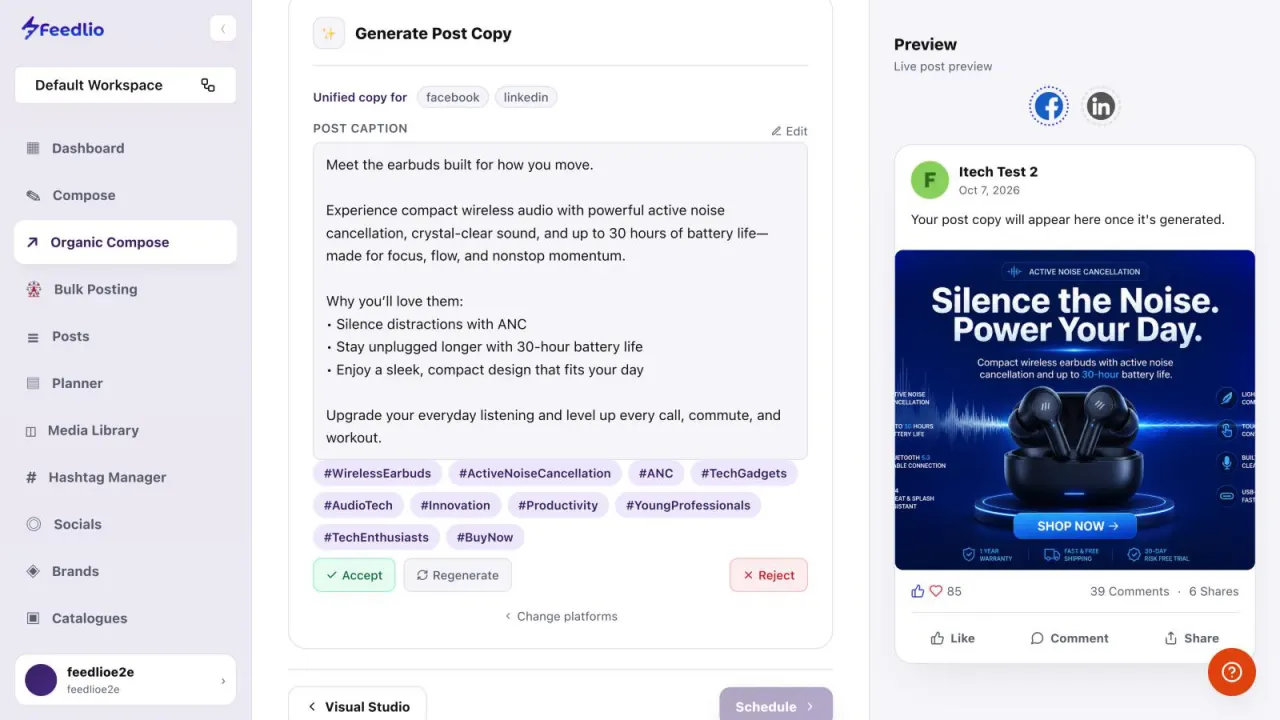
Feedlio AI writes a complete caption with hashtags, and the preview shows it with your banner. Click Accept, Regenerate, Edit or Reject.

feedlio.io/organic-composeClick to zoom
Screenshot: AI writes the caption12
feedlio.io/organic-composeClick to close
Screenshot: AI writes the caption12
Step 8: AI writes the captionEsc to close
STEP 9 of 9

Schedule or publish

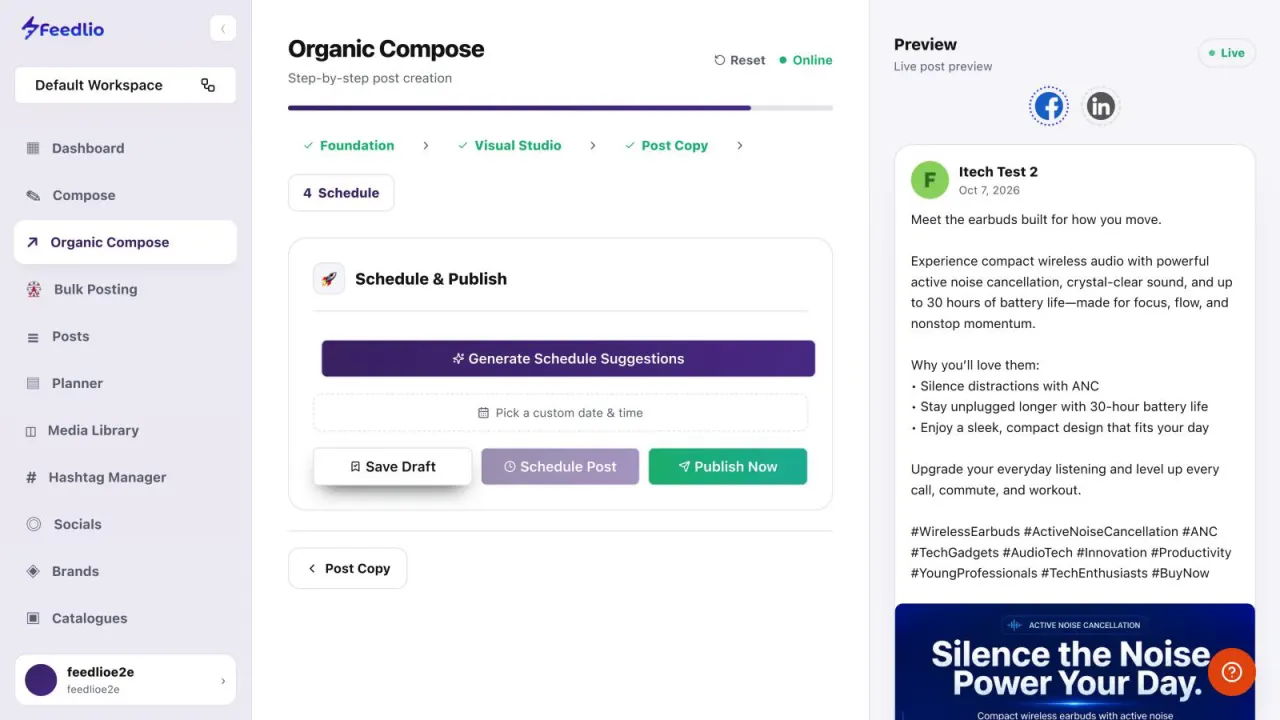
Click Generate Schedule Suggestions for AI-picked posting times, or Pick a custom date & time. Then finish with Save Draft, Schedule Post or Publish Now.

Schedule Post needs a future time.

If the button stays greyed out, choose a date and time later than now.

  • Generate Schedule Suggestions
  • Pick a custom date & time
  • Save Draft · Schedule Post · Publish Now
feedlio.io/organic-composeClick to zoom
Screenshot: Schedule or publish12
feedlio.io/organic-composeClick to close
Screenshot: Schedule or publish12
Step 9: Schedule or publishEsc to close
Recap

Post built!

Set your category, goal, voice and audience, answer a few questions, design a banner, generate the copy, then schedule or publish.

Next: Bulk Posting

Questions people ask

Which categories can I choose from?

Digital Products & Software, Properties & Real Estate, Vehicles & Transportation, Jobs & Careers, Products & Goods, and Services. Each one has its own sub-categories.

Do I have to answer the questions?

No. In Post Details you can click Skip to continue with a general post. You can also let the AI answer any question for you.

Can I make a post without a banner?

Yes. When you're asked Add a Banner Image?, choose No, Skip Banner.

Why is Generate Banner greyed out?

Select a banner layout first. The button turns on once a layout is chosen.

What's the difference between Same for All and Per Platform?

Same for All writes one caption for every selected account. Per Platform tailors the length and tone of the caption for each network.

Video transcript

Read the full narration

0:00Organic Compose builds a complete, on-strategy post for you in four guided steps: foundation, visual studio, post copy, and schedule. Let's create a product post from start to finish.

0:13Open Organic Compose from the sidebar. The progress bar walks you through four steps: Foundation, Visual Studio, Post Copy and Schedule.

0:23Start by choosing a category, such as Products and Goods, then a sub-category like Electronics. Save your favourite setup as a Preset to reuse later.

0:34Next, set your strategy. Pick a goal and a brand voice, switch on the tones you want, select your target audiences, and choose an age group.

0:43Feedlio AI then asks a few questions about your product. For each one, let AI write the answer or switch to Manual and type it yourself. Then click Save details.

0:55In Visual Studio, pick a banner layout, such as Hero Center, and a colour palette. You can add an optional prompt, edit an existing image, or use one from your media library.

1:07Click Generate Banner, and an on-brand image appears in the preview. Accept it, regenerate for a new version, edit it, or discard it.

1:16In Post Copy, select the accounts to post to, then choose Same for All for one shared caption, or Per Platform to tailor the length and tone for each network.

1:27Feedlio AI writes a complete caption with hashtags, and the live preview shows it with your banner. Accept it, regenerate, edit, or reject.

1:38Finally, generate schedule suggestions for the best posting times, or pick a custom date and time. Then save it as a draft, schedule it, or publish now.

1:49Recap: set your category, goal, voice and audience, answer a few questions, design a banner, generate the copy, then schedule or publish.

1:59From strategy to finished post in minutes. Next, let's schedule a whole series of posts at once with Bulk Posting.

Related guides