STEP 1 of 7
Week or month
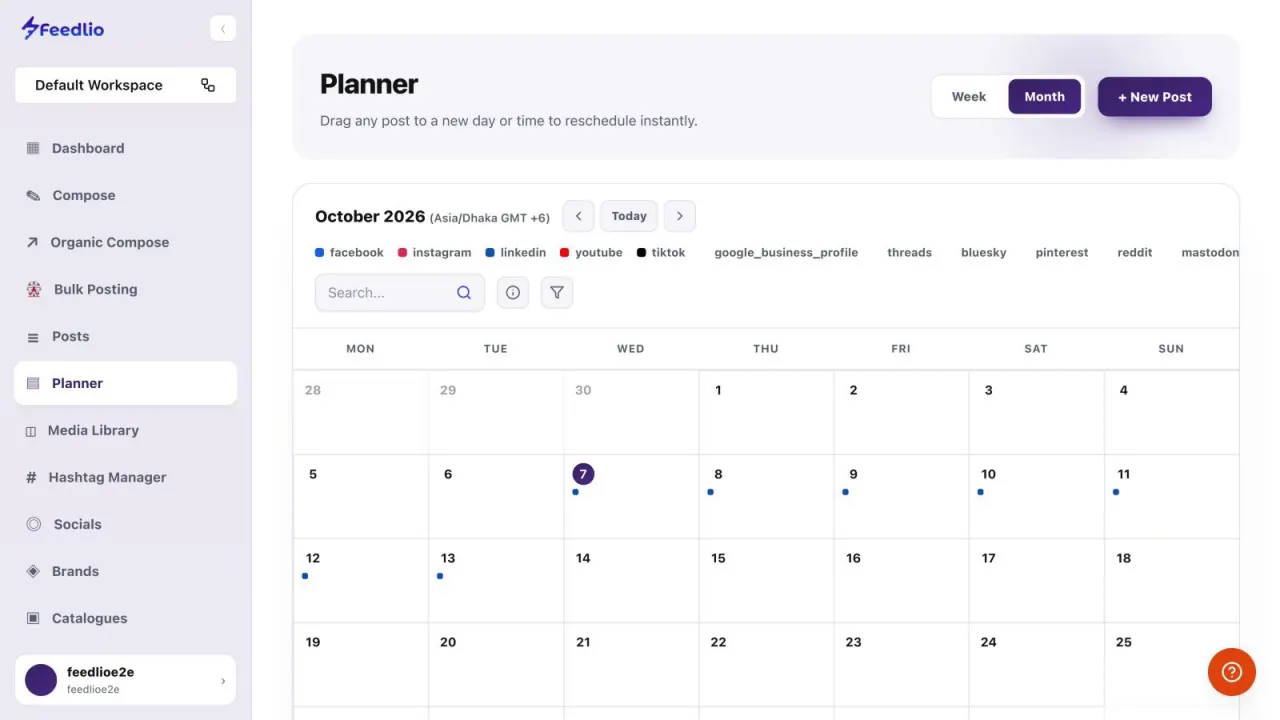
Click Planner in the left sidebar. Use the Week and Month toggle at the top right to switch views.
feedlio.io/plannerClick to zoom
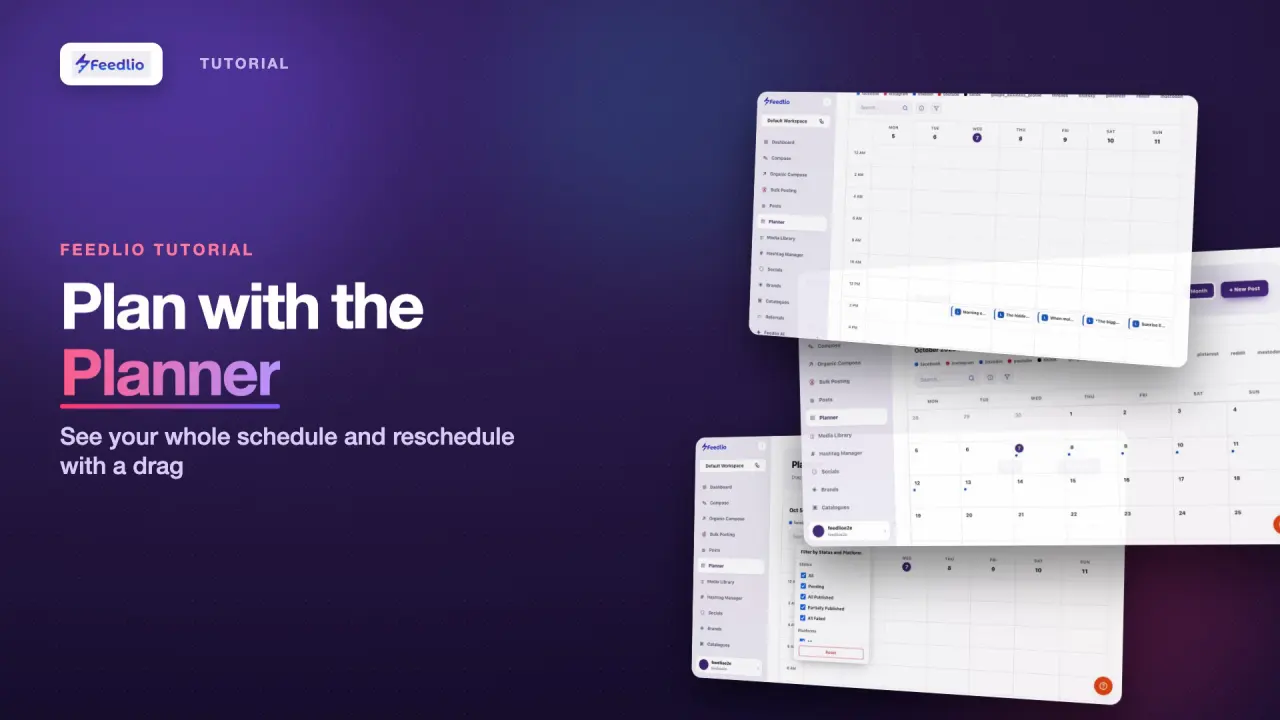
See every scheduled post on a week or month calendar. Spot gaps in your plan, move posts to a new slot, and add new posts without leaving the calendar.
 Video coming soon
Follow along in the app. Tick each step off as you go.
Click Planner in the left sidebar. Use the Week and Month toggle at the top right to switch views.
In month view, coloured dots mark the days that have posts scheduled. Days without dots are the gaps in your plan.
Use the ‹ and › arrows to move between weeks or months, and click Today to jump back to the current date. The time zone next to the date is your workspace time zone.
Week view places each post in its exact time slot, with its platform icon and the first words of the caption.
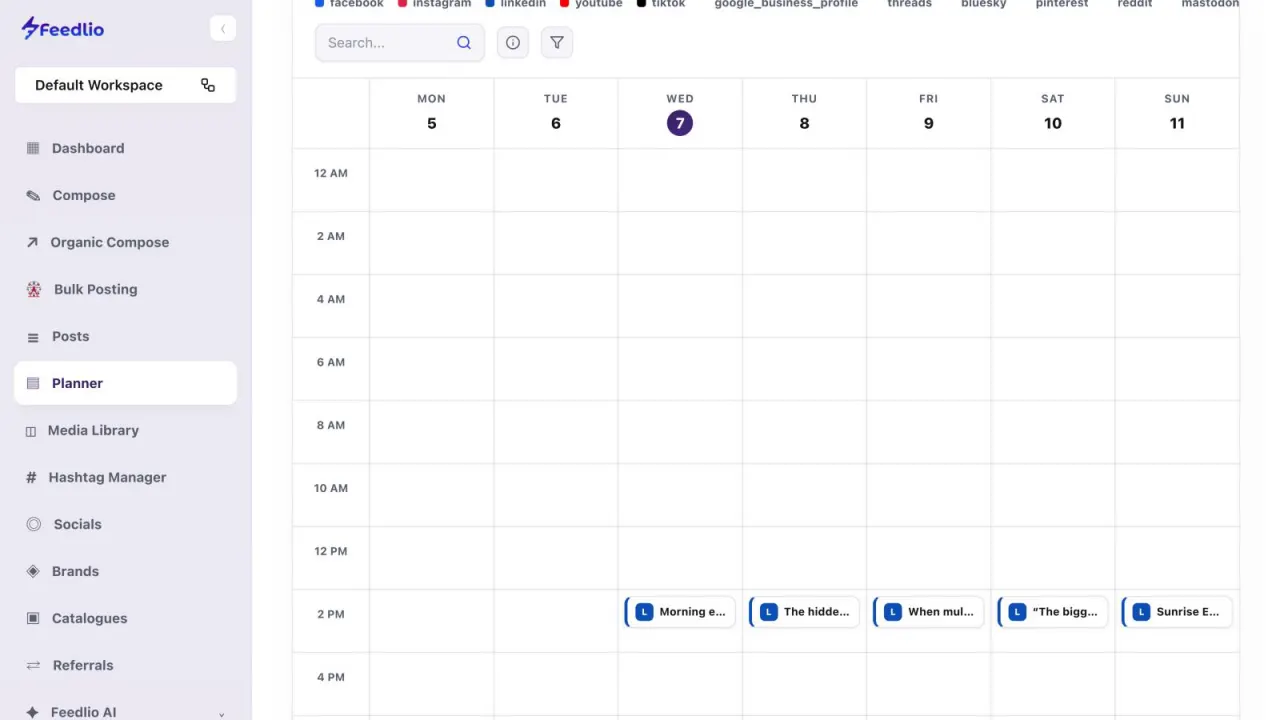
To reschedule a post, drag it to a new day or time and drop it. Feedlio updates the schedule for you.
12Click the filter icon to open Filter by Status and Platform. Tick the statuses you want, such as Pending or All Failed, and the platforms to show. Click Reset to clear your filters. The colour legend above the calendar tells you which colour belongs to which network.
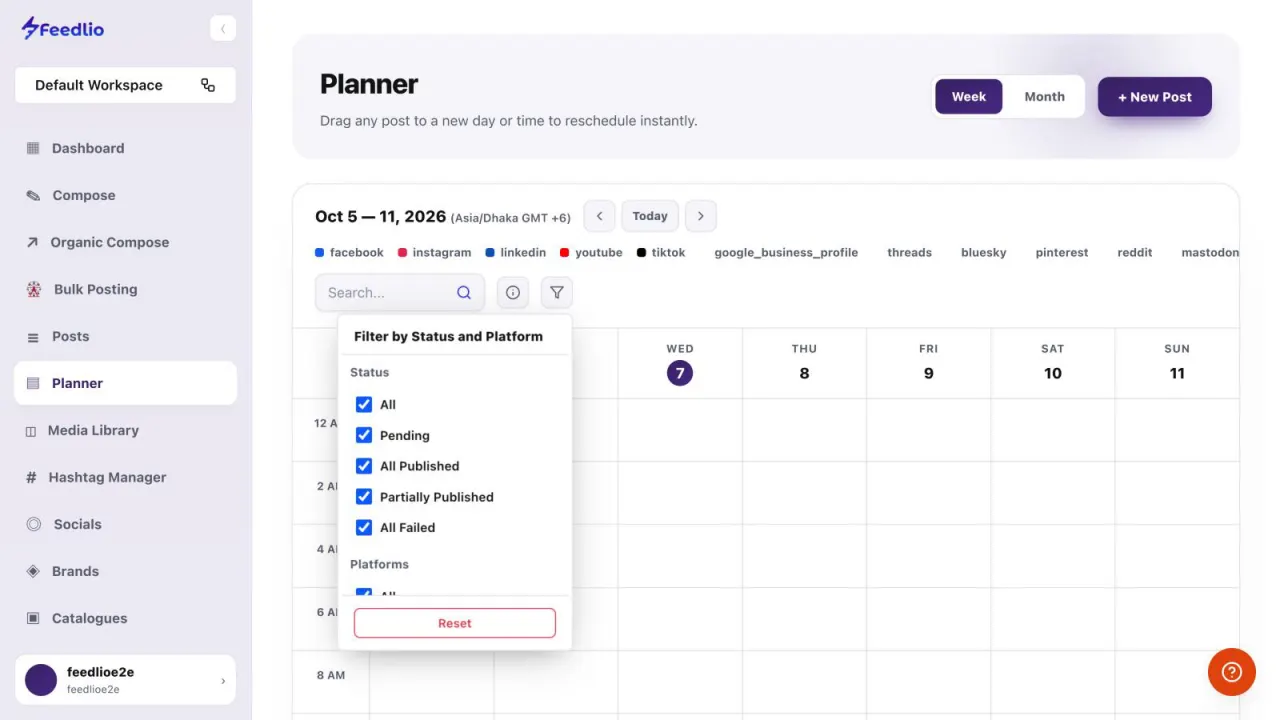
Found a gap? Click + New Post to create a post right from the Planner.
To fill several days at once, use Bulk Posting to schedule a batch of images at a set interval.
Switch between week and month, move through dates, read the colour legend, drag posts to reschedule, filter by status or platform, and add new posts.
Your workspace time zone. It's shown next to the month or week at the top of the calendar, for example Asia/Dhaka GMT +6.
Yes. Click the filter icon and, under Status, tick only All Failed. Click Reset to show everything again.
Yes. In Posts, open the scheduled post's ⋮ menu and choose Edit Time.
Click + New Post at the top right of the Planner to create a post.
0:00The Planner shows every scheduled post on a calendar, so you can spot gaps, balance your channels, and move posts around in seconds.
0:09Open Planner from the sidebar. Use the toggle at the top right to switch between a week view and a month view.
0:17In month view, coloured dots show which days have posts scheduled, so gaps in your content plan stand out immediately.
0:25Use the arrows to move between weeks or months, and Today to jump back to the current date. All times use your workspace time zone.
0:34Week view places every post in its exact time slot, with the platform icon and the first words of the caption.
0:42To reschedule, simply drag a post to a new day or time and drop it. Feedlio updates the schedule instantly. No forms, no re-typing.
0:52Click the filter icon to show only certain statuses, like pending or failed, or only specific platforms. The colour legend above tells you which colour is which network.
1:04And when you spot a gap, click New Post to create one right from the Planner.
1:09Recap: switch between week and month, move through dates, read the colour legend, drag posts to reschedule, filter by status or platform, and add new posts.
1:20Your week is sorted. Next, let's organise your images and videos in the Media Library.