STEP 1 of 5
Open MCP settings
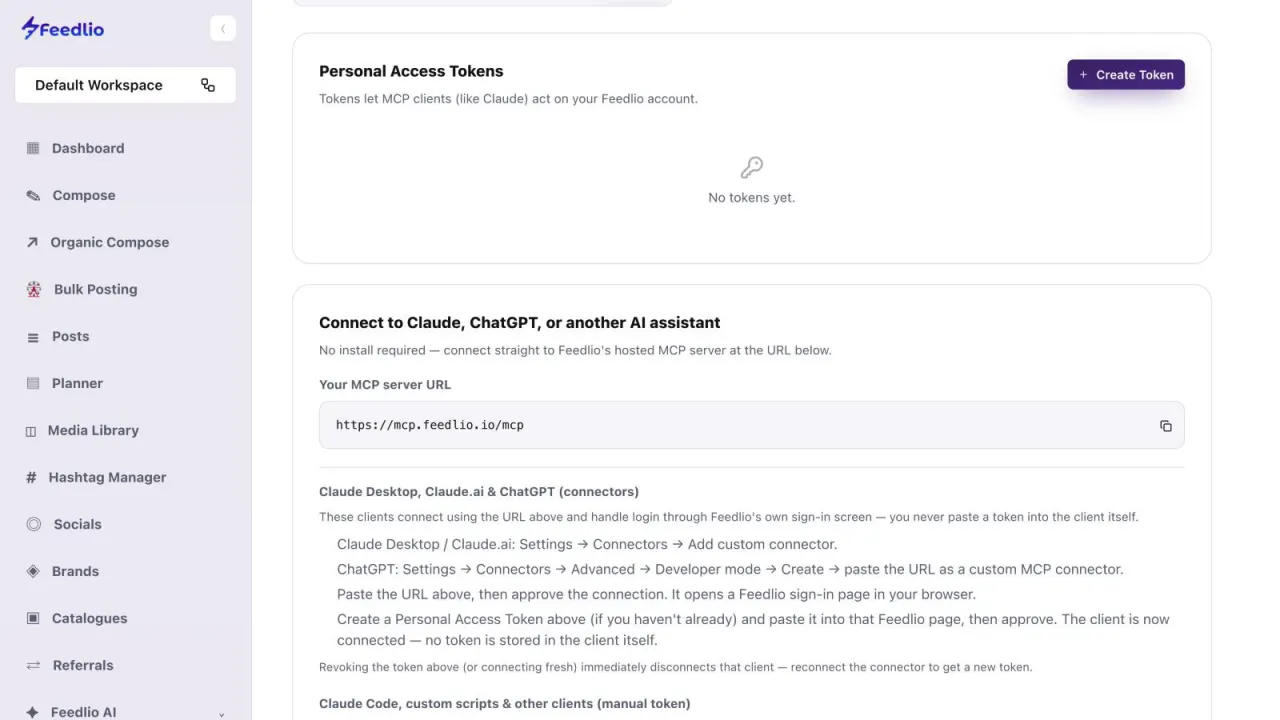
Open Settings → MCP. MCP lets AI assistants like Claude and ChatGPT work with your Feedlio account. Your tokens are listed under Personal Access Tokens at the top.
feedlio.io/settings/mcpClick to zoom
Connect Claude, ChatGPT or Claude Code to Feedlio with MCP, so your AI assistant can manage workspaces, posts and media for you.
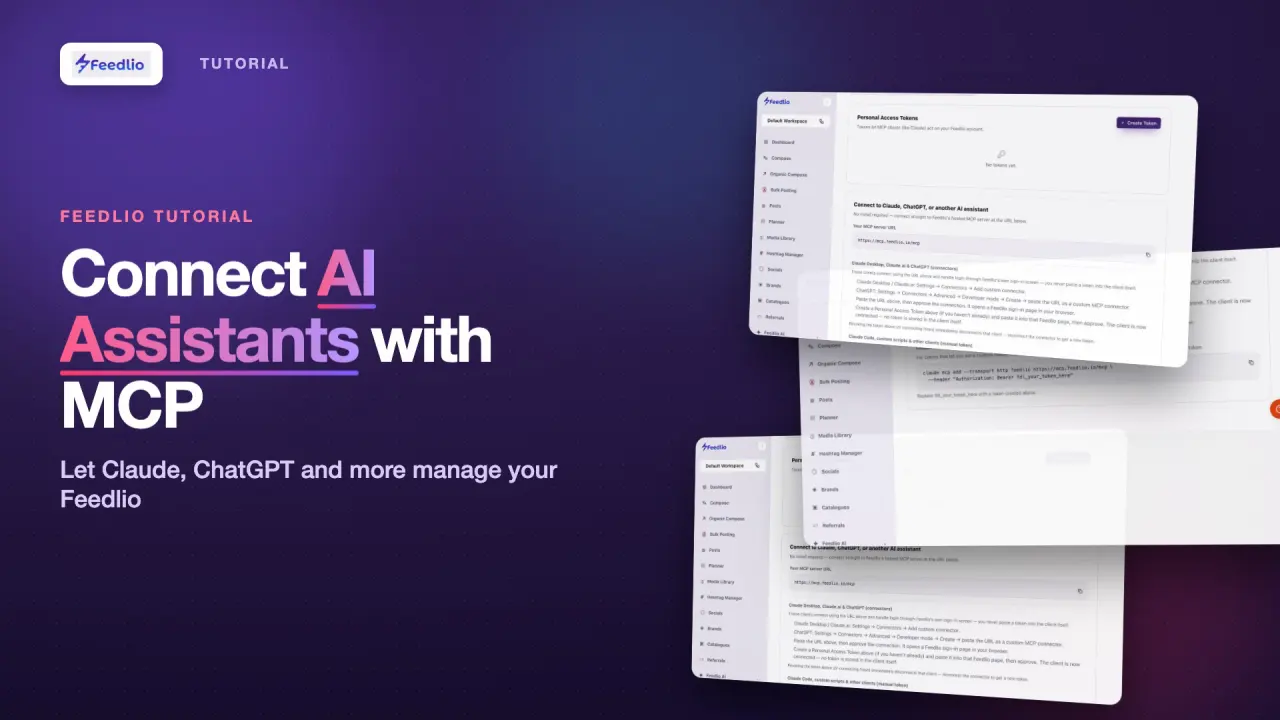 Video coming soon
Follow along in the app. Tick each step off as you go.
Open Settings → MCP. MCP lets AI assistants like Claude and ChatGPT work with your Feedlio account. Your tokens are listed under Personal Access Tokens at the top.
Under Your MCP server URL, click the copy button next to https://mcp.feedlio.io/mcp. Feedlio hosts the server, so there's nothing to install.
In Claude Desktop or Claude.ai, go to Settings → Connectors → Add custom connector. In ChatGPT, go to Settings → Connectors → Advanced → Developer mode → Create. Paste the URL, then approve the connection on the Feedlio sign-in page that opens in your browser.
The Feedlio sign-in page asks for a personal access token. Create one first (see the next step), paste it there, and approve.
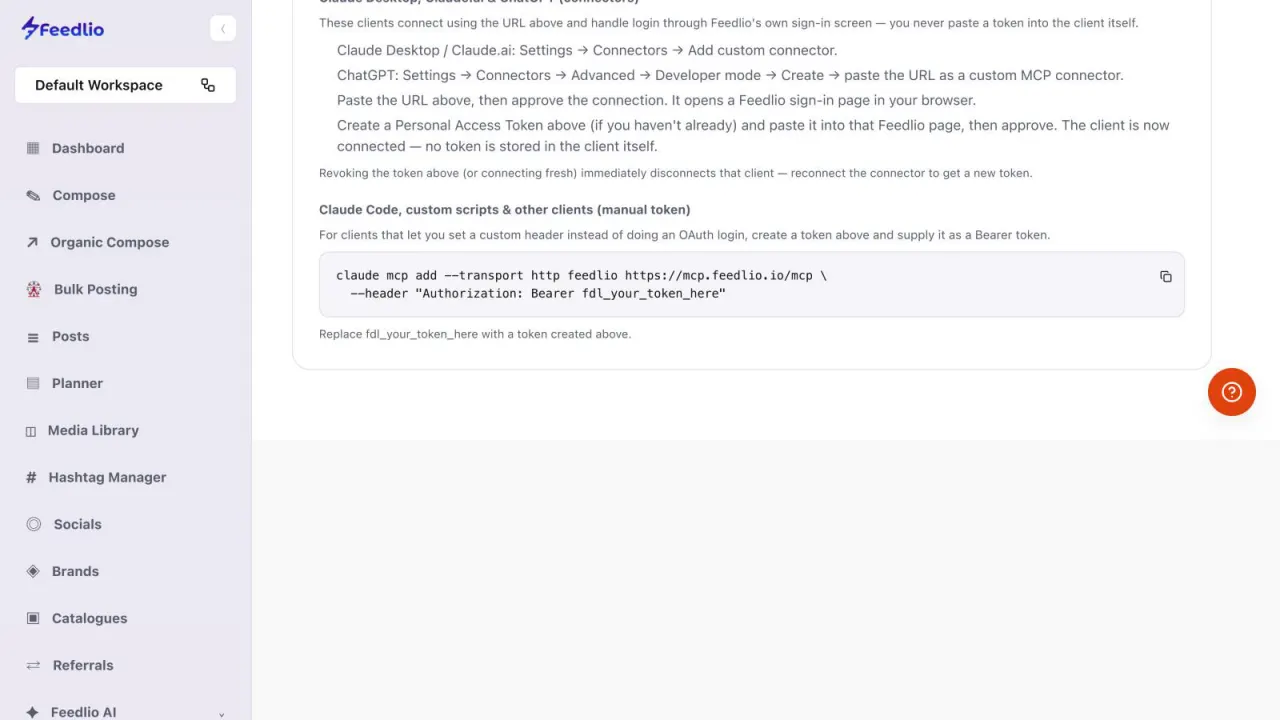
Click Create Token to make a personal access token. Tokens let MCP clients act on your Feedlio account, so treat each one like a password. You can revoke it here any time.
Anyone with your token can manage your Feedlio account. Never paste it into a public chat, document or code repository.
For Claude Code, custom scripts and other clients that take a manual token, copy the command shown on the MCP page and run it in your terminal. Replace fdl_your_token_here with a token you created.
claude mcp add --transport http feedlio https://mcp.feedlio.io/mcp --header "Authorization: Bearer fdl_your_token_here"
Revoking a token immediately disconnects the client that uses it. To use that client again, reconnect it to get a new token.
Open MCP settings, copy the server URL, add it as a connector in your AI app, or use a personal access token for Claude Code and custom scripts.
No. Feedlio hosts the MCP server. You only paste its URL into your AI app.
No. Connectors log in through Feedlio's own sign-in page. You paste the token there and approve, and no token is stored in the AI app itself.
It can list, create, delete and set a default workspace, list your social accounts and get a link to connect a new one, create, list, reschedule, cancel and delete posts, and list, add from a URL and delete media.
Claude Code, custom scripts and any client that lets you set a custom header instead of an OAuth login. They send the token as a Bearer token.
Revoke its token under Personal Access Tokens on the MCP page. The client is disconnected right away.
0:00Did you know you can run Feedlio straight from your AI assistant? In this tutorial, you'll connect Claude, ChatGPT, or Claude Code to Feedlio using MCP.
0:11Go to Settings and open the MCP tab. MCP lets AI assistants like Claude and ChatGPT work with your Feedlio account.
0:20Copy your MCP server URL with the copy button. It's hosted by Feedlio, so there's nothing to install.
0:28In Claude, open Settings, Connectors, and add a custom connector. In ChatGPT, use Developer mode to create one. Paste the URL, then approve the connection on the Feedlio sign-in page.
0:41For manual setups, click Create Token to make a personal access token. Treat it like a password, and revoke it here any time.
0:50For Claude Code or custom scripts, run the claude mcp add command shown here, and replace the placeholder with your token.
0:58Pro tip: revoking a token immediately disconnects that client. Just reconnect to get a fresh one.
1:06Let's recap. Open MCP settings, copy the server URL, add it as a connector in your AI app, or use a personal access token for Claude Code and custom scripts.
1:17Now your AI assistant can create posts, schedule them, and manage media for you. In the next video, we'll earn rewards with Feedlio Referrals.