STEP 1 of 7
Sign up free
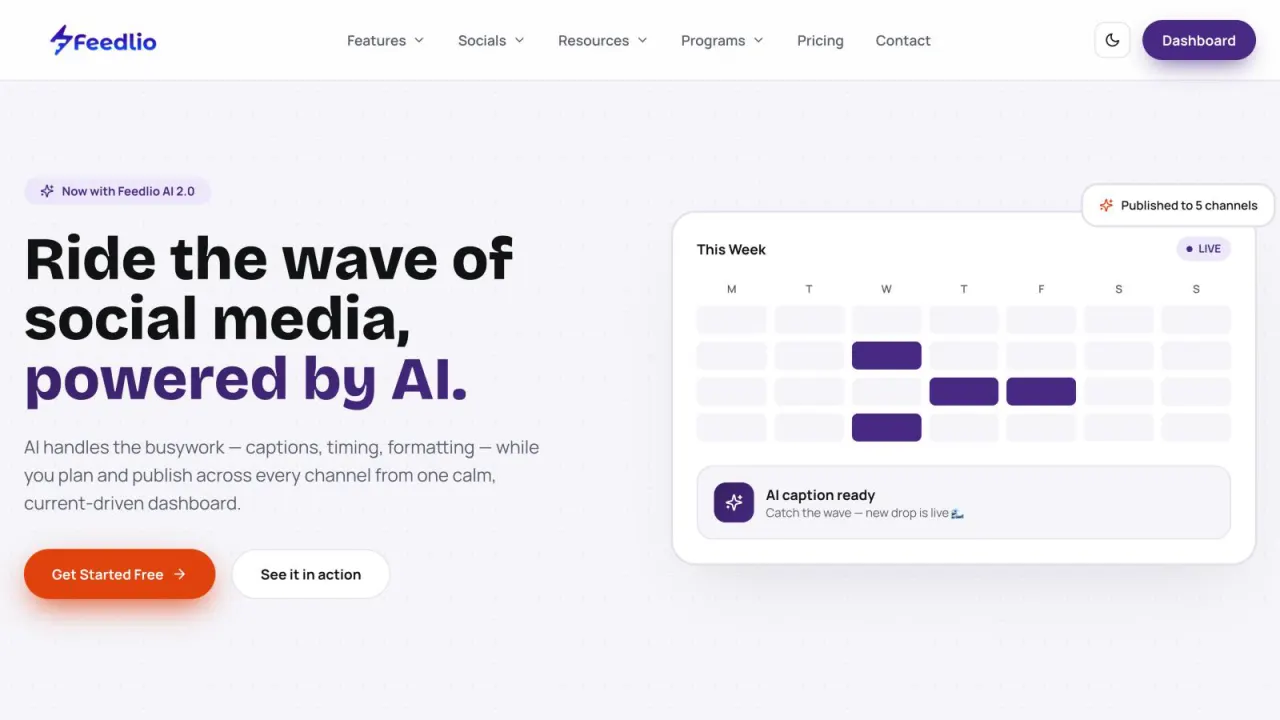
Go to feedlio.io and click Get Started Free. Fill in the sign-up form and your account is ready in seconds.
- No credit card needed
- Free plan available
feedlio.io/dashboardClick to zoom
Create your free Feedlio account and learn where every tool lives, from the sidebar and workspace switcher to help when you need it.
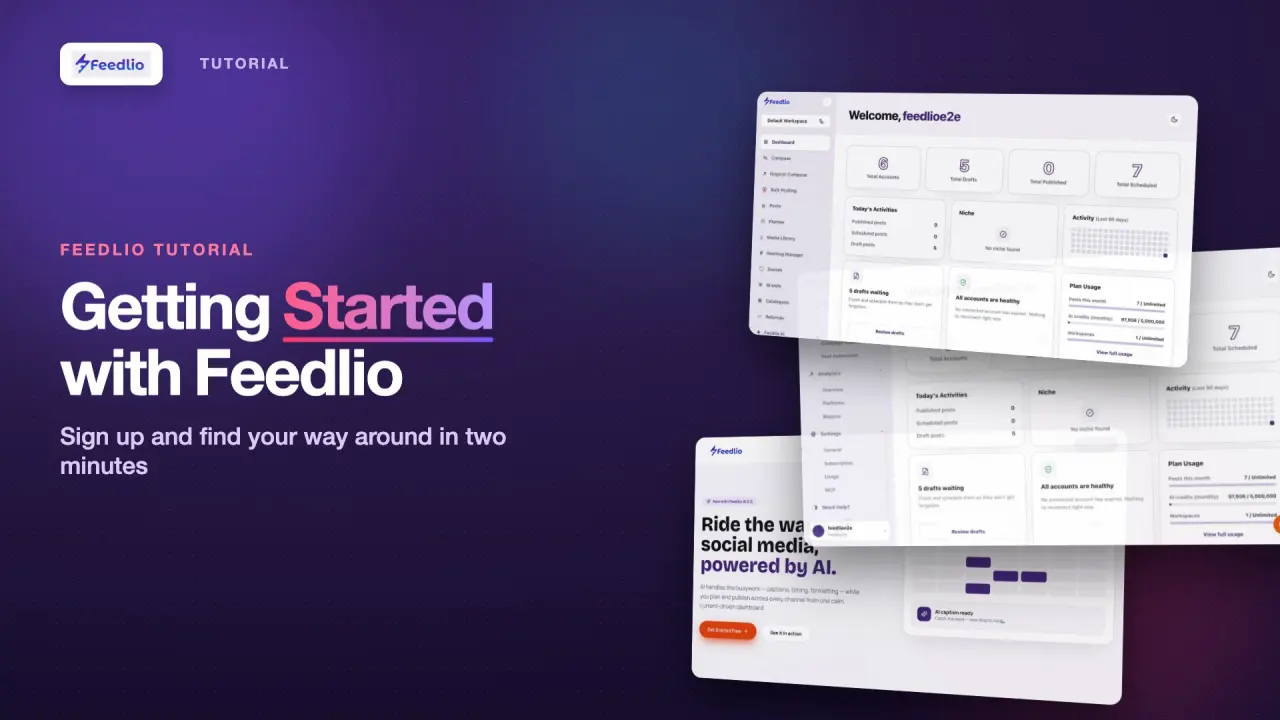 Video coming soon
Nothing to set up first. You can follow this guide straight away.
Follow along in the app. Tick each step off as you go.
Go to feedlio.io and click Get Started Free. Fill in the sign-up form and your account is ready in seconds.
Already have an account? Click Log In at the top right of feedlio.io. Once you're signed in, the same button reads Dashboard and takes you straight to the app.
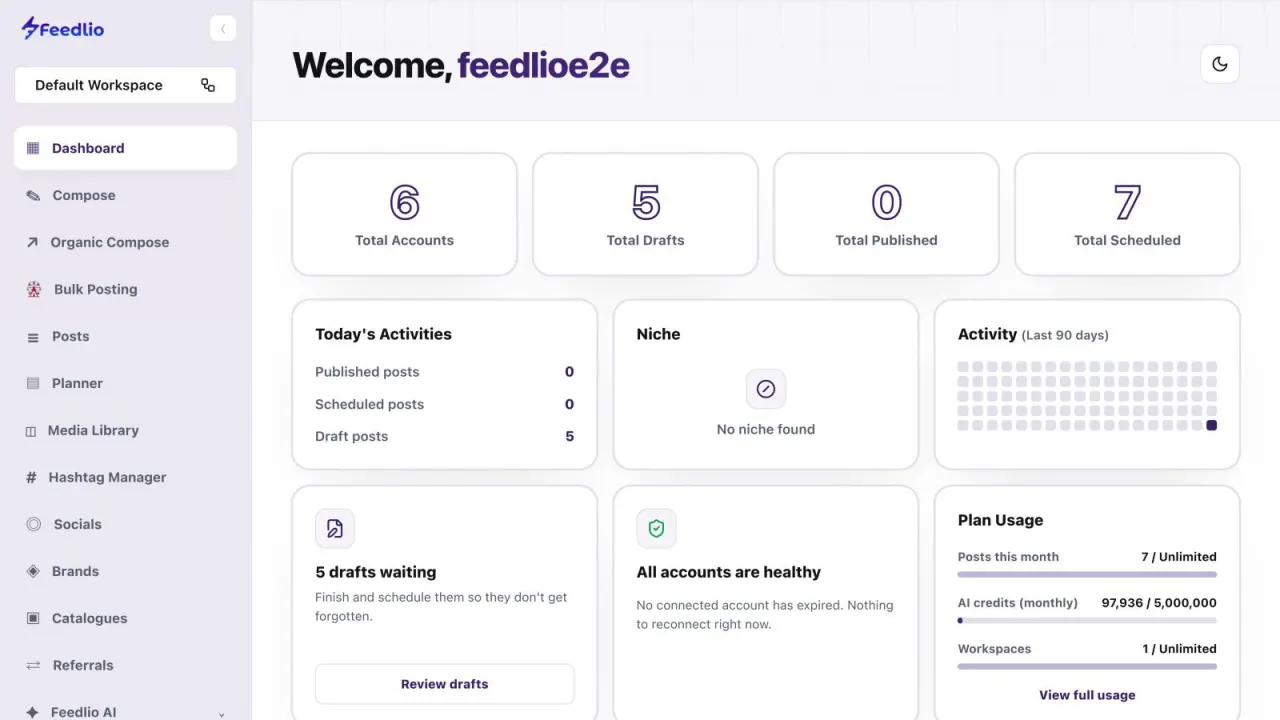
The sidebar is your home base. Use it to create posts, manage your queue and calendar, store media and hashtags, connect social accounts, and set up brands and catalogues.
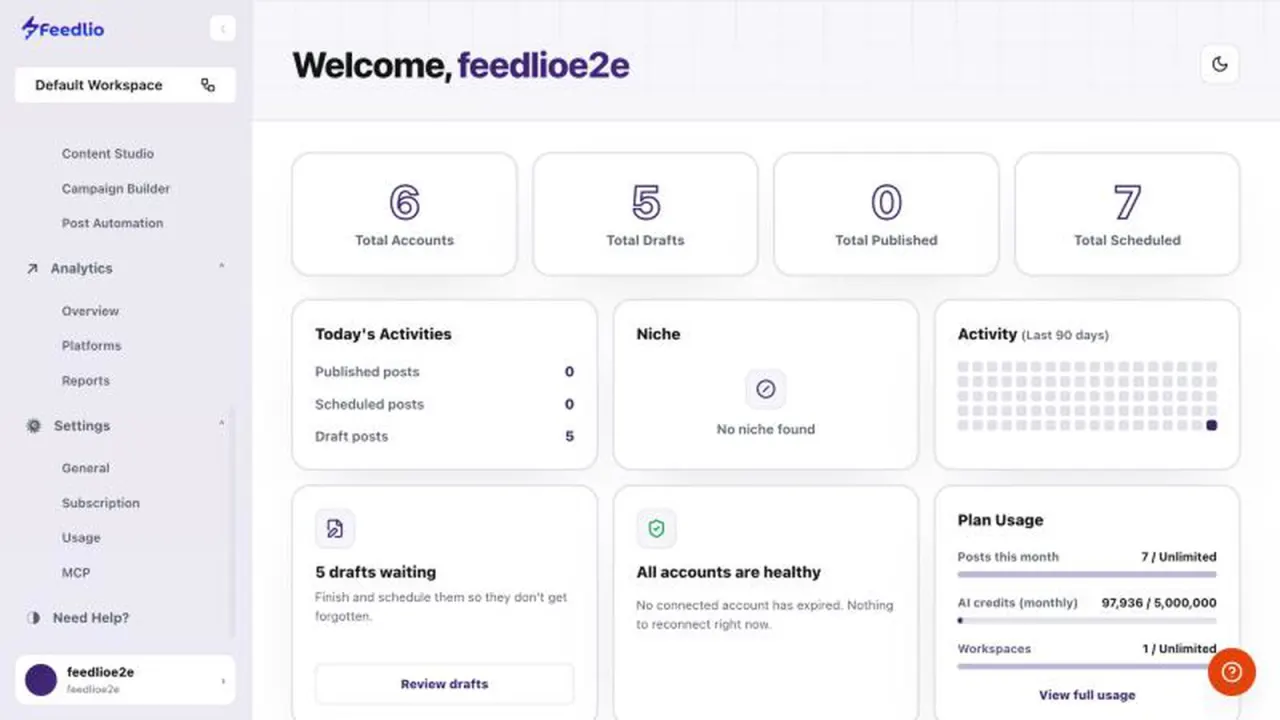
Further down, expand Feedlio AI for Content Studio, Campaign Builder and Post Automation. Analytics holds your reports, and Settings is where you manage your profile, plan, usage and integrations.
 12
12The workspace switcher sits at the top of the sidebar and shows the workspace you're in, such as Default Workspace. Click it to jump between brands or clients.
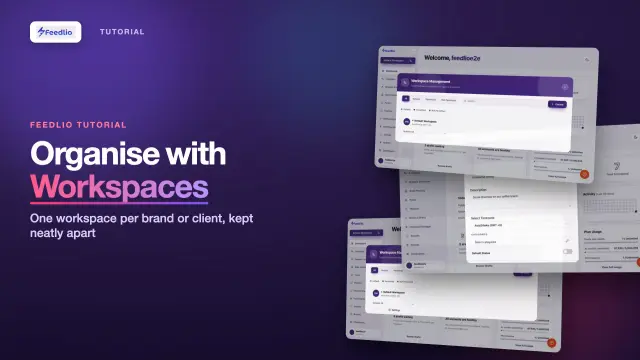
Keep each brand or client separate. Set up workspaces to learn how.
Click the moon icon at the top right of the dashboard to switch between light and dark mode.
Click Need Help? in the sidebar to open the support center. The round help button in the bottom-right corner is there on every page.
12Some pages, like Compose, have a Usage Guide button that walks you through the page step by step. Your profile and account menu live at the bottom of the sidebar.
Sign up free, log in, use the sidebar to reach every tool, switch workspaces at the top, and get help anytime.
No. Click Get Started Free on feedlio.io to create your account. A free plan is available.
Expand Feedlio AI in the sidebar. All three are listed underneath it.
Click the moon icon at the top right of the dashboard. Click it again to switch back to light mode.
Click Need Help? in the sidebar to open the support center, or click the round help button in the bottom-right corner of any page.
Your profile and account menu sit at the bottom of the sidebar. Plan, usage and MCP settings are under Settings.
0:00Welcome to Feedlio, the AI-powered social media scheduler. In this first video, we'll create your account and take a quick tour of the app, so you know exactly where everything lives.
0:12Head to feedlio dot io and click Get Started Free. Enter your name, email and a password, and your account is ready in seconds. No credit card needed.
0:23Already have an account? Click Log In at the top right. When you're signed in, this button takes you straight to your dashboard.
0:31The sidebar is your home base. From here you can create posts, manage your queue and calendar, store media, connect social accounts, and set up brands and catalogues.
0:42Further down, expand Feedlio AI for the Content Studio, Campaign Builder and Post Automation. Analytics holds your reports, and Settings is where you manage your profile, plan and integrations.
0:56At the top of the sidebar is the workspace switcher. Use it to jump between brands or clients. We'll cover it in detail in the next video.
1:05Prefer a darker look? Click the moon icon to switch between light and dark mode.
1:11Stuck? Click Need Help to open the support center, or use the help button in the bottom corner of any page.
1:18Pro tip: many pages, like Compose and Socials, have a Usage Guide button that walks you through the page step by step. Your profile and account menu live at the bottom of the sidebar.
1:31Quick recap. Sign up free, log in, then use the sidebar to reach every tool, switch workspaces at the top, and get help anytime.
1:40Welcome aboard! In the next video, we'll set up workspaces to keep your brands and clients organised.